

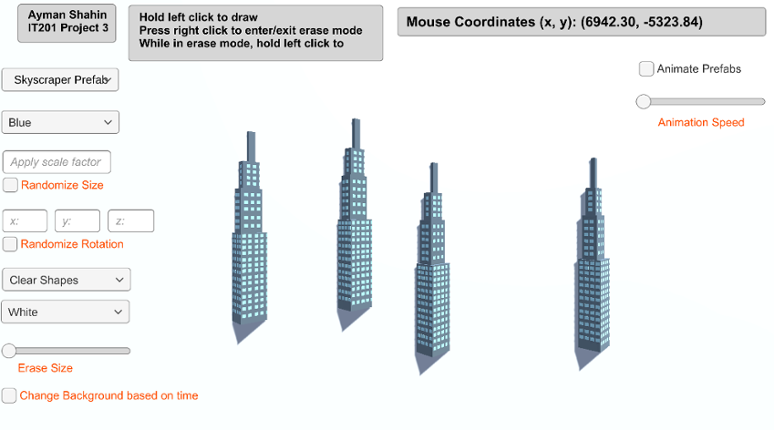
Games like AymanShahin_IT201-452_Project2
Looking for games like AymanShahin_IT201-452_Project2? Here are top action recommendations, selected from player-similarity data — start with AymanShahin_IT201_Project4, IT201-Project 2-Harshi-Chalamani or Rana Khan IT 201-001 Project 4.
- View Game
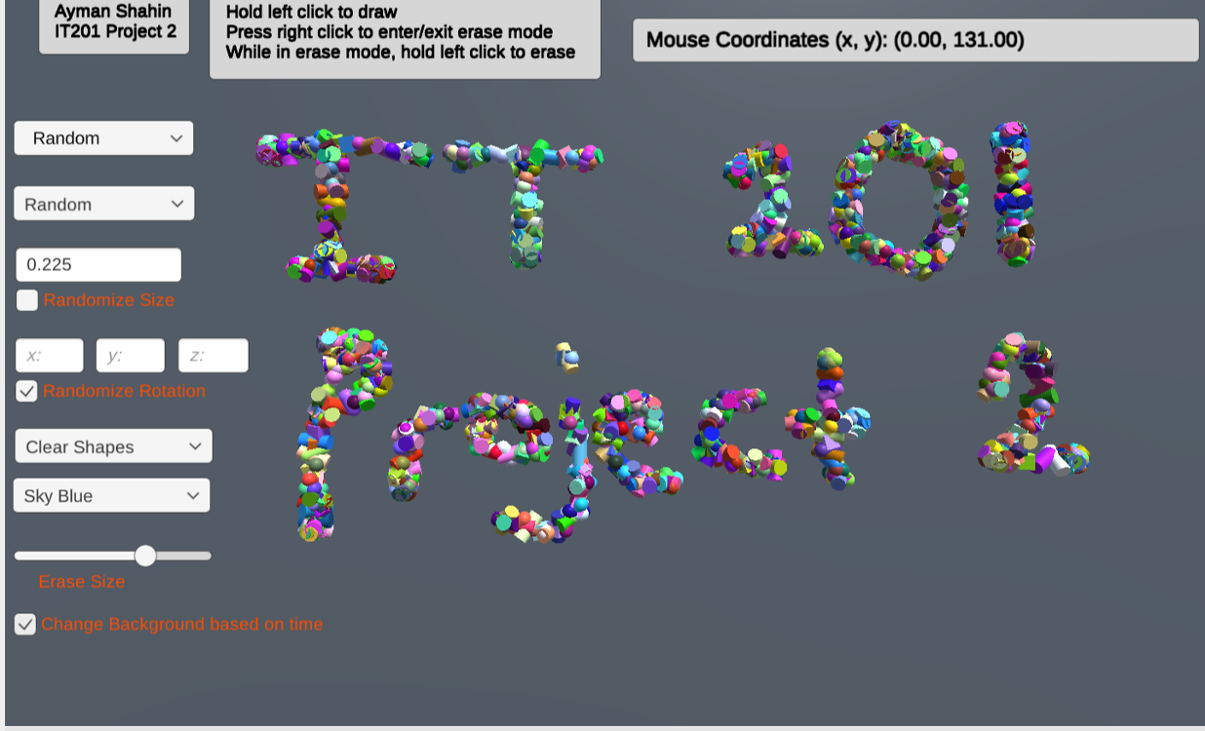
Feature 1: Display Mouse Position Input: Current mouse location Output: Text object in the top right of the screen that displays the user’s current mouse position. How is it different: This feature is mandatory, so it could not be made different from instructor’s. Feature 2: Create Game Object Input: Hold left click Output: The specified game object is spawned at the user’s current mouse posi… If you enjoyed this game, see our list of games similar to AymanShahin_IT201_Project4.
- View Game
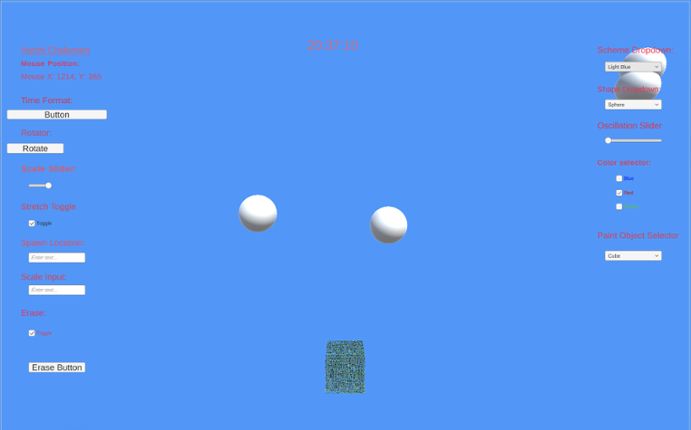
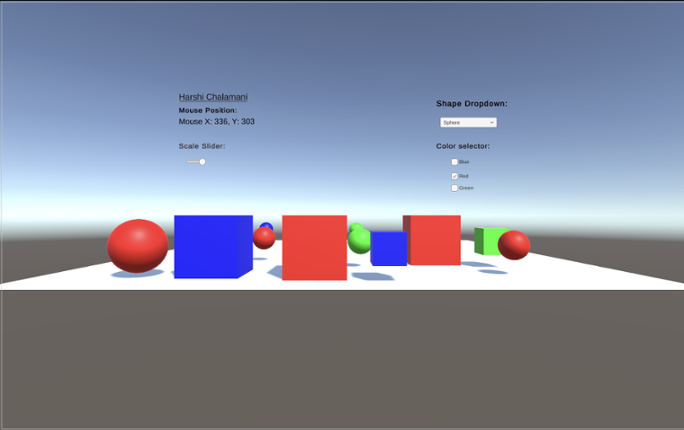
Project 2 Features:Feature 1: Rotator Button Input: Button click Process: Rotates selected object(s) tagged as "SpawnedObject" using a script like RandomRotator Output: Object spins or rotates visibly in the scene Difference: Adds motion through user input, which wasn’t present in the static placements of Project 1Feature 2: Time Format Button (12/24 Hour Toggle) Input: Button click Process:… If you enjoyed this game, see our list of games similar to IT201-Project 2-Harshi-Chalamani.
- View Game
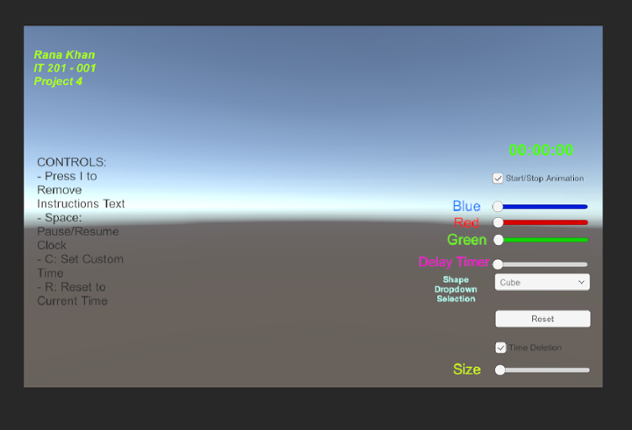
Fixes for this project: 1.) Made the Clock have user input using key input from keyboard. 2.) Organization was a little messy. So, I placed everything in sequence. 3.) Size of the clock was hard to read so I made it larger and changed to color for clarity. Old Features From Project 3: Feature 1: Animation Clip Swap What It Does: enables the user to alternate between an object's various ani… If you enjoyed this game, see our list of games similar to Rana Khan IT 201-001 Project 4.
- View Game
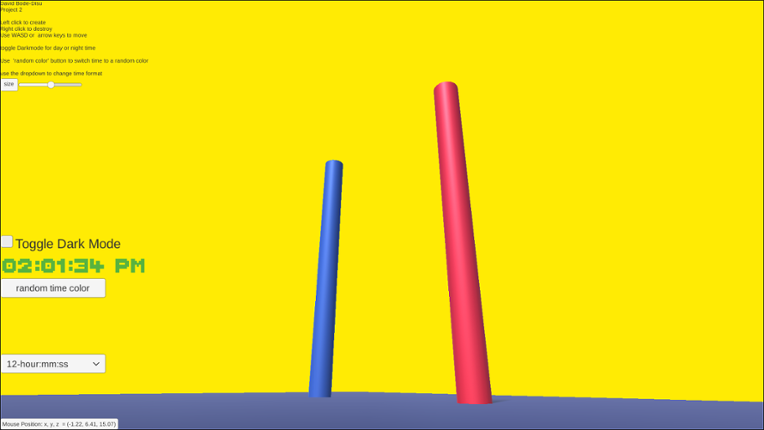
Feature 1: Display Mouse position Input: Mouse location Process: assign mouse X, Y, Z position to text object Output: Text is displayed in the lower left corner showing X, Y and Z of the mouse. Difference: This feature is different from class project because it shows the Z axis. Feature 2: Create & Destroy Objects Input: Mouse Left Click or Mouse Right Click Process: Raycast fro… If you enjoyed this game, see our list of games similar to IT201_Project2_David_BodeDisu.
- View Game
Feature 1: Display Mouse position Input: Mouse location Process: assign mouse X, Y, Z position to text object Output: Text is displayed in the lower left corner showing X, Y and Z of the mouse. Difference: This feature is different from class project because it shows the Z axis. Feature 2: Create & Destroy Objects Input: Mouse Left Click or Mouse Right Click Process: Raycast fro… If you enjoyed this game, see our list of games similar to IT201_Project3_David_BodeDisu.
- View Game
Project 1 Features Feature 1: Spawn Prefabs at Mouse Click Description: Clicking on the pond spawns the currently selected prefab at the mouse position. Input: Mouse Left Click Output: A koi fish, lotus flower, or lily pad prefab appears at the clicked location. Feature 2: Display Mouse Position Description: The mouse’s X and Y coordinates are continuously displayed on screen. Input: Mous… If you enjoyed this game, see our list of games similar to IT 201 Project 4 Final.
- View Game
Uploading my project here again changed some text alignment on its own, it was all fine when I checked in unity.a) Feature 1:- Display Mouse Position Input: Mouse Location Output:- Text is displayed in the top left corner showing the X and Y coordinates of the mouse. Description:- On the top left corner of the screen there is a display which shows the x and y coordinate position of the mous… If you enjoyed this game, see our list of games similar to IT201_Project04_AmreenKaur_Bhatia.
- View Game
Features: Feature 1: GameObject creation with left mouse click. Input: Left mouse button Output: Created game objects Description: If the left mouse button is pressed while the cursor is in the black play area, an object is placed at the cursor’s current location. If the button is held, objects are repeatedly placed with a 100ms delay between them. This lets the user “draw” with objects. Feature 2… If you enjoyed this game, see our list of games similar to IT201 Project 4.
- View Game
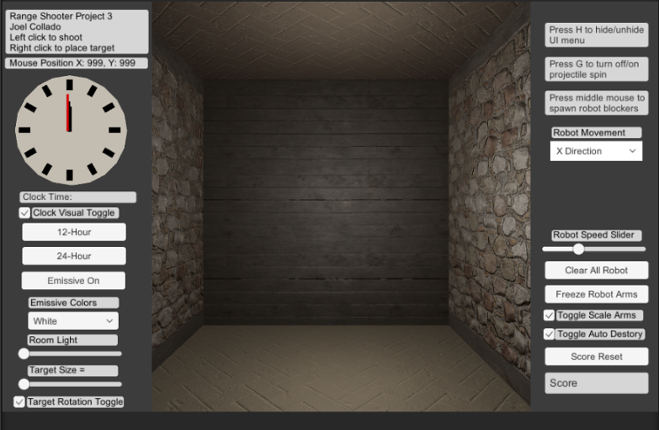
Brief Description: For my Unity Project 4 I combine all my projects into one here and apply updates based on the comments and notes that address any issues. Here are all the features in my range based shooter: Place your own targets using the right mouse button and the left mouse button to create projectiles that shoot towards a target. There is also a feature for a button that enables or disa… If you enjoyed this game, see our list of games similar to Joel Collado - IT201-450 - Project-4.
- 50%Game Brain Score50% User Score 1 reviews
Previous Features: Display Mouse Position: Input: Captures the mouse's X and Y position on the screen using Input.mousePosition. Process: Updates a UI Text element to reflect the current mouse position every frame. Output: The text updates in real-time, showing the user's mouse location on the lower-left corner of the screen. Create/Destroy 3D Objects: Input: Detects a left mouse cli… If you enjoyed this game, see our list of games similar to Rana Khan IT 201 Project 2.
View Game
- View Game
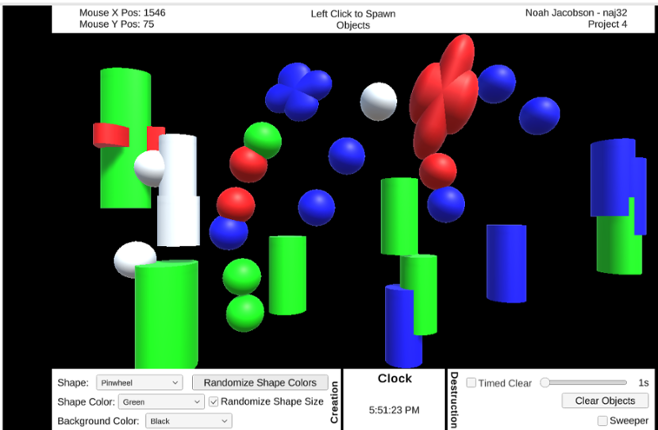
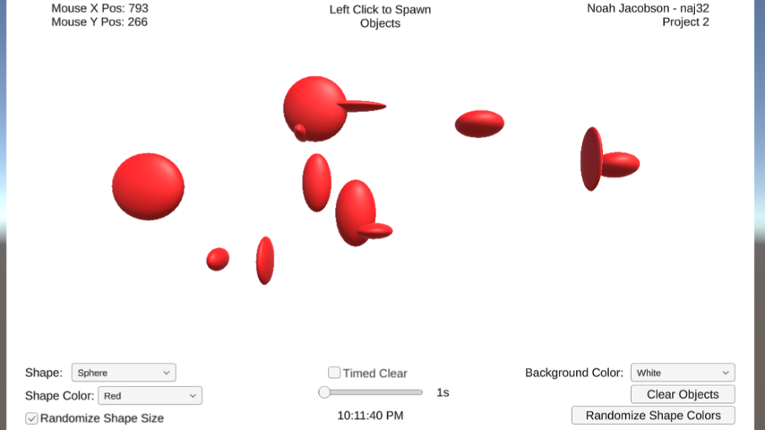
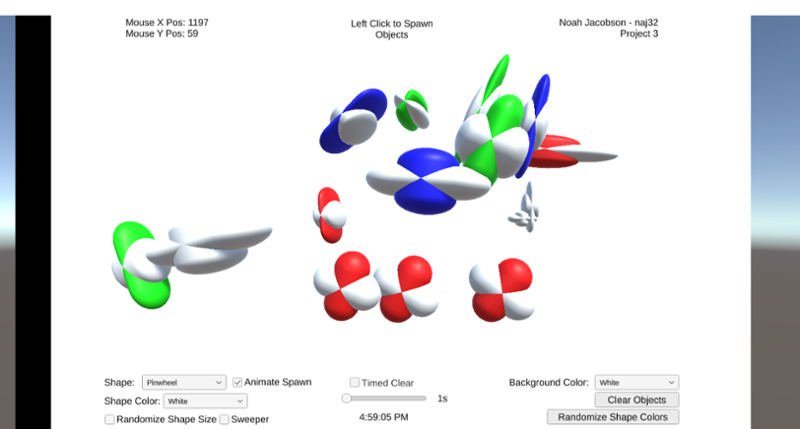
Description (new underlined): This app allows users to “draw” using various shapes with their mouse. The user can press or hold the left mouse button to spawn in different objects. If they drag the mouse while holding the button, objects will be created following the movement of their cursor. There are settings dropdowns that the user can use to change the shape or color of the created objects. Th… If you enjoyed this game, see our list of games similar to IT201 Project 2.
Description Draw on a 2D canvas with 3D shapes. Click or drag over the white canvas to begin spawning objects. These objects will spawn with random rotation, relative size, and color to give a more enjoyable experience. Configure several settings that allow you to change the appearance of you pen such as color, size, shape, and animation. Features Creating and Deleting Objects with the mouse:… If you enjoyed this game, see our list of games similar to IT Project 4.
View Game
Jungle Survival is a first person exploration and survival game set in a dynamic jungle environment. Players navigate the terrain, collect and manage items through an intuitive inventory system, and interact with the world using real-time UI controls. The game features core survival mechanics such as health, hunger, and stamina, where players must eat to survive, manage energy while sprinting, and… If you enjoyed this game, see our list of games similar to Project 4.
View Game
- View Game
Feature 1: Display Mouse position Input: Mouse location Process: Method is called Output: Text is displayed on the top left corner showing X and Y of the mouse. Feature 2: Create Objects Input: Mouse Click Process: Cue user to right click. Output: an object is drawn where the mouse is clicked.A string of objects are created if it's dragged. Feature 3: Change Color Input: D… If you enjoyed this game, see our list of games similar to Project 4.
15 View Game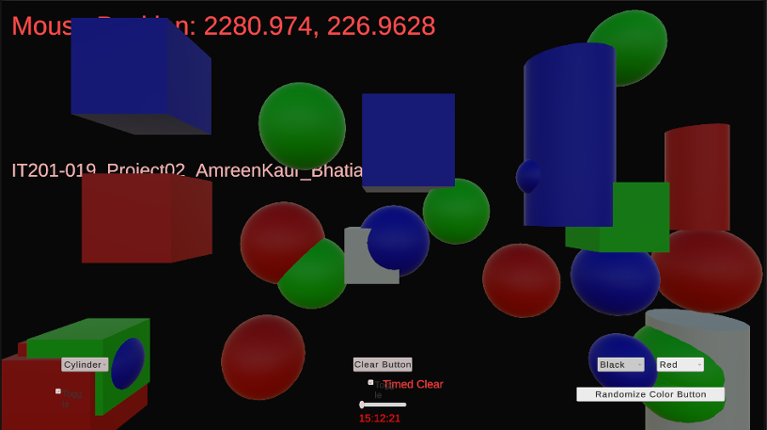 View Game
OPEN THE PROJECT IN FULL SCREEN Feature 6: Randomize color button Input: Pressing the randomize color button at the bottom right of the screen. Output: The color of currently drawn shapes randomize.Description: When the button is clicked, all drawn shapes will have their color randomly changed based on the list of available colors. Feature 7: Random shape size toggle Input: Random shape size… If you enjoyed this game, see our list of games similar to IT201-019_Project02_AmreenKaur_Bhatia.
- View Game
Project 1 Features Feature 1: Target Spawning on Click Description: The user clicks anywhere on the game screen, and a 3D target object is spawned at the clicked location. Input: Mouse click Output: A 3D target object appears on the screen. Feature 2: Display Mouse Coordinates Description: Real-time X and Y mouse coordinates are continuously displayed in a designated area of the screen. Input: … If you enjoyed this game, see our list of games similar to IT201 Justin McCoy Project4.
- View Game
This project is an amalgamation of the previous 3 sprints. It includes a main menu to switch between the 3 different projects.Below is the updated list of features:1. Feature 1: 3D Object Spawneri. Description: A GameObject is initialized to create a 3D primitive object in the shape of a capsule, depending on where the user right-clicks on the screen ii. Input: Th… If you enjoyed this game, see our list of games similar to IT201-006-Jasmin-Lim-Project4.
- View Game
Project 1 Features: Feature 1: Display Mouse movement Input: Mouse locationProcess: Continuously assign the mouse X and Y positions to a UI text objectOutput: The current mouse coordinates are shown on screen in real-timeDifference: This feature is different from the class project in that it provides dynamic, real-time mouse position updates rather than static object placement Feature 2: Spaw… If you enjoyed this game, see our list of games similar to Project 1-IT201-Harshi Chalamani.
- View Game
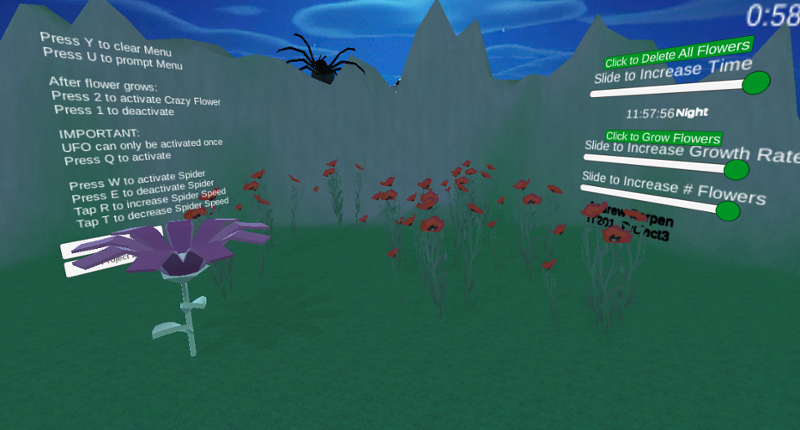
Users gets to experience the different stages of my application where in the first project you are able to spawn in certain flowers and furthermore from building on this project which lets users spawn in a range from 1 to 10 flowers and allow them to grow at a rate of their choice while they experience a day to evening to night cycle and control the speed of the time as well as destroy all flowers… If you enjoyed this game, see our list of games similar to IT201_Sprint04_Andrew_Carpen.
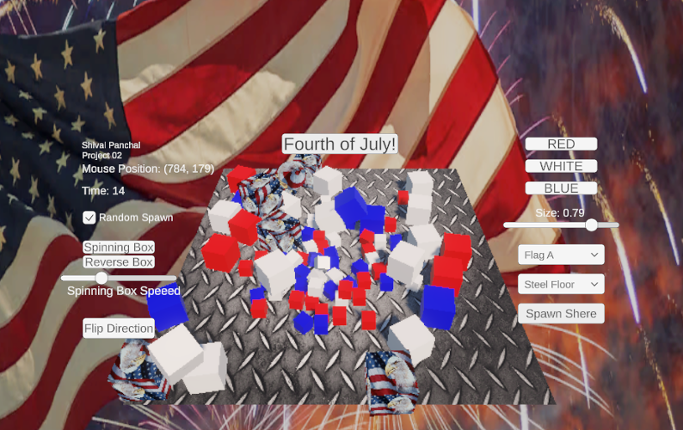
Description: This app is a basic Unity project that lets the user mess around with 3D boxes that spin. There are a few buttons and a slider that let you spawn different kinds of boxes, change how they spin, remove them, and even control how fast they rotate. The idea was just to get used to using UI elements and interacting with objects in Unity through C# scripts. Original Features: Featur… If you enjoyed this game, see our list of games similar to IT201_Sprint3_Shival_Panchal.
View Game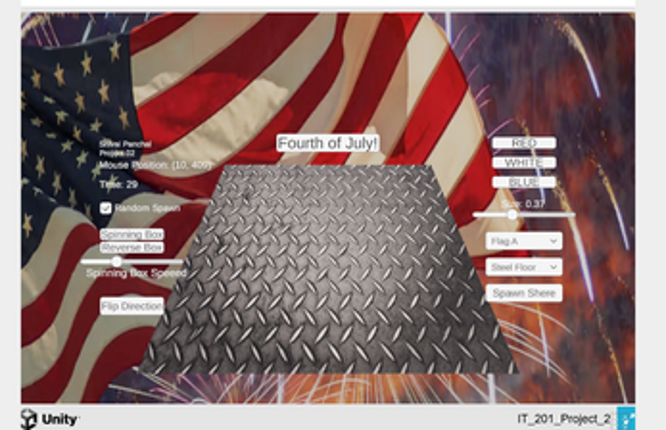
- View Game
Project 3 Features: Feature 1: Convert Spheres Button Input: Click the "Convert to Spheres" button Process: All existing objects that are not spheres are changed to spheres by modifying their mesh Output: All current objects become spheres Feature 2: Pause/Unpause Rotation Button Input: Click the "Pause Rotation" button Process: Loops through all rotating objects and disables their rotati… If you enjoyed this game, see our list of games similar to IT201-Project 3-Harshi-Chalamani.
- View Game
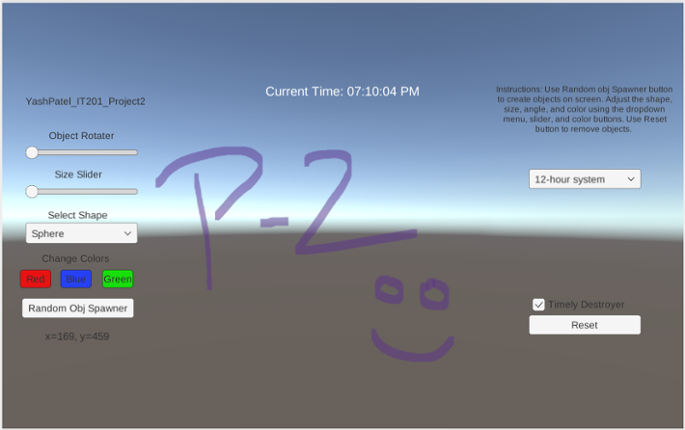
Use Random obj Spawner button to create objects on screen. Adjust the shape, size, angle, and color using the dropdown menu, slider, and color buttons. Use the Reset button to remove objects. Use the Timely Destroyer check box if you want the objects not to disappear after 3 seconds. You can also change the time system by using the dropdown menu to 12 hour system or 24 hour system Feature 1: T… If you enjoyed this game, see our list of games similar to IT201_Project2_YashPatel.
- View Game
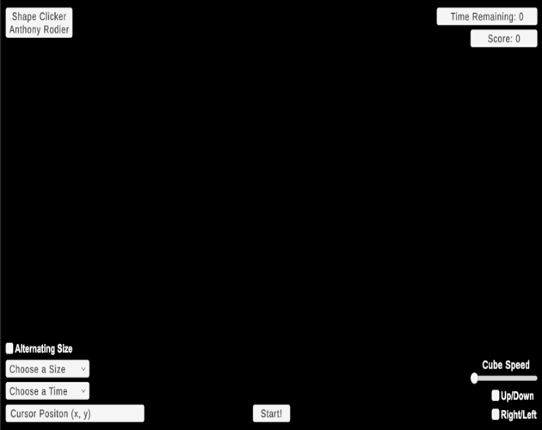
Brief Description: This iteration now includes setting time limits, adjusting target size, dynamic score tracking, and starting the game via a start button. It also retains animation-focused enhancements like choosing which animations to see via a dropdown, adjusting animation speed via slider, reversing animations, allowing for simultaneous animations, and toggling the visibility of UI elements f… If you enjoyed this game, see our list of games similar to IT201_Project04_Anthony_Rodier.
- View Game
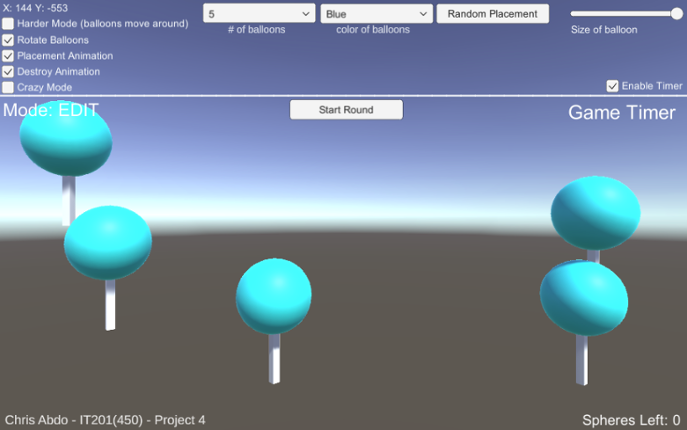
Whats New: I updated the UI and made it much more organized in the latest version of the game. Not much functionality has changed but it is more polished now.Itemized Features Feature 1: User can place spheres in the scene Input: Left mouse click / Mouse location Process: Detect mouse click. Check if the Y-coordinate of the click position is less than or equal to 4.1f. If the condit… If you enjoyed this game, see our list of games similar to Chris Abdo - IT201 - Project 4.
Feature 1: UI_Draw Title: UI_Draw: Interactive Drawing and Shape Creation Description: Allows users to create shapes with customized colors and materials and manage created objects within a Unity scene. Input: User interaction via mouse clicks Dropdown selections for color, shape, and material Slider adjustments for RGB values Button clicks for applying materials and clearing the scen… If you enjoyed this game, see our list of games similar to IT201_450_Sprint3 Anass Quaye.
View Game
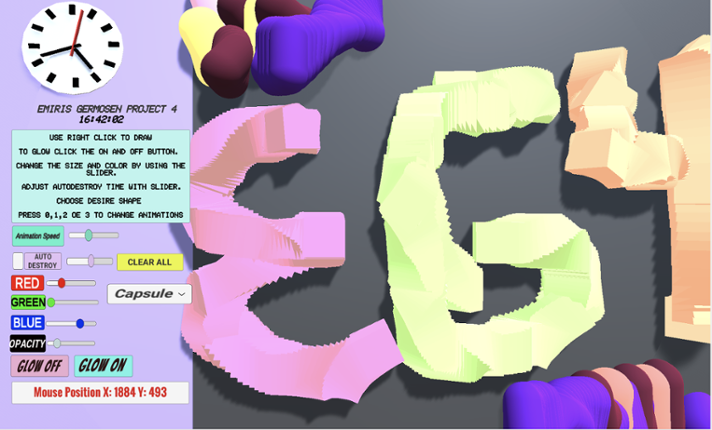
Game Description: This project allows the user to create a 3D object when right-clicking. When the user right clicks an object will get spawned. The user can change shapes between a Cube, Cylinder, Capsule, and an Alien (prefab). The user also can make the object transparency change, make the object bigger or smaller by changing its size, change colors via sliders and is also able to select how q… If you enjoyed this game, see our list of games similar to Project4_IT201_EmirisGermosen.
View Game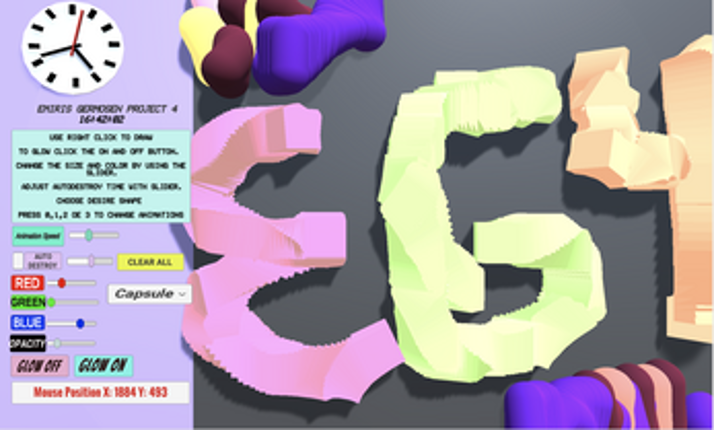
27 View Game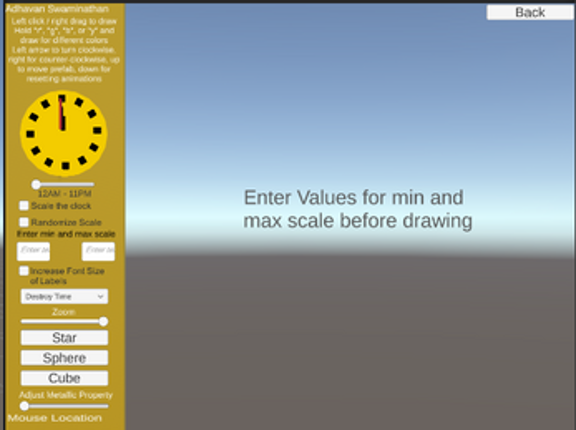
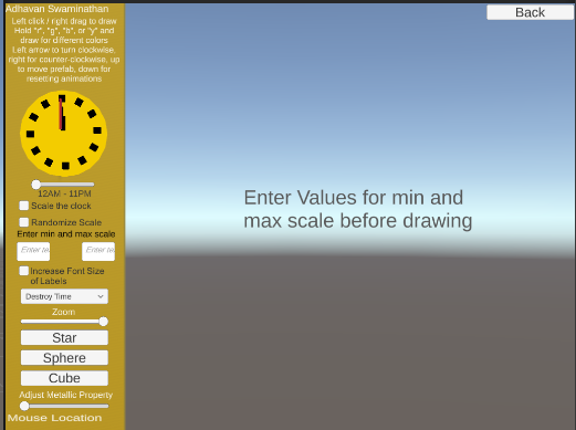
ALL Features: 12 features in total Feature 1: Display Mouse Location Description: Text label in the bottom left corner of the screen that shows the x and y location of the mouse Input: Mouse location Output: Text on the lower left corner of the screen shows the mouse’s X and Y location Feature 2: Create Object Description: Left-clicking or drag right-clicking the mouse will draw objects (usu… If you enjoyed this game, see our list of games similar to IT201_Sprint4_Adhavan_Swaminathan.
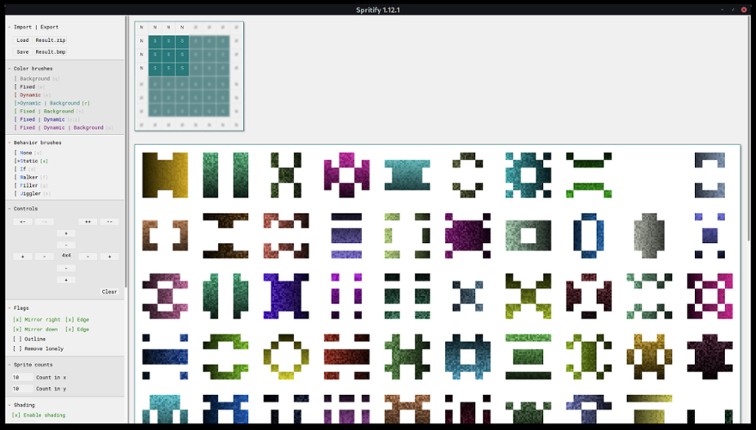
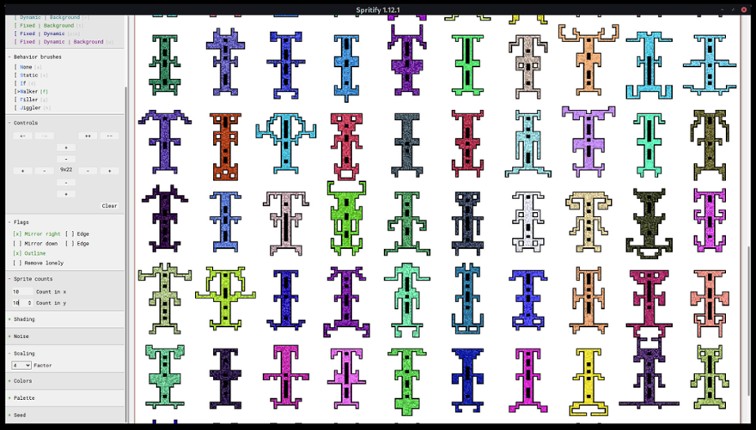
View GameSpritify is a tool for the fast and easy generation of 2D sprites. It transforms simple input images consisting of smart pixels into many distinct output images with varying properties, such as gradient, noise and color which can then be exported and used in your projects. Example Demo version There's a demo version of Spritify that you can get for free to evaluate it. In the demo some of the im… If you enjoyed this game, see our list of games similar to Spritify.
View Game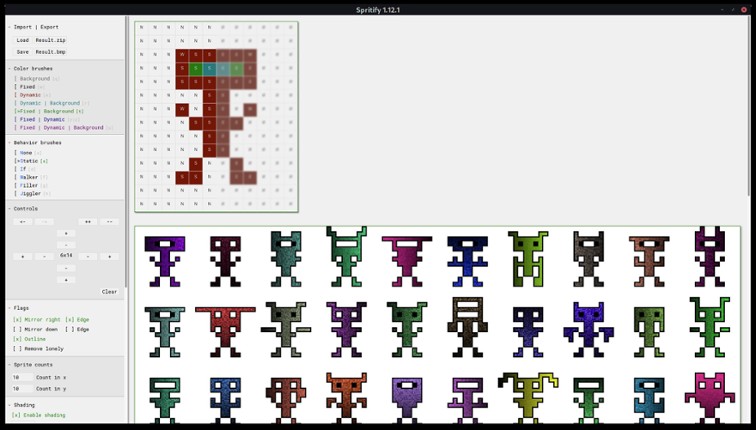
- 49%Game Brain Score49% User Score 3 reviews
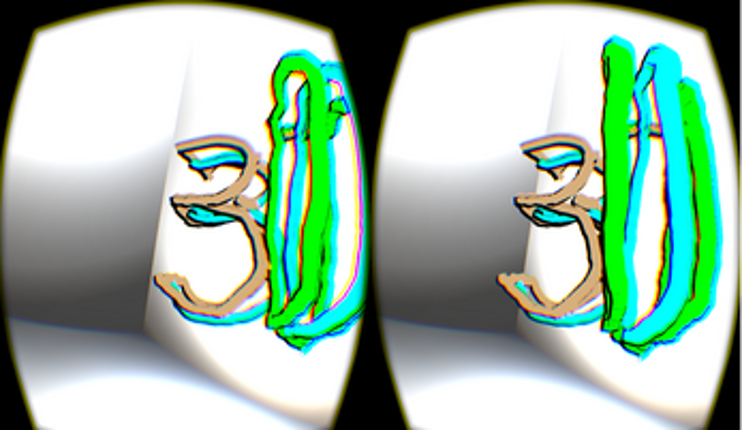
Graffiti 3D is a straightforward application with one purpose: enable you to doodle in 3d space with 3d meshes in colors/materials of your choice. An Oculus Rift and Leap Motion are recommended for the best experience.If you like Graffiti 3D, check out my other VR projects Superstruct (http://jscottk.itch.io/superstruct) and Triangulate (http://jscottk.itch.io/triangulate).A Hovercast (https://git… If you enjoyed this game, see our list of games similar to Graffiti 3D.
View Game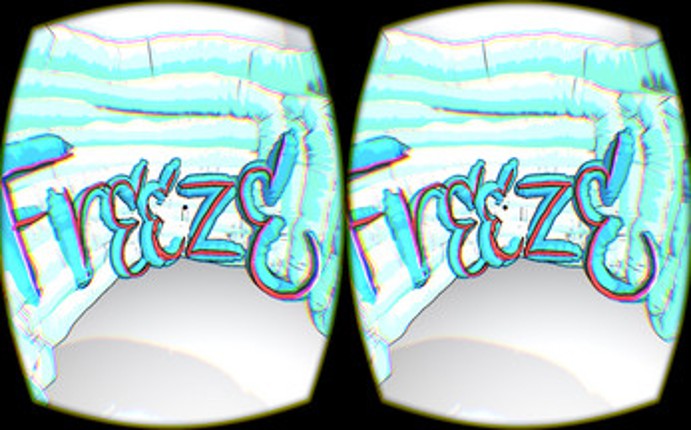

30 View Game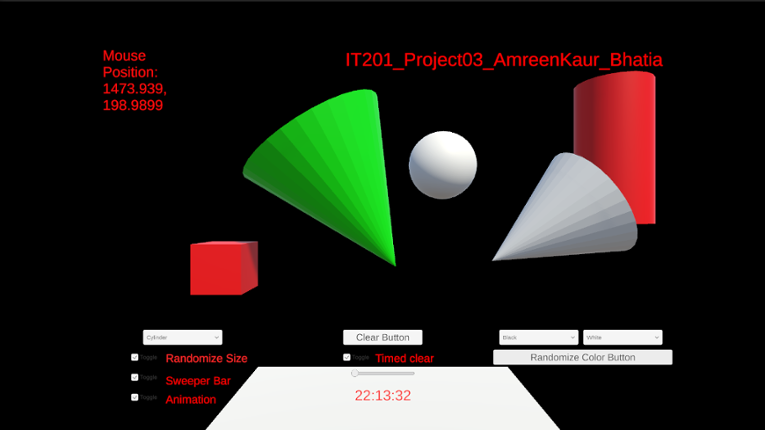 View Game
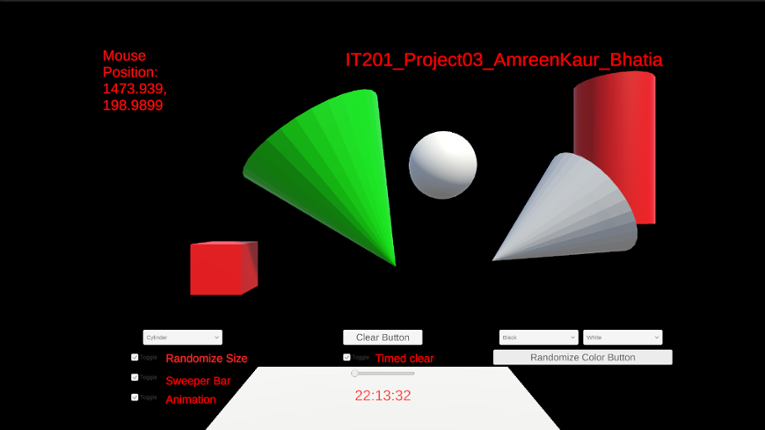
This allows users to draw various shapes using their mouse. The user can press or hold the right button to spawn in different objects. If they drag the mouse while holding the button, objects will be created following the movement of their cursor. There are settings dropdowns that the user can use to change the shape or color of the created objects. They can also reset the canvas using "Clear Butt… If you enjoyed this game, see our list of games similar to IT201_Project03_AmreenKaur_Bhatia.
- View Game
For this project, I created a game called Shape Clicker. The user initiates the gameplay by clicking the "Start" button at the bottom of the screen. The objective of Shape Clicker is to click as many cubes as possible before the allotted time runs out. The previous iteration of this game only offered the player a display for the cursor position, a dropdown to change the time limit, a dropdown to a… If you enjoyed this game, see our list of games similar to IT201_Sprint2_Anthony_Rodier.
32 View Game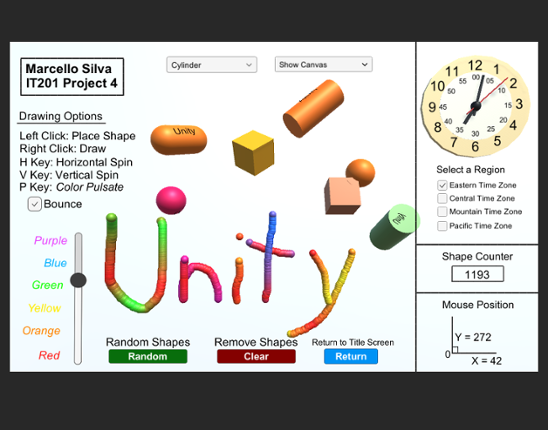 View Game50%Game Brain Score50% User Score 1 reviews
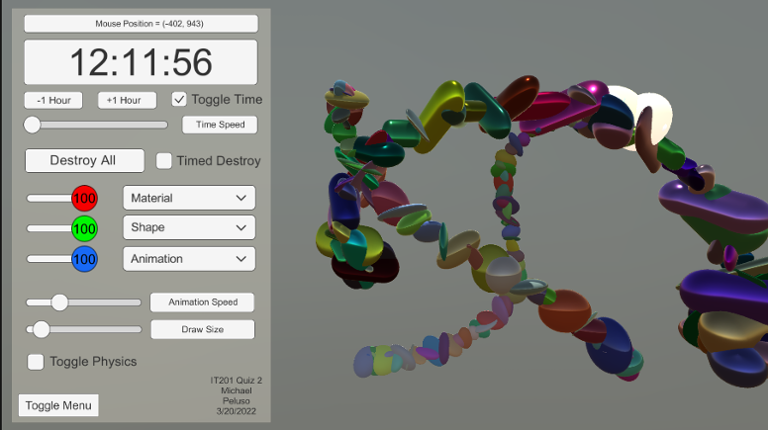
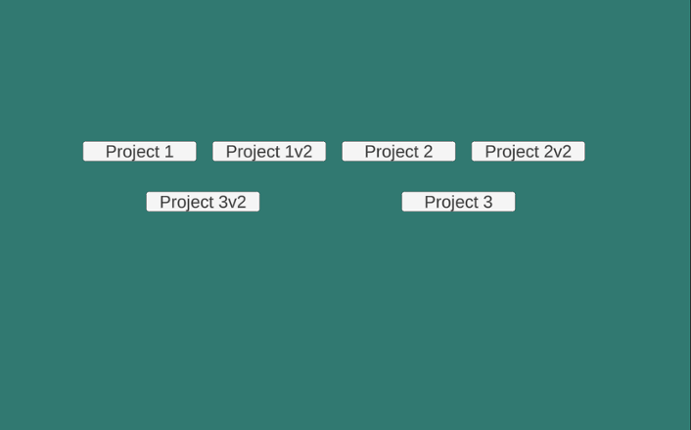
Labeled as Project 4, this is the finalized application of the ongoing drawing project I have developed for IT201 Information Design Techniques. You will open up the game to see a cover page with buttons that will direct you to every version of the game during it's building process, from the complete Project 4 game all the way to the first Project 1 game. Listed below are all the features include… If you enjoyed this game, see our list of games similar to Marcello Silva - IT201-450 - Project 4.
33 View Game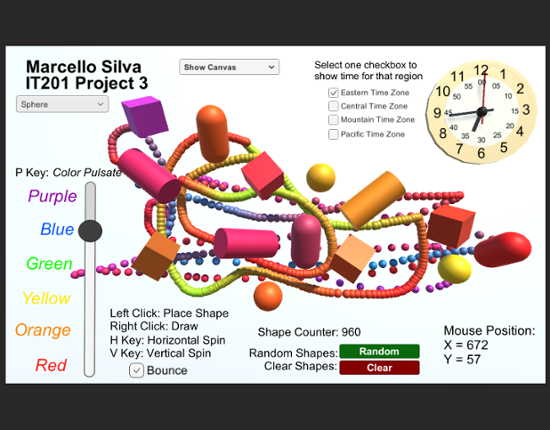 View Game
I enhanced my existing application from Project 2 with four new interactive animated features. The first new feature allows spawned/drawn objects to bounce when a toggle checkbox is checked. The second feature enables spawned/drawn objects to spin either horizontally or vertically, depending on which specific keys are pressed. The third feature involves a color pulsation animation activated by ano… If you enjoyed this game, see our list of games similar to Marcello Silva - IT201-450 - Project 3.
34 View Game
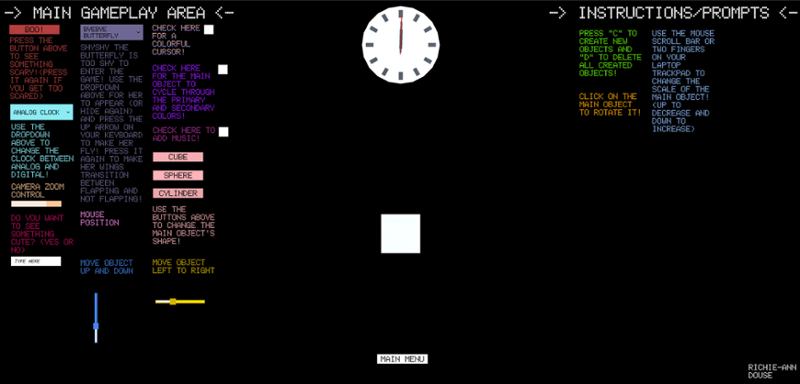
Feature 1: Display Mouse Position Input: Moving mouse Output: Display of where the mouse is on x and y axes. Located top right corner. Feature 2: Shape Change of Main Object Input: Button click Output: Object changes to shape labelled on button. Feature 3: Rotate Main Object Input: Mouse left click Output: Object rotates on x, y, and z axes. Feature 4: Create and Destroy… If you enjoyed this game, see our list of games similar to IT201-018-Sprint4-Richie-Ann-Douse.
View GameDescription (new underlined): This app allows users to “draw” using various shapes with their mouse. The user can press or hold the left mouse button to spawn in different objects. If they drag the mouse while holding the button, objects will be created following the movement of their cursor. There are settings dropdowns that the user can use to change the shape or color of the created objects. Th… If you enjoyed this game, see our list of games similar to IT201 Project 3.
View Game
36 View Game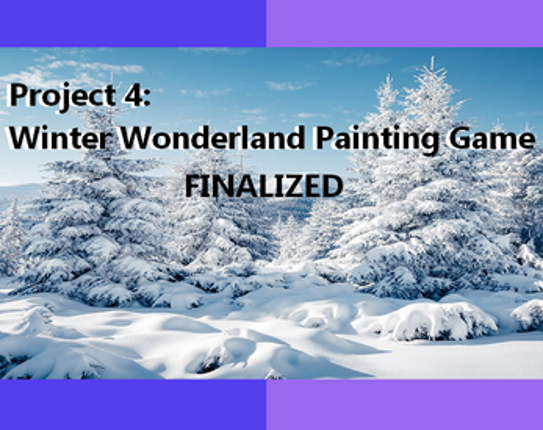
Brief Description: I created a winter wonderland painting program in which the user can choose between two 3D symbols (snowman and snowflake) and can swap between three backgrounds (frozen lake, winter terrain, and aurora borealis). The left mouse is used to click, the right mouse is used to drag. Mouse coordinates are displayed on the bottom left corner, and a clock is featured on the top left co… If you enjoyed this game, see our list of games similar to Kylie Monek - IT201-006 - Project 4.
View Game• Last Update v0.9.0 -The game now comes with 50+ build samples. you will be able to immediately load them from the loading menu. -While the samples will take a place in your loading menu I have added an option to hide the game samples to easily find your saves. -The gallery now are much faster it will load the images while browsing them and it will clear them from the game memory when you clo… If you enjoyed this game, see our list of games similar to We-Do-Cubes.
View Game
38 View Game View Game
Feature 1: Display Mouse position Input: Mouse movement Process: keep the coordinate text on the mouse position and offset it for aesthetic and real-time update the coordinate as the mouse moves or doesn't move. Output: Text is displayed in the lower left corner showing X and Y of the mouse. Feature 2: Create Trees and Rocks by Left Mouse Click Input: Mouse Left Click Process… If you enjoyed this game, see our list of games similar to Pabal's Games | IT201-021 Project 4.
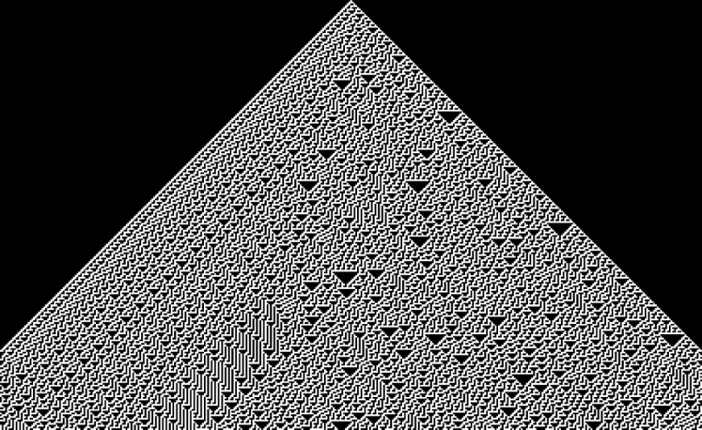
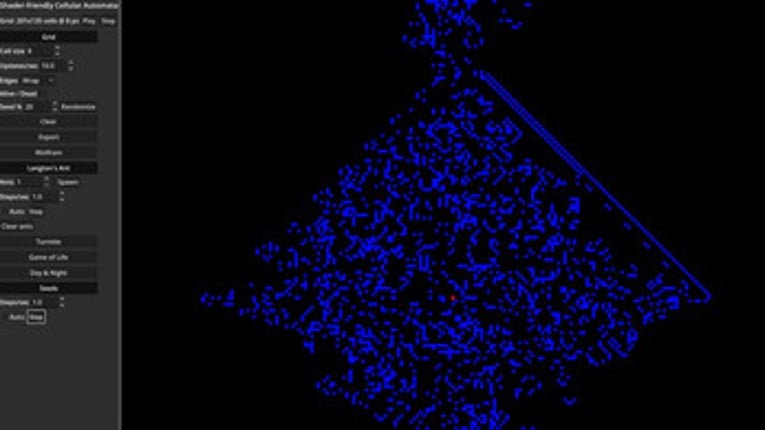
Cellular Automata Playground Ever wonder what happens when you run Langton's ant on top of the Game of Life? Well, now you can find out! Most of the automata share the same grid, and thus effect one another. The outlier is the falling sand, as it's doing it's own thing. Controls & Features GridCell size slider (1–128 px, default 8) keeps the grid aligned to the viewport area beside the sidebar;… If you enjoyed this game, see our list of games similar to Cellular Automata Playground.
View Game
- View Game
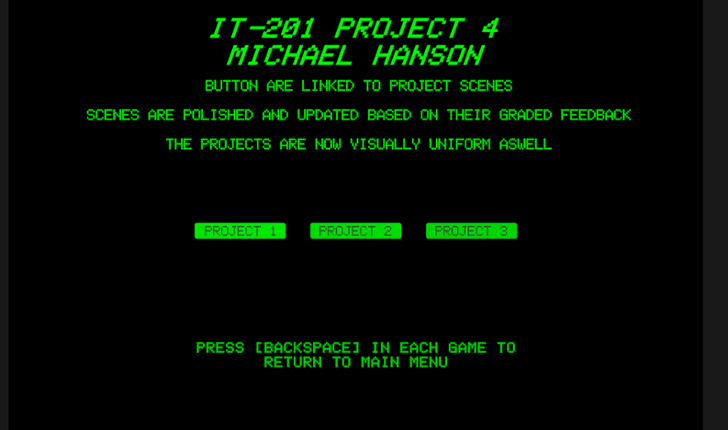
IT-201 PROJECT 4 MICHAEL HANSON POLISHED INTERACTIVE UNITY APPLICATIONS This project combines and polishes three previous Unity applications, addressing all instructor feedback with significant improvements and fixes. WHAT'S INCLUDED: ✓ Project 1: 3D Object Spawner (FIXED & ENHANCED) ✓ Project 2: Interactive Click-A-Cube (POLISHED) ✓ Project 3: Animation Demo (FIXED & ENHANCED) … If you enjoyed this game, see our list of games similar to IT 201 Project 4.
41 View Game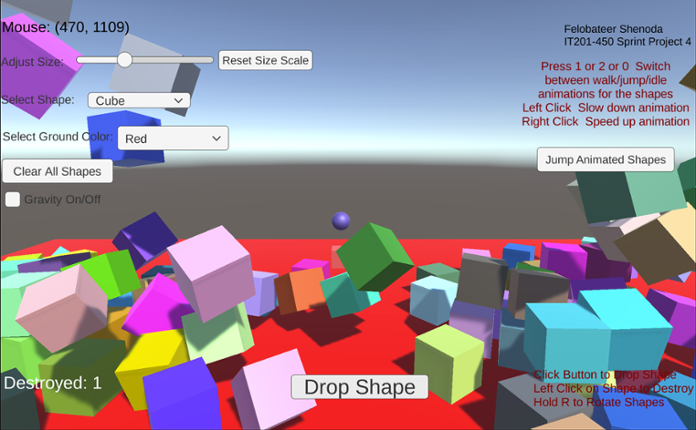 View Game
Project 1 Features: 1. Feature 1: Display Mouse Position Input: Mouse moving anywhere on the screen Process: The script reads mouse X and Y coordinates Output: Text updates live showing the mouse position on the screen 2. Feature 2: Spawn Shape on Button Click Input: User clicks the “Drop Shape” button Process: The script converts mouse screen position to wo… If you enjoyed this game, see our list of games similar to IT201_Project4_Felobateer_Shenoda.
- View Game
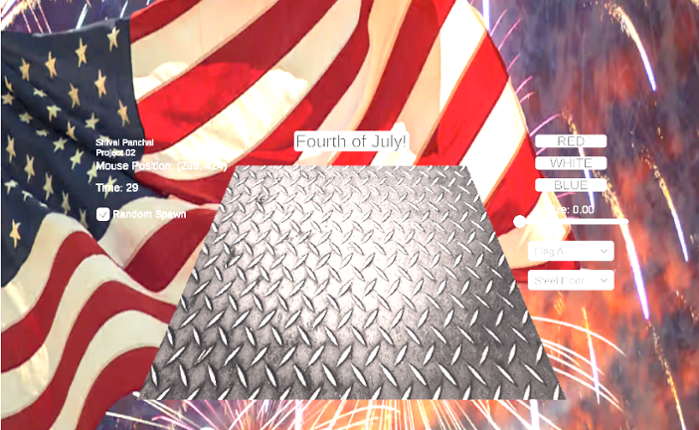
This Unity application is an interactive 3D scene where users can spawn cubes onto a ground surface using mouse clicks. Users can customize cube color, size, and ground texture through UI dropdowns and a slider. A special Fourth of July mode allows for festive spawning of red, white, and blue cubes in bursts. There's a toggle to switch between mouse-based and random-position cube spawning. The app… If you enjoyed this game, see our list of games similar to IT_201_Sprint2_Shival_Panchal.
- View Game
Game does not work properly in itch.io. It works properly in Unity Hub. Please download it and play it in Unity Hub.Feature #1: Spawn Object Button (UI Button) A UI button labeled “Spawn Object” calls the SpawnObject() method in the script, creating a new object with the selected shape, gravity setting, and shared material. This button has an assigned spawn point (center of the screen) and all o… If you enjoyed this game, see our list of games similar to IT201_Sprint02_Muazam_Hassan.
44 View Game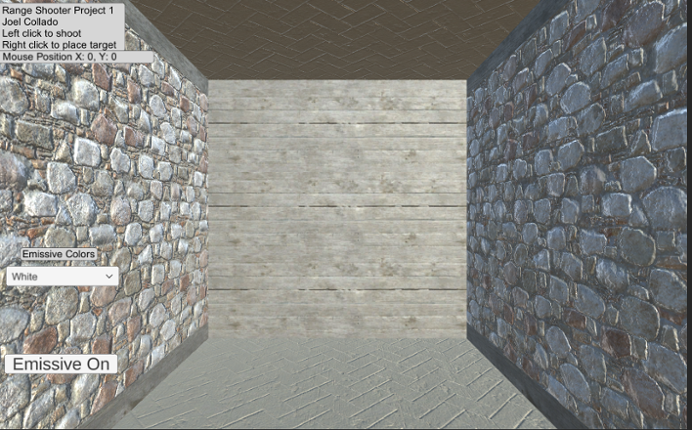 View Game
For my Unity Project I created a range based shooter where the goal is to place your own targets using the right mouse button and the left mouse button to create projectiles that shoot towards a target. There is also a feature for a button that enables or disables the emissive layer for both 3D objects and can change the color type with a dropdown menu. In addition, there is the ability to turn on… If you enjoyed this game, see our list of games similar to Joel Collado - IT201-450 - Project-1.
45 View GameView GameNew Added Features:Feature 1: Theme Selector (Environment Change) Input: Mouse Click on Dropdown Menu - “Theme Type” (Winter | Desert | Mountain) Process: Changes skybox, ambient lighting, sun color, and ground material based on selected theme. Output: The entire scene environment updates visually to match the chosen setting. Feature 2: Target Marking System Input: Mouse Left Click … If you enjoyed this game, see our list of games similar to IT201_018_Project2_Ashutosh_Chalise.
- View Game
My application demonstrates a basic simple calculator. The program accepts user input of two numbers and then allows users to select an action from a drop-down menu, with an output displayed on the answer box. If the user chooses to right-click, they can freely draw as much as they like. If the user wants to find the mouse position, they can glance up in the right-hand corner to see the X and Y co… If you enjoyed this game, see our list of games similar to Maryam Mughal-it201-Project4.
- View Game
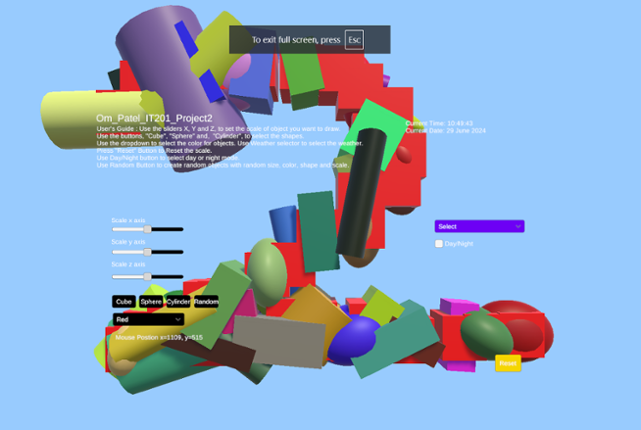
User's Guide : Use the sliders X, Y and Z, to set the scale of object you want to draw. Use the buttons, "Cube", "Sphere" and, "Cylinder", to select the shapes. Use the dropdown to select the color for objects. Use Weather selector to select the weather. Press "Reset" Button to Reset the scale. Use Day/Night button to select day or night mode. Use Random Button to create random objects w… If you enjoyed this game, see our list of games similar to IT_201_Project2_OmPatel.
- View Game
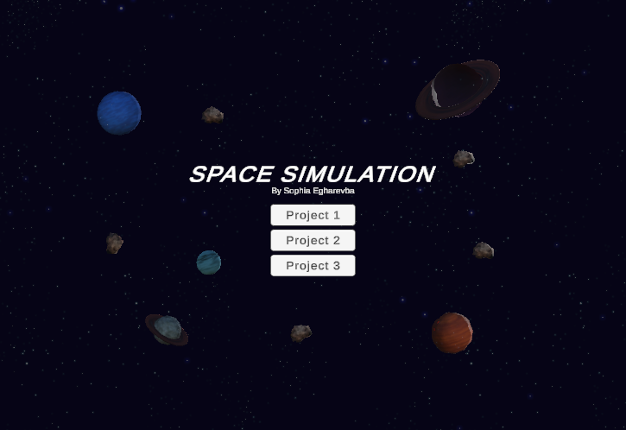
(Project 1)Features: Feature 1: Display Mouse Position Input: Mouse location Process: Capture the mouse's X and Y coordinates and display them on the screen. Output: Text showing the X and Y position of the mouse appears on the screen. Feature 2: Display Planet Mass When It's Clicked Input: Mouse click on a planet Process: Detect when a planet is clicked, and display the mass on the U… If you enjoyed this game, see our list of games similar to IT201_Sprint04_SophiaEgharevba.
- View Game
Feature 1: Display Mouse Position Input: Moving mouse Output: Display of where the mouse is on x and y axes. Located top right corner. Feature 2: Shape Change of Main Object Input: Button click Output: Object changes to shape labelled on button. Feature 3: Rotate Main Object Input: Mouse left click Output: Object rotates on x, y, and z axes. Feature 4: … If you enjoyed this game, see our list of games similar to IT201-018-Sprint4.
- View Game
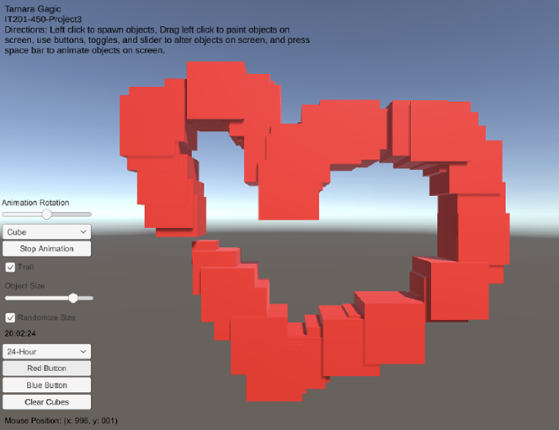
My project 3 builds upon my previous submissions and allows users to spawn and manipulate cubes. Upon launching the app, users are presented with a user-friendly interface that displays information such as the mouse's current position on the screen and a digital clock in the bottom right corner. Instructions for navigating and utilizing the app's features are placed in the top left corner to guide… If you enjoyed this game, see our list of games similar to Tamara Gagic-IT201-450-Project 3.


 View Game