

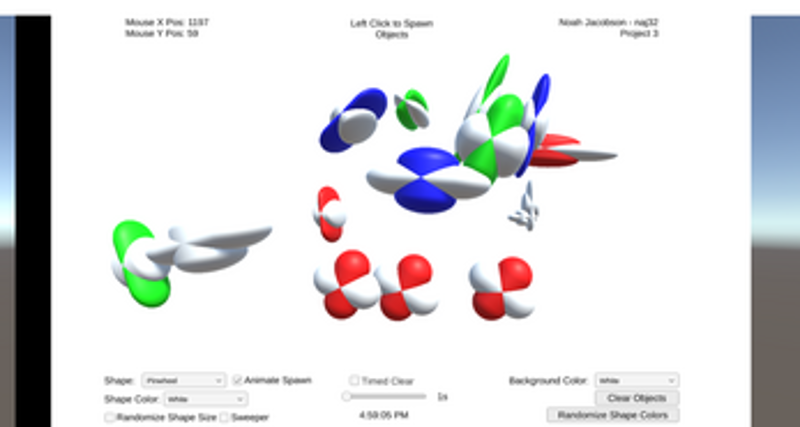
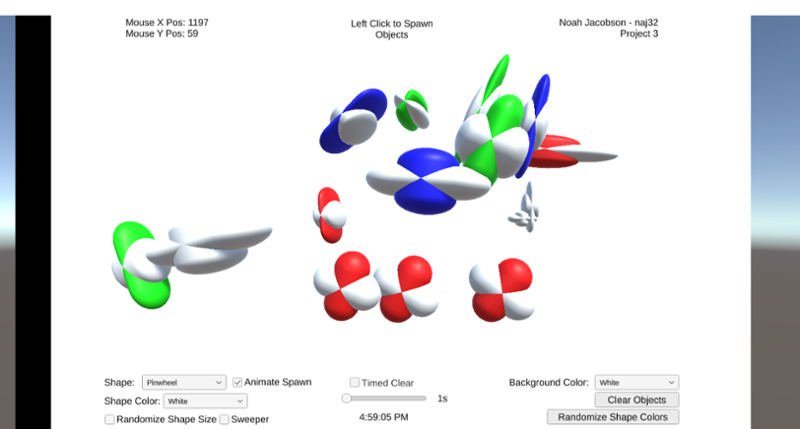
Looking for games like IT201_Project03_AmreenKaur_Bhatia? Here are top action recommendations, selected from player-similarity data — start with IT201 Project 3, IT201_Project04_AmreenKaur_Bhatia or IT201 Project 4.
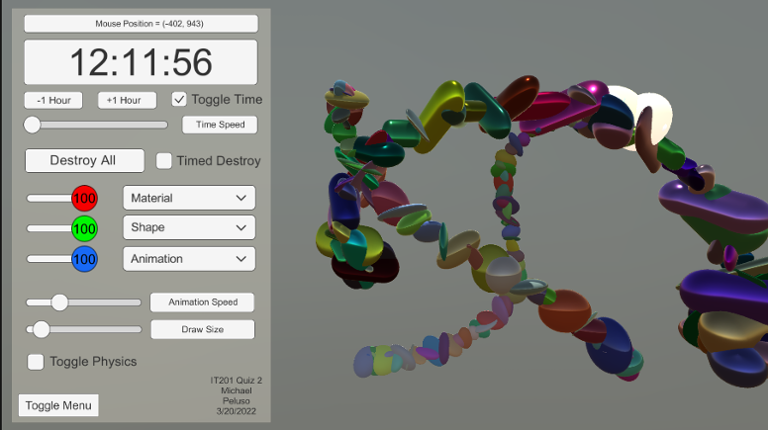
Description (new underlined): This app allows users to “draw” using various shapes with their mouse. The user can press or hold the left mouse button to spawn in different objects. If they drag the mouse while holding the button, objects will be created following the movement of their cursor. There are settings dropdowns that the user can use to change the shape or color of the created objects. Th… If you enjoyed this game, see our list of games similar to IT201 Project 3.
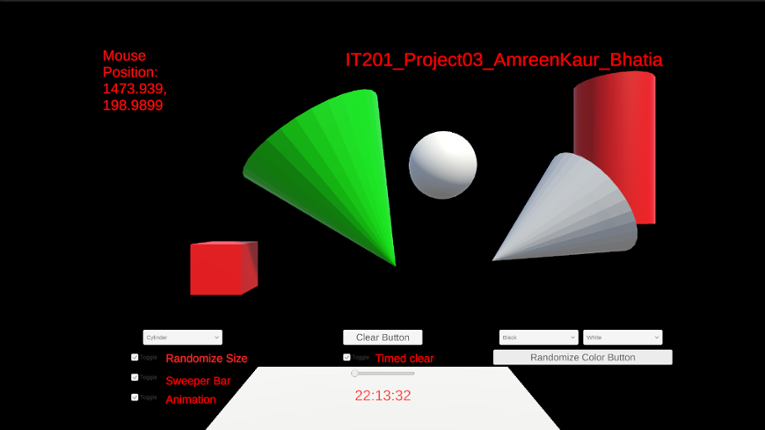
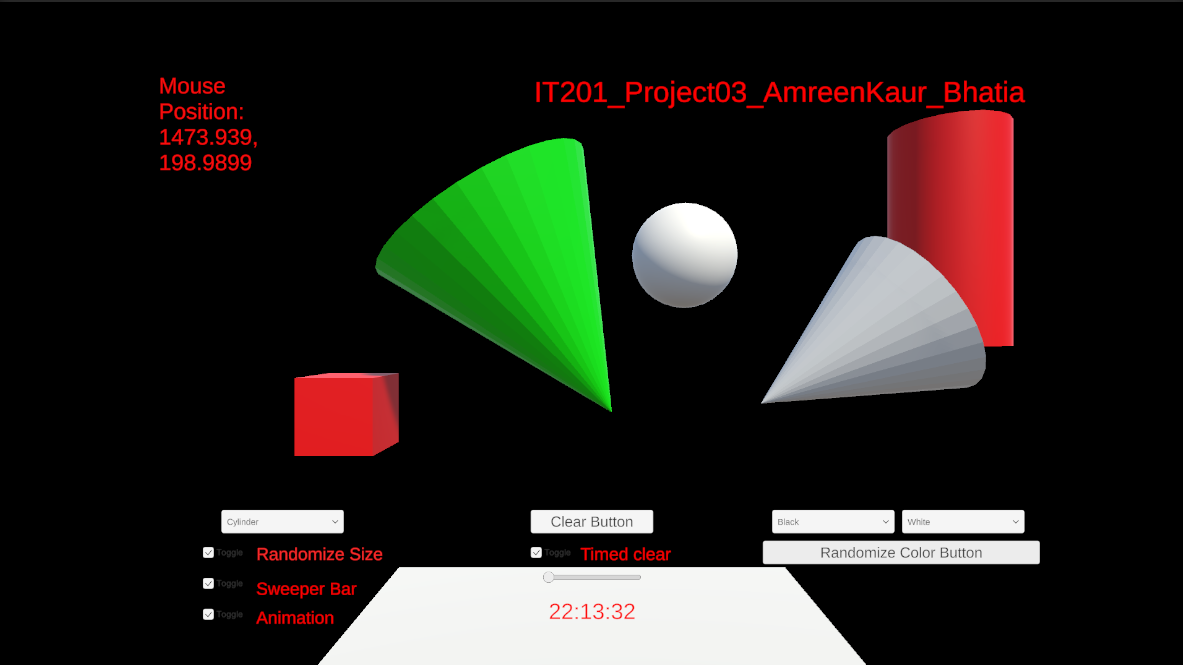
Uploading my project here again changed some text alignment on its own, it was all fine when I checked in unity.a) Feature 1:- Display Mouse Position Input: Mouse Location Output:- Text is displayed in the top left corner showing the X and Y coordinates of the mouse. Description:- On the top left corner of the screen there is a display which shows the x and y coordinate position of the mous… If you enjoyed this game, see our list of games similar to IT201_Project04_AmreenKaur_Bhatia.
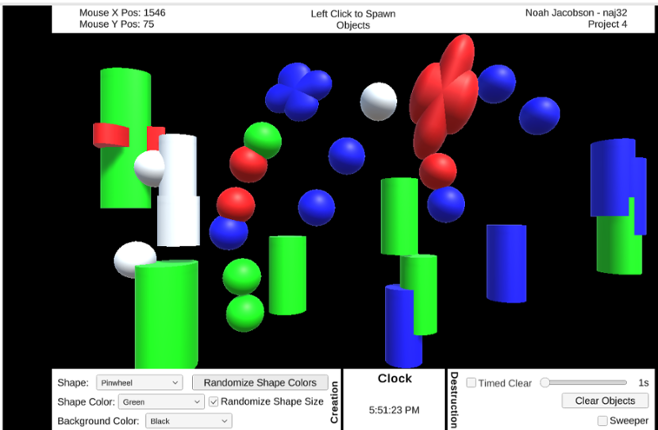
Features: Feature 1: GameObject creation with left mouse click. Input: Left mouse button Output: Created game objects Description: If the left mouse button is pressed while the cursor is in the black play area, an object is placed at the cursor’s current location. If the button is held, objects are repeatedly placed with a 100ms delay between them. This lets the user “draw” with objects. Feature 2… If you enjoyed this game, see our list of games similar to IT201 Project 4.
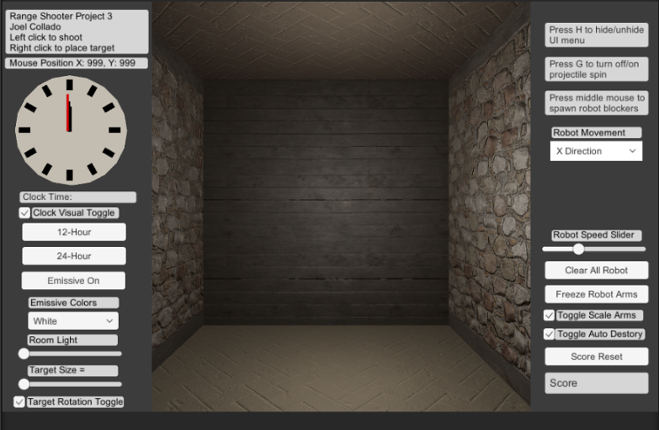
Brief Description: For my Unity Project 4 I combine all my projects into one here and apply updates based on the comments and notes that address any issues. Here are all the features in my range based shooter: Place your own targets using the right mouse button and the left mouse button to create projectiles that shoot towards a target. There is also a feature for a button that enables or disa… If you enjoyed this game, see our list of games similar to Joel Collado - IT201-450 - Project-4.
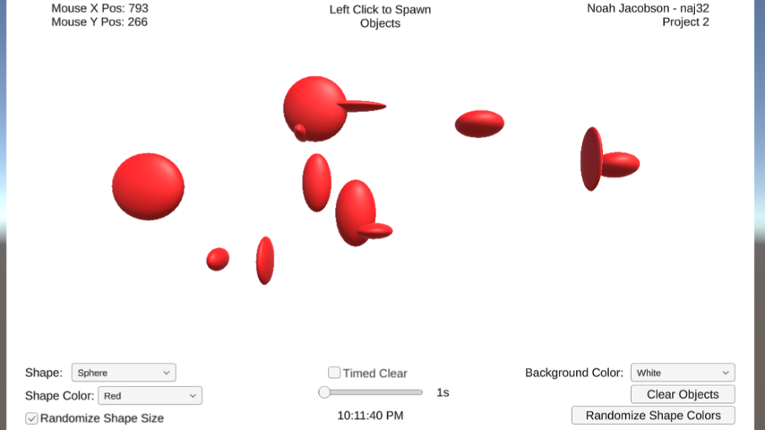
Description (new underlined): This app allows users to “draw” using various shapes with their mouse. The user can press or hold the left mouse button to spawn in different objects. If they drag the mouse while holding the button, objects will be created following the movement of their cursor. There are settings dropdowns that the user can use to change the shape or color of the created objects. Th… If you enjoyed this game, see our list of games similar to IT201 Project 2.
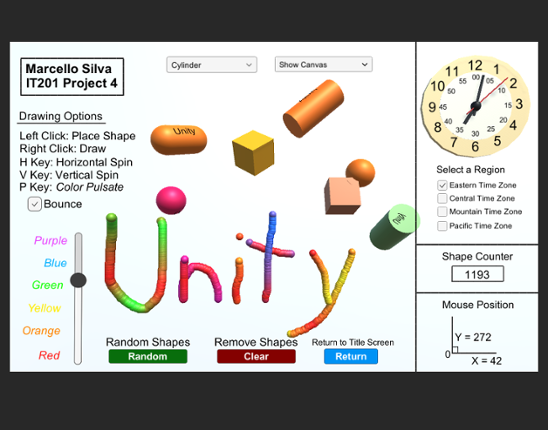
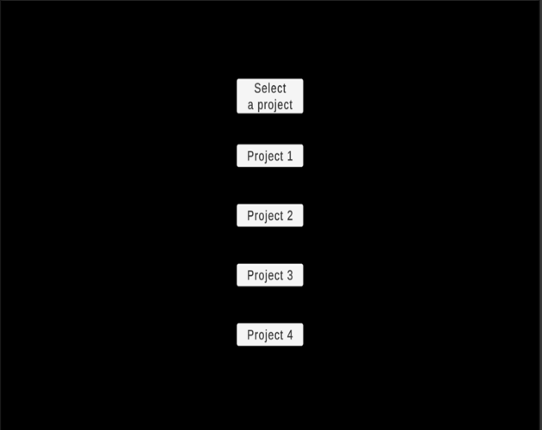
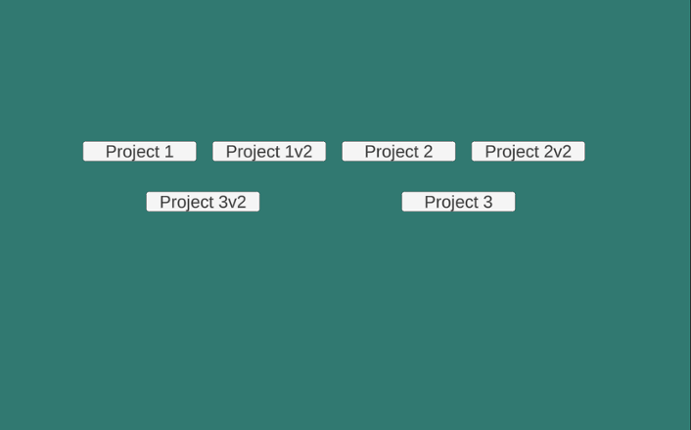
Labeled as Project 4, this is the finalized application of the ongoing drawing project I have developed for IT201 Information Design Techniques. You will open up the game to see a cover page with buttons that will direct you to every version of the game during it's building process, from the complete Project 4 game all the way to the first Project 1 game. Listed below are all the features include… If you enjoyed this game, see our list of games similar to Marcello Silva - IT201-450 - Project 4.
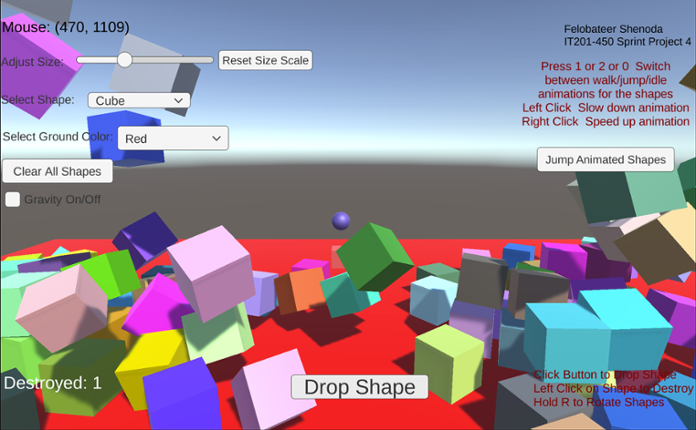
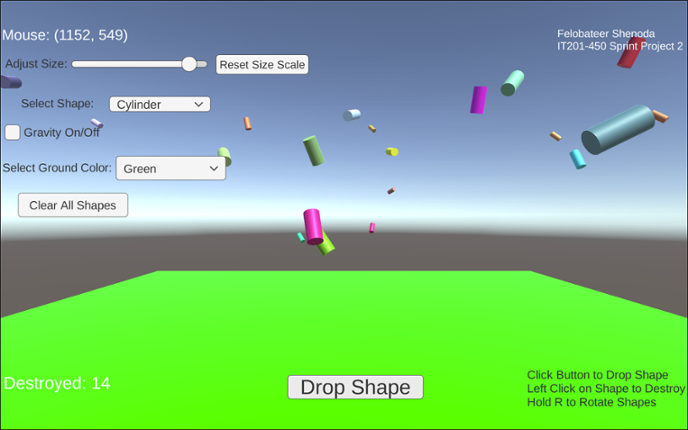
Project 1 Features: 1. Feature 1: Display Mouse Position Input: Mouse moving anywhere on the screen Process: The script reads mouse X and Y coordinates Output: Text updates live showing the mouse position on the screen 2. Feature 2: Spawn Shape on Button Click Input: User clicks the “Drop Shape” button Process: The script converts mouse screen position to wo… If you enjoyed this game, see our list of games similar to IT201_Project4_Felobateer_Shenoda.
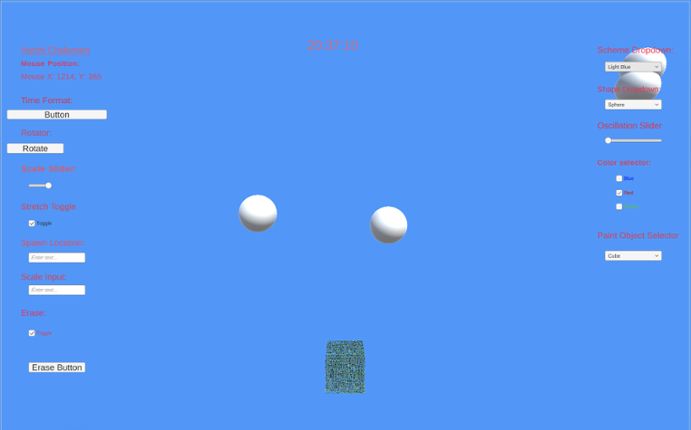
Project 2 Features:Feature 1: Rotator Button Input: Button click Process: Rotates selected object(s) tagged as "SpawnedObject" using a script like RandomRotator Output: Object spins or rotates visibly in the scene Difference: Adds motion through user input, which wasn’t present in the static placements of Project 1Feature 2: Time Format Button (12/24 Hour Toggle) Input: Button click Process:… If you enjoyed this game, see our list of games similar to IT201-Project 2-Harshi-Chalamani.
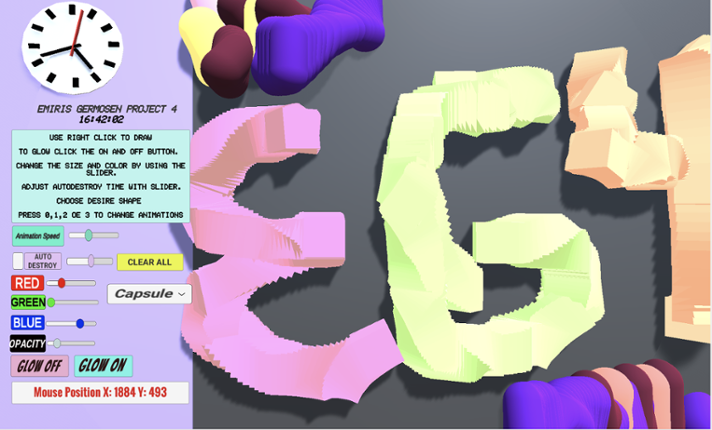
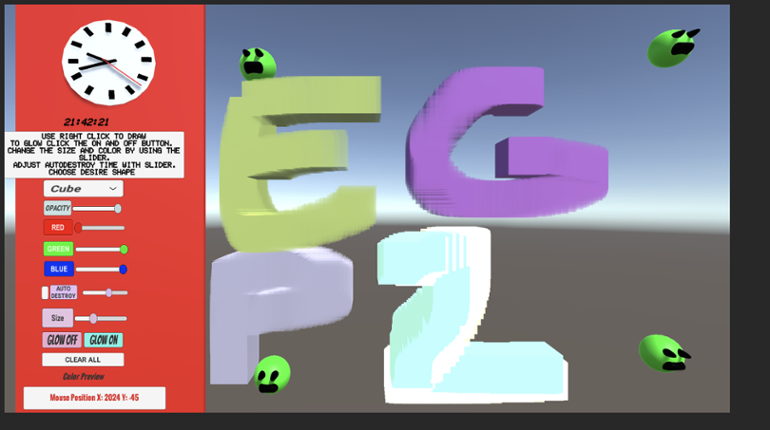
Game Description: This project allows the user to create a 3D object when right-clicking. When the user right clicks an object will get spawned. The user can change shapes between a Cube, Cylinder, Capsule, and an Alien (prefab). The user also can make the object transparency change, make the object bigger or smaller by changing its size, change colors via sliders and is also able to select how q… If you enjoyed this game, see our list of games similar to Project4_IT201_EmirisGermosen.
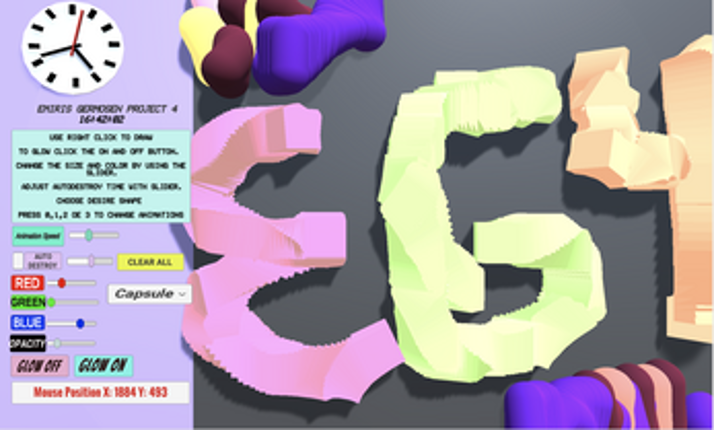
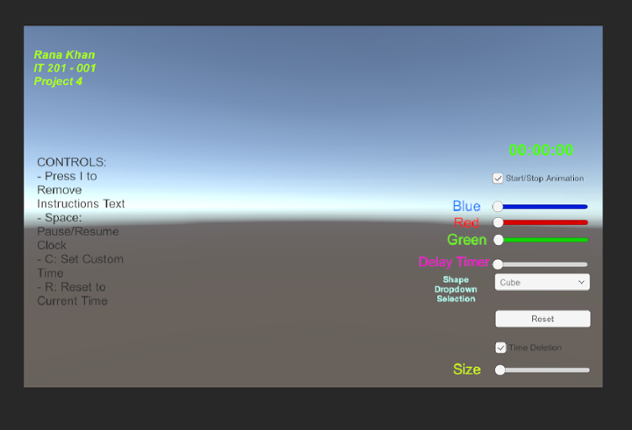
Fixes for this project: 1.) Made the Clock have user input using key input from keyboard. 2.) Organization was a little messy. So, I placed everything in sequence. 3.) Size of the clock was hard to read so I made it larger and changed to color for clarity. Old Features From Project 3: Feature 1: Animation Clip Swap What It Does: enables the user to alternate between an object's various ani… If you enjoyed this game, see our list of games similar to Rana Khan IT 201-001 Project 4.
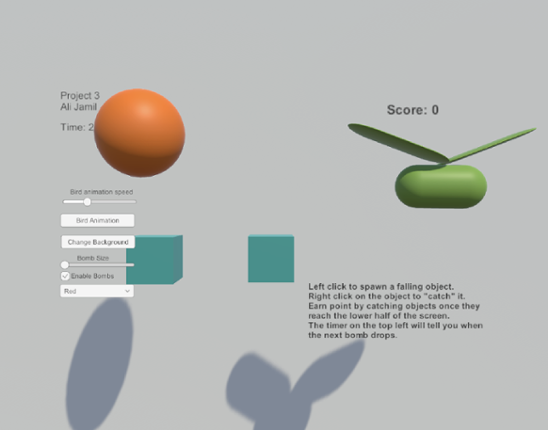
Feature 1: Displays Mouse Position Input: Mouse Location Output: There is text on the lower left side of the screen showing the X,Y position of the mouse. Process: Grab mouse coordinates, convert to string, set text object to string. Feature 2: Spawn falling objects Input: Mouse Left Click Output: A cube is spawned at the location of the left click which will then fall down the s… If you enjoyed this game, see our list of games similar to Ali Jamil-IT201-451-Project3.
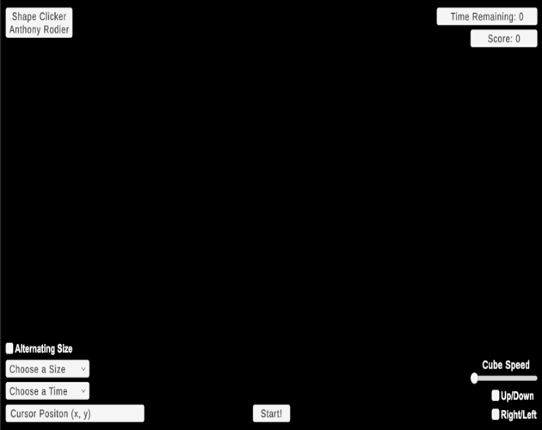
Brief Description: This iteration now includes setting time limits, adjusting target size, dynamic score tracking, and starting the game via a start button. It also retains animation-focused enhancements like choosing which animations to see via a dropdown, adjusting animation speed via slider, reversing animations, allowing for simultaneous animations, and toggling the visibility of UI elements f… If you enjoyed this game, see our list of games similar to IT201_Project04_Anthony_Rodier.
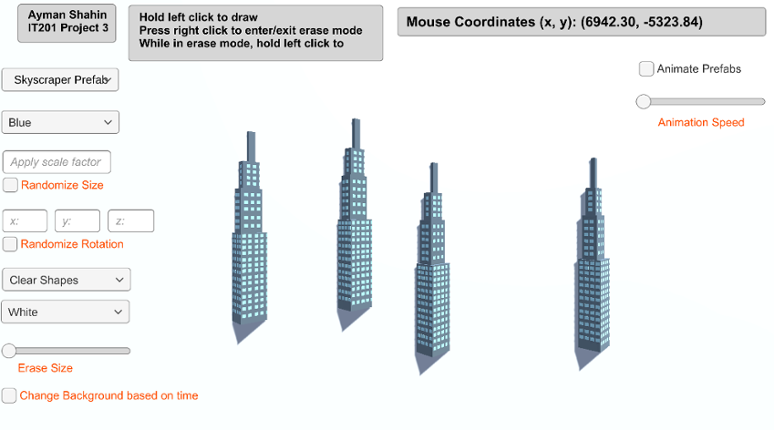
Feature 1: Display Mouse Position Input: Current mouse location Output: Text object in the top right of the screen that displays the user’s current mouse position. How is it different: This feature is mandatory, so it could not be made different from instructor’s. Feature 2: Create Game Object Input: Hold left click Output: The specified game object is spawned at the user’s current mouse posi… If you enjoyed this game, see our list of games similar to AymanShahin_IT201_Project4.
Description Draw on a 2D canvas with 3D shapes. Click or drag over the white canvas to begin spawning objects. These objects will spawn with random rotation, relative size, and color to give a more enjoyable experience. Configure several settings that allow you to change the appearance of you pen such as color, size, shape, and animation. Features Creating and Deleting Objects with the mouse:… If you enjoyed this game, see our list of games similar to IT Project 4.
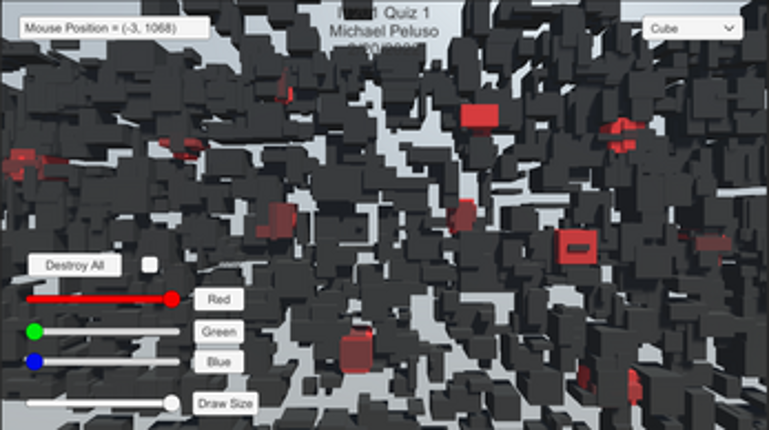
Feature 1: Display Mouse position Input: Mouse movement Process: keep the coordinate text on the mouse position and offset it for aesthetic and real-time update the coordinate as the mouse moves or doesn't move. Output: Text is displayed in the lower left corner showing X and Y of the mouse. Feature 2: Create Trees and Rocks by Left Mouse Click Input: Mouse Left Click Process… If you enjoyed this game, see our list of games similar to Pabal's Games | IT201-021 Project 4.
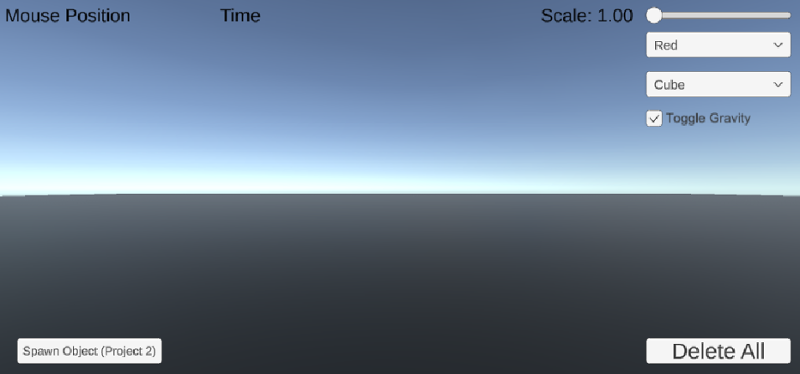
New Features: Feature 1 – Gravity Toggle Input: Checkbox (Toggle UI element) Process: When the toggle is checked or unchecked, the script loops through all spawned shapes in the scene and sets their Rigidbody.useGravity to true or false. Output: Shapes immediately start falling with gravity or float in place, depending on toggle. Feature 2 – Clear All Shapes Button Input: Button clic… If you enjoyed this game, see our list of games similar to IT201_Sprint2_Felobateer_Shenoda.
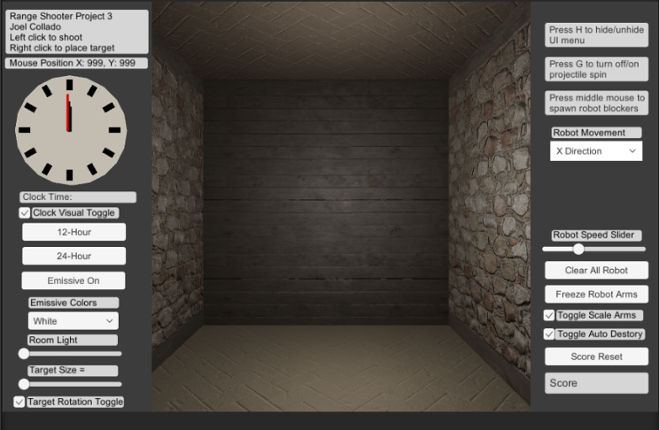
Brief Description: For my Unity Project 3 I continue my range based shooter where there is now the ability to hide the UI menu using H on the Keyboard. Also there is new mouse button input the middle mouse now spawns new animated robot prefabs that acts as guard for the targets. You can change their direction or stop their movement with the Dropdown menu. In addition, you can control their animati… If you enjoyed this game, see our list of games similar to Joel Collado - IT201-450 - Project-3.
Feature 1: Display Mouse position Input: Mouse location Process: Method is called Output: Text is displayed on the top left corner showing X and Y of the mouse. Feature 2: Create Objects Input: Mouse Click Process: Cue user to right click. Output: an object is drawn where the mouse is clicked.A string of objects are created if it's dragged. Feature 3: Change Color Input: D… If you enjoyed this game, see our list of games similar to Project 4.
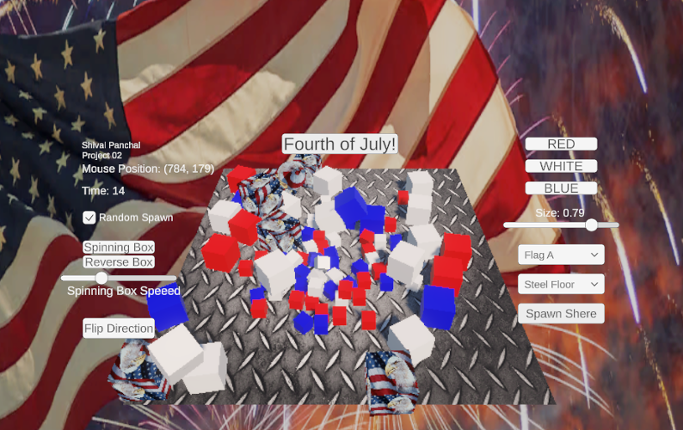
Description: This app is a basic Unity project that lets the user mess around with 3D boxes that spin. There are a few buttons and a slider that let you spawn different kinds of boxes, change how they spin, remove them, and even control how fast they rotate. The idea was just to get used to using UI elements and interacting with objects in Unity through C# scripts. Original Features: Featur… If you enjoyed this game, see our list of games similar to IT201_Sprint3_Shival_Panchal.
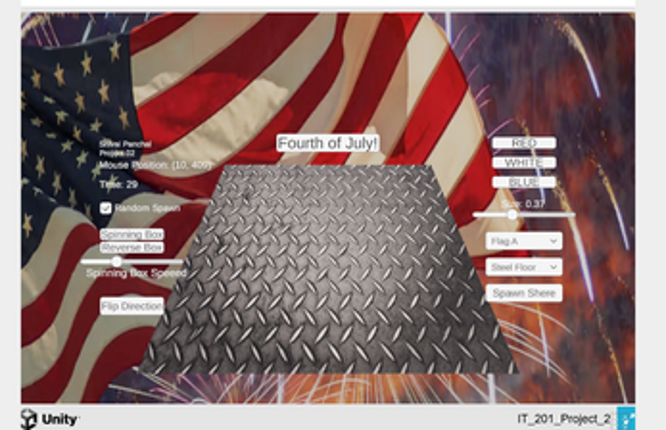
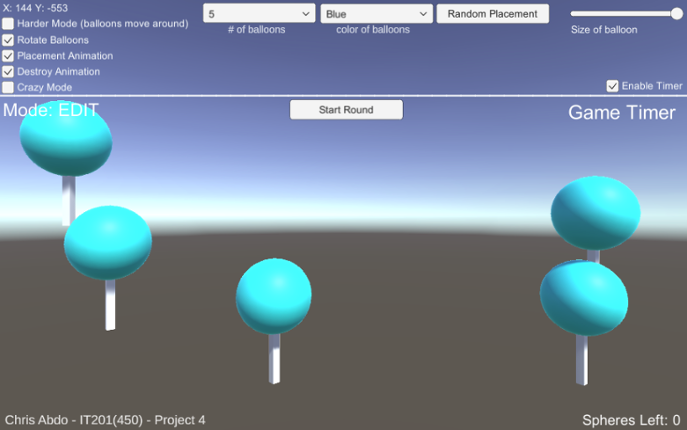
Whats New: I updated the UI and made it much more organized in the latest version of the game. Not much functionality has changed but it is more polished now.Itemized Features Feature 1: User can place spheres in the scene Input: Left mouse click / Mouse location Process: Detect mouse click. Check if the Y-coordinate of the click position is less than or equal to 4.1f. If the condit… If you enjoyed this game, see our list of games similar to Chris Abdo - IT201 - Project 4.
Project 1 Features Feature 1: Target Spawning on Click Description: The user clicks anywhere on the game screen, and a 3D target object is spawned at the clicked location. Input: Mouse click Output: A 3D target object appears on the screen. Feature 2: Display Mouse Coordinates Description: Real-time X and Y mouse coordinates are continuously displayed in a designated area of the screen. Input: … If you enjoyed this game, see our list of games similar to IT201 Justin McCoy Project4.
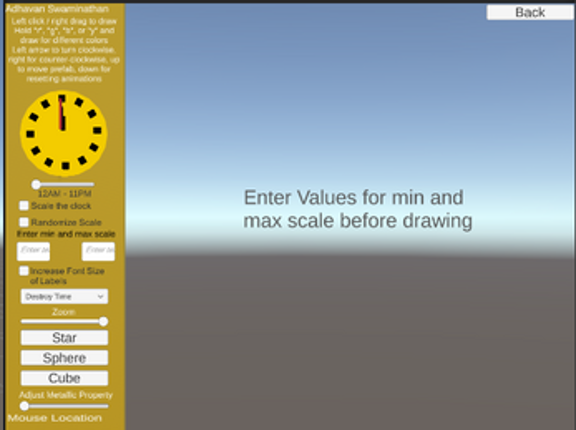
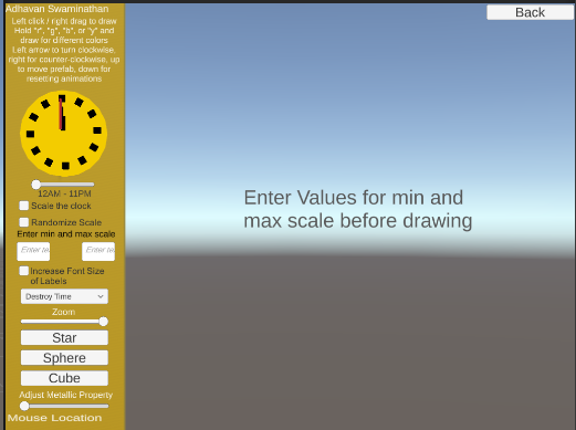
ALL Features: 12 features in total Feature 1: Display Mouse Location Description: Text label in the bottom left corner of the screen that shows the x and y location of the mouse Input: Mouse location Output: Text on the lower left corner of the screen shows the mouse’s X and Y location Feature 2: Create Object Description: Left-clicking or drag right-clicking the mouse will draw objects (usu… If you enjoyed this game, see our list of games similar to IT201_Sprint4_Adhavan_Swaminathan.
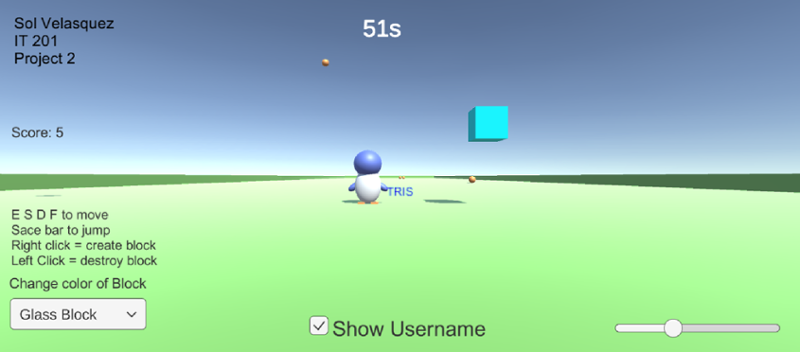
Simple Block Builder! In this project, you are able to see my previous project as they were, with the mistakes and wrong resolutions; but on Project 4 you are able to see everything fixed! Click on each button to take you to each project.Feature 1: Player movements Input: Press the keys ESDF and the space bar. Press on E - forward Press on D - back Press on S - left Press on F - r… If you enjoyed this game, see our list of games similar to Project 4 IT 201.
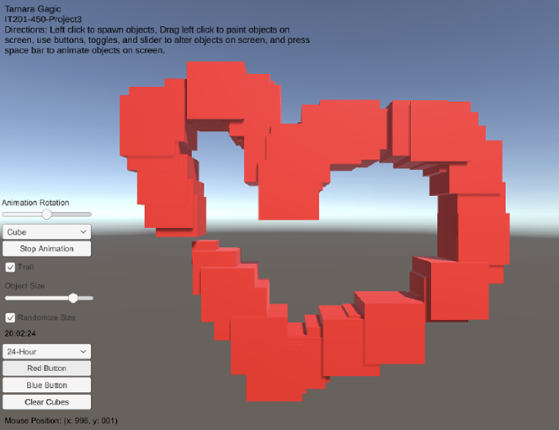
My project 3 builds upon my previous submissions and allows users to spawn and manipulate cubes. Upon launching the app, users are presented with a user-friendly interface that displays information such as the mouse's current position on the screen and a digital clock in the bottom right corner. Instructions for navigating and utilizing the app's features are placed in the top left corner to guide… If you enjoyed this game, see our list of games similar to Tamara Gagic-IT201-450-Project 3.
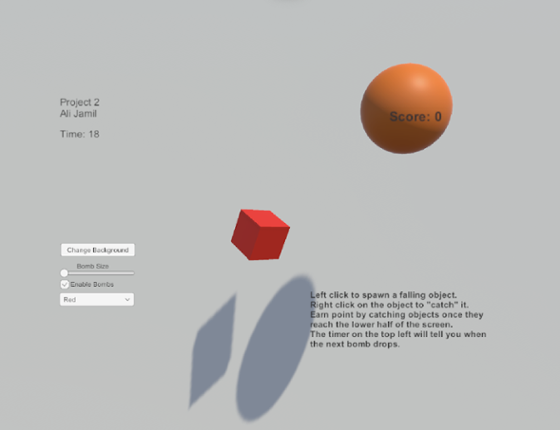
Brief Description: I created an object catching game where the user must left click on the screen to spawn a cube and then right click on the cube when it reaches the lower half of the screen to earn points. The user can change the color and it detects the mouse position on the X,Y plane. The game also features a “bomb” that drops based on a timer that uses a random math class to set to random tim… If you enjoyed this game, see our list of games similar to Ali Jamil_IT201_451_Project2.
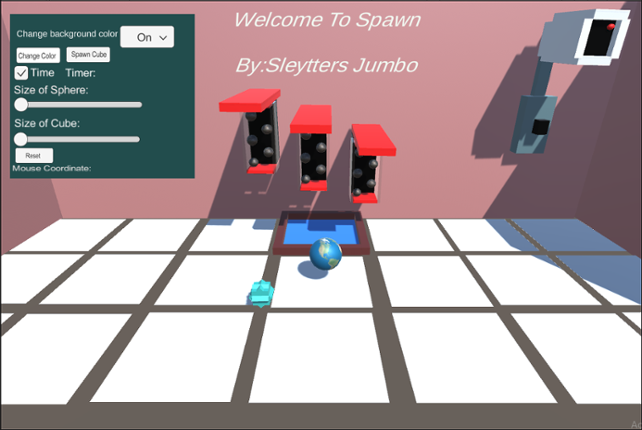
Spawn Green Ball This feature allows you to spawn green balls all over the floor or walls, anywhere you choose. To be able to spawn this gameObject you need to left-click on the mouse. You can do one click and spawn the object or you can hold left-click and spawn instantaneously. The input is left-clicking and the output is spawning a green ball. You can't spawn objects on the gray part of the flo… If you enjoyed this game, see our list of games similar to Welcome to Spawn 4.

Brief Description: I created a winter wonderland painting program in which the user can choose between two 3D symbols (snowman and snowflake) and can swap between three backgrounds (frozen lake, winter terrain, and aurora borealis). The left mouse is used to click, the right mouse is used to drag. Mouse coordinates are displayed on the bottom left corner, and a clock is featured on the top left co… If you enjoyed this game, see our list of games similar to Kylie Monek - IT201-006 - Project 4.
This project is an amalgamation of the previous 3 sprints. It includes a main menu to switch between the 3 different projects.Below is the updated list of features:1. Feature 1: 3D Object Spawneri. Description: A GameObject is initialized to create a 3D primitive object in the shape of a capsule, depending on where the user right-clicks on the screen ii. Input: Th… If you enjoyed this game, see our list of games similar to IT201-006-Jasmin-Lim-Project4.
This is the final version of my project for IT 201. I will include all the features and how they work. I cleaned up some of the UI and changed how the slider worked, making it a color slider, switching between red and blue variations. Sprint 1: 1. Spawn Objects: Input: User clicks anywhere on red board. Output: Object spawns. When the user uses the mouse and clicks with either the left or rig… If you enjoyed this game, see our list of games similar to Project 4- Final Project.
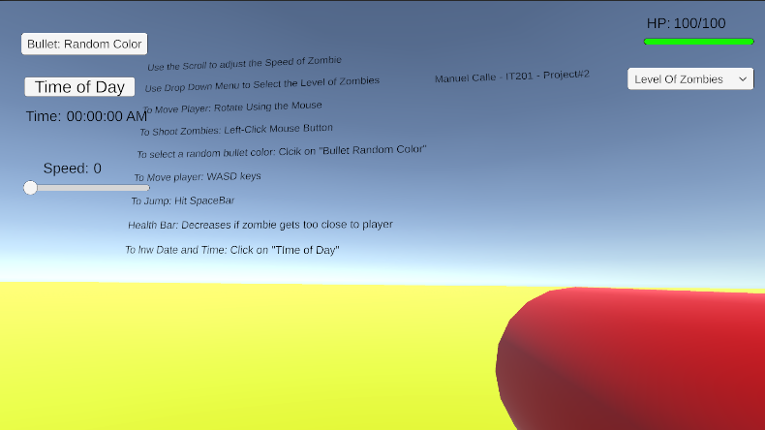
Project 1 Features: Feature 1: The Player Shoots from a Gun towards Zombies Input: Use the Left-Click Button to Shoot Bullets from Gun Process: When the Left-Click mouse button is shot, zombies will disappear. Using the conditional (if) statement to detect whether the button is pressed. If the bullet touches the zombie, both Game Objects are destroyed. Output: The bullet travels in a sin… If you enjoyed this game, see our list of games similar to Manuel Calle - Project 2 (Update).
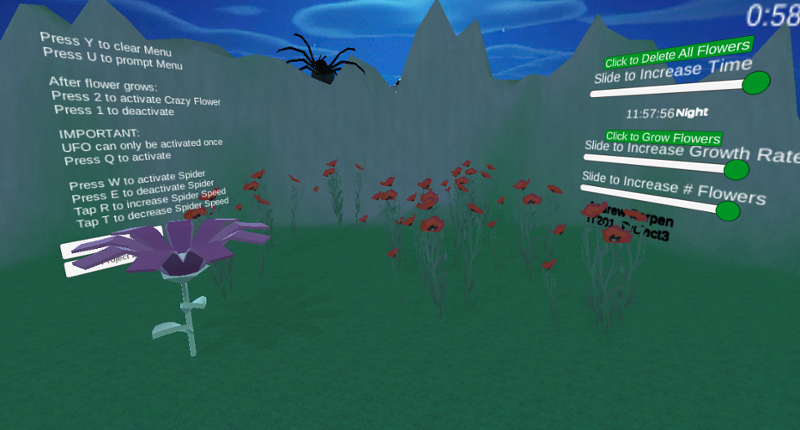
Users gets to experience the different stages of my application where in the first project you are able to spawn in certain flowers and furthermore from building on this project which lets users spawn in a range from 1 to 10 flowers and allow them to grow at a rate of their choice while they experience a day to evening to night cycle and control the speed of the time as well as destroy all flowers… If you enjoyed this game, see our list of games similar to IT201_Sprint04_Andrew_Carpen.
Previous Features: Display Mouse Position: Input: Captures the mouse's X and Y position on the screen using Input.mousePosition. Process: Updates a UI Text element to reflect the current mouse position every frame. Output: The text updates in real-time, showing the user's mouse location on the lower-left corner of the screen. Create/Destroy 3D Objects: Input: Detects a left mouse cli… If you enjoyed this game, see our list of games similar to Rana Khan IT 201 Project 2.

Feature 1: UI_Draw Title: UI_Draw: Interactive Drawing and Shape Creation Description: Allows users to create shapes with customized colors and materials and manage created objects within a Unity scene. Input: User interaction via mouse clicks Dropdown selections for color, shape, and material Slider adjustments for RGB values Button clicks for applying materials and clearing the scen… If you enjoyed this game, see our list of games similar to IT201_450_Sprint3 Anass Quaye.

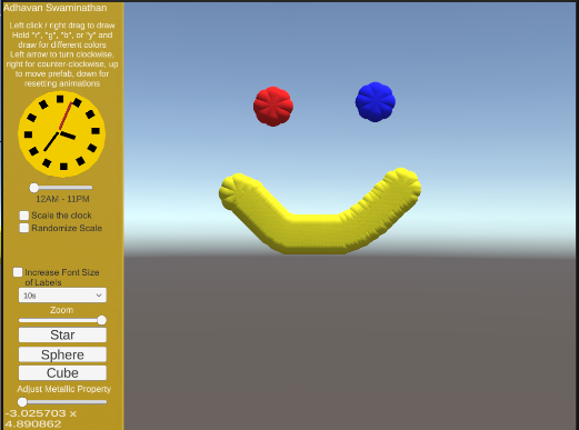
Text Description: This app is a painting app with different features that allow the user to interact with the UI and the painting features. Previously, the app allowed users to left click the mouse to draw once or drag the right button of the mouse to draw continuously, while also showing the location of the mouse on the screen. The objects would originally be destroyed after 3 seconds, but a … If you enjoyed this game, see our list of games similar to IT201_Sprint3_Adhavan_Swaminathan.
Game does not work properly in itch.io. It works properly in Unity Hub. Please download it and play it in Unity Hub.Feature #1: Spawn Object Button (UI Button) A UI button labeled “Spawn Object” calls the SpawnObject() method in the script, creating a new object with the selected shape, gravity setting, and shared material. This button has an assigned spawn point (center of the screen) and all o… If you enjoyed this game, see our list of games similar to IT201_Sprint02_Muazam_Hassan.
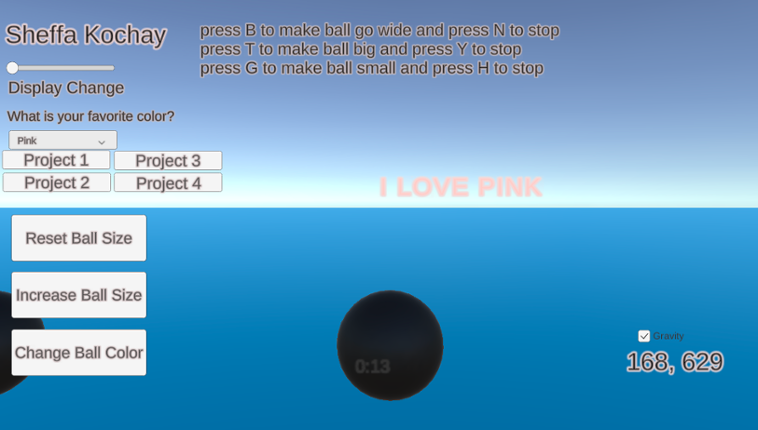
My application generates spheres on the screen when the user clicks the left mouse button within the scene. The user can manipulate the scene using both the left mouse button and on-screen UI buttons to adjust the spawned spheres. Additionally, certain keyboard buttons allow the user to trigger specific animations for the spheres. Additional features that I have implemented include a gravity toggl… If you enjoyed this game, see our list of games similar to IT 201_Sprint04_Sheffa_Kochay.
Feature 1: Description:Anywhere you click on screen a platform is created Input:Mouse location Out:Put: On screen Platform Feature 2: Description:Once the player moves onto the created platform it will disappear after 6 seconds Input:Keypad input Out:Put: Platform disapears Feature3: Description:Once player cube touches platform is wil change from white to green to yellow … If you enjoyed this game, see our list of games similar to matthewbigio-it201-018-project4-v2.
Dylan DiPalma IT201-018 Project 4 This project adds a menu where a user can choose one of the three projects to play, see a description and thumbnail of each, and return to the menu by pressing ESC in any game. This iteration also cleans up the organization of the assets directory (by putting prefabs in their own folder and separating the scripts for each project) and cleans up code by adding des… If you enjoyed this game, see our list of games similar to Dylan DiPalma IT201-018 Project 4.
For this project, I created a game called Shape Clicker. The user initiates the gameplay by clicking the "Start" button at the bottom of the screen. The objective of Shape Clicker is to click as many cubes as possible before the allotted time runs out. The previous iteration of this game only offered the player a display for the cursor position, a dropdown to change the time limit, a dropdown to a… If you enjoyed this game, see our list of games similar to IT201_Sprint2_Anthony_Rodier.
Brief Description: This project allows the user to create a 3D object when right-clicking. When the user right clicks an object will get spawned. The user can change shapes between a Cube, Cylinder, Capsule, and an Alien (prefab). The user also can make the object transparency change, make the object bigger or smaller by changing its size, change colors via sliders and is also able to select how q… If you enjoyed this game, see our list of games similar to Project2_IT201_EmirisGermosen.
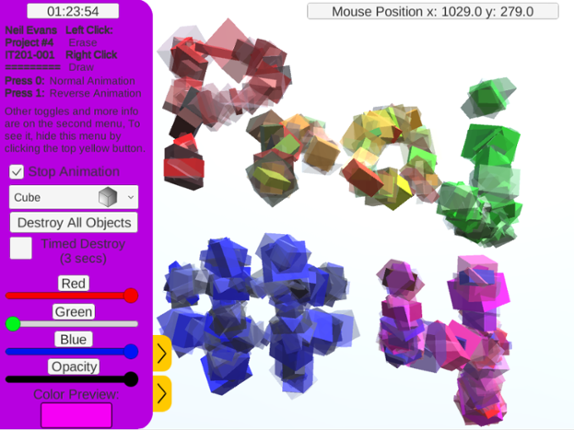
This is Neil's IT201 Project #4. No new features are included and this is just a bug fixes: Added backgrounds to the titles for the sliders Changed the size of the toggle box for Timed Destroy AND turned it off by default Fixed Squidward's name in the dropdown menu (removed Tentacles from name) Added the ability to change "Animation State" with keypad/numpad as it originally only worked with the… If you enjoyed this game, see our list of games similar to Neil Evans - IT 201-001 - Project 4.
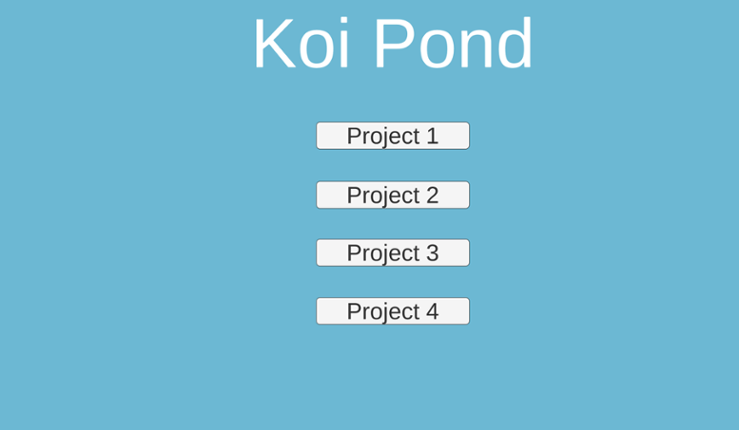
Project 1 Features Feature 1: Spawn Prefabs at Mouse Click Description: Clicking on the pond spawns the currently selected prefab at the mouse position. Input: Mouse Left Click Output: A koi fish, lotus flower, or lily pad prefab appears at the clicked location. Feature 2: Display Mouse Position Description: The mouse’s X and Y coordinates are continuously displayed on screen. Input: Mous… If you enjoyed this game, see our list of games similar to IT 201 Project 4 Final.
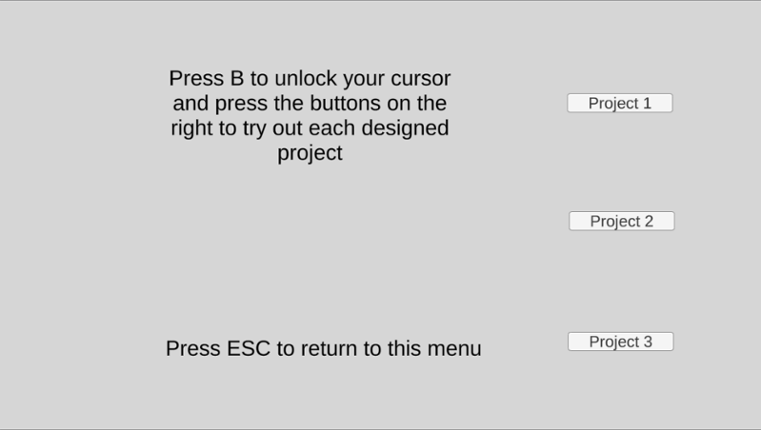
This project combines Project 1, 2, and 3 individually, and makes them all accessible via a main menu. This project also organizes all the files more appropriately per project, as all three projects were included in the Unity file. The primary fixes for this project were the flow diagrams submitted as part of the previous projects' deliverables. All features in Project 4 are as follows: 1. Destr… If you enjoyed this game, see our list of games similar to Daniel Maleski - IT201-H02 Project 04.
Feature 1: Display Mouse position Input: Mouse location Process: assign mouse X, Y, Z position to text object Output: Text is displayed in the lower left corner showing X, Y and Z of the mouse. Difference: This feature is different from class project because it shows the Z axis. Feature 2: Create & Destroy Objects Input: Mouse Left Click or Mouse Right Click Process: Raycast fro… If you enjoyed this game, see our list of games similar to IT201_Project3_David_BodeDisu.
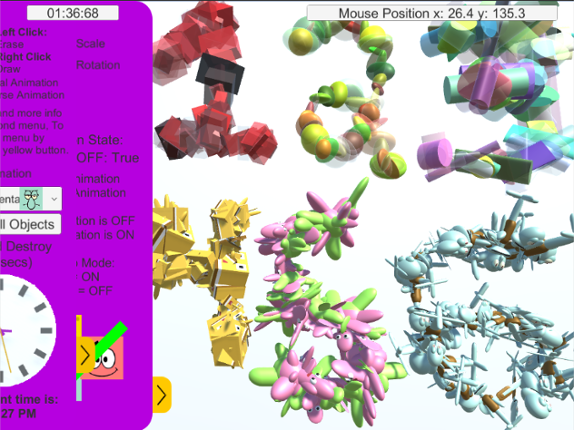
This is Neil's IT201 Project #3 NEW features include: Pressing 0 will toggle Normal Animation (along with updating text reflecting it's in that Animation State)Pressing 1 will toggle Reverse Animation (along with updating text reflecting it's in that Animation State)Redesigned Menu Panels that can be toggled to slide in and out with their respective yellow arrow buttonsA "Stop Animation Toggle" … If you enjoyed this game, see our list of games similar to Neil Evans - IT 201-001 - Project 3.
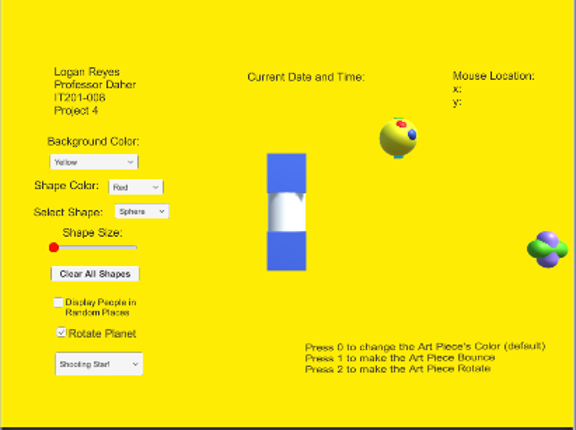
Feature 1: Display Mouse Position Input: Mouse location (x, y) Output: Text is displayed centered at the top displaying the x and y position of the mouse. Feature 2: Draw Objects Input: Mouse Right Click Output: An object is drawn for 3 seconds where the mouse is right-clicked. Feature 3: Change Object Shapes Input: Dropdown menu Output: Select a sphere, cube, or cylinder in the dropdown menu to c… If you enjoyed this game, see our list of games similar to IT201_Sprint4_Logan_Reyes.
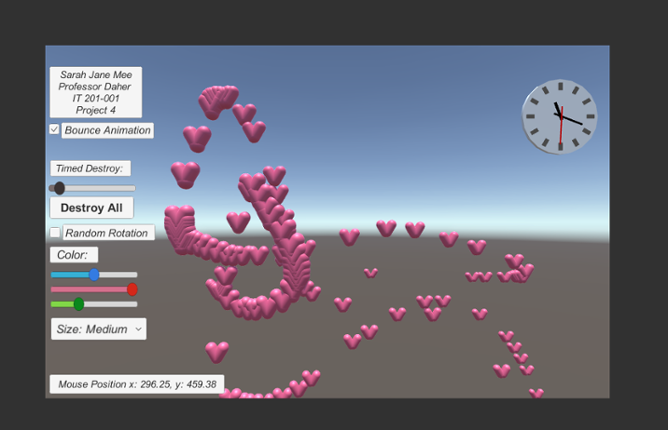
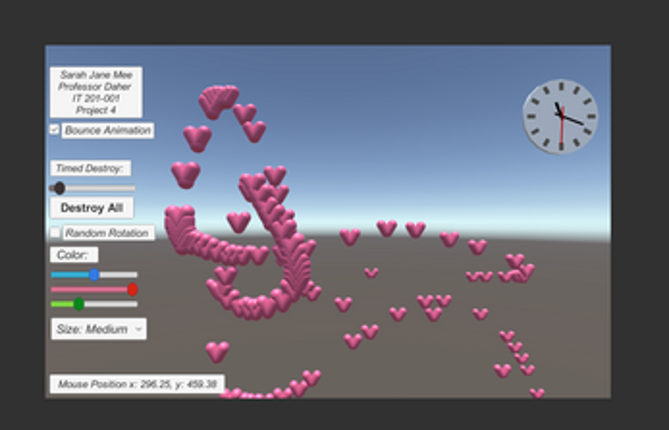
For this project, I built a user interface that allowed the user to paint 3D objects and change certain factors of the 3D objects they create. The users are able to change the color range and size of the 3D objects. Color range can be selected and changed from RGB slider. Size can be selected and changed from a drop down menu. In this program, the type of object the user is creating is a heart. Th… If you enjoyed this game, see our list of games similar to IT 201 Project 4 Sarah Jane Mee.
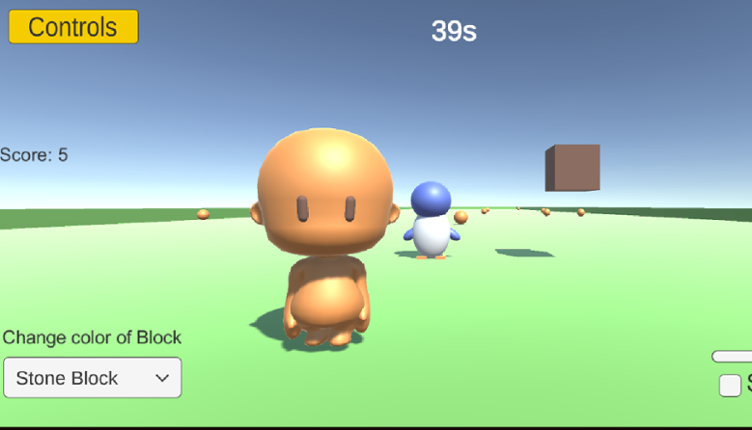
This game is a simple block builder. Choose the time duration of the game in seconds. Click the start button to begin playing. Use keyboard ESDF to move, and space to jump. Right click to create a cube, left click to destroy it. Change the color of a cube with a dropdown. Avoid falling spheres to not to lose points. Time is running up, too. Change the size of the user with the slider if de… If you enjoyed this game, see our list of games similar to Simple Block Builder Part 2.
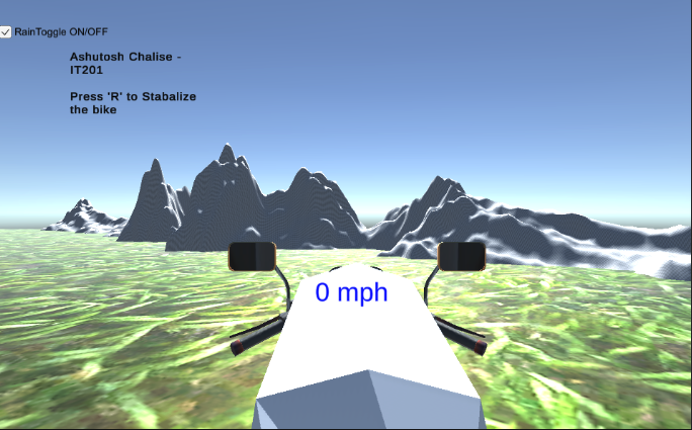
IT201-450 Ashutosh Chalise Dirt Bike Game All Features: Feature 1: Bike Movement Input: Arrow Keys: ↑ - Move forward ← - Turn left → - Turn Right SpaceBar - Brake Process: The bike moves forward and turns right/left using rigidbody physics, and the spacebar resets motion or stops the bike Output: Realistic dirt bike movement across terrain Feature 2: Camera View … If you enjoyed this game, see our list of games similar to IT201-450-Project4-AshutosChalise.
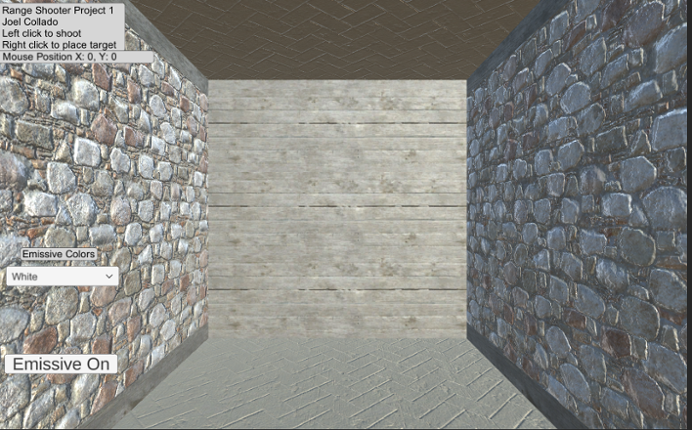
For my Unity Project I created a range based shooter where the goal is to place your own targets using the right mouse button and the left mouse button to create projectiles that shoot towards a target. There is also a feature for a button that enables or disables the emissive layer for both 3D objects and can change the color type with a dropdown menu. In addition, there is the ability to turn on… If you enjoyed this game, see our list of games similar to Joel Collado - IT201-450 - Project-1.


 View Game