

Games like Rana Khan IT 201-021 Project 3
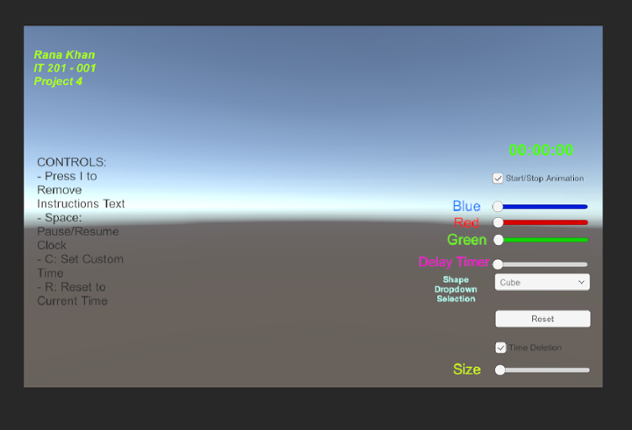
Looking for games like Rana Khan IT 201-021 Project 3? Here are top action recommendations, selected from player-similarity data — start with Rana Khan IT 201-001 Project 4, Project 4 or IT201_Project04_Anthony_Rodier.
- View Game
Fixes for this project: 1.) Made the Clock have user input using key input from keyboard. 2.) Organization was a little messy. So, I placed everything in sequence. 3.) Size of the clock was hard to read so I made it larger and changed to color for clarity. Old Features From Project 3: Feature 1: Animation Clip Swap What It Does: enables the user to alternate between an object's various ani… If you enjoyed this game, see our list of games similar to Rana Khan IT 201-001 Project 4.
Jungle Survival is a first person exploration and survival game set in a dynamic jungle environment. Players navigate the terrain, collect and manage items through an intuitive inventory system, and interact with the world using real-time UI controls. The game features core survival mechanics such as health, hunger, and stamina, where players must eat to survive, manage energy while sprinting, and… If you enjoyed this game, see our list of games similar to Project 4.
View Game
- View Game
Brief Description: This iteration now includes setting time limits, adjusting target size, dynamic score tracking, and starting the game via a start button. It also retains animation-focused enhancements like choosing which animations to see via a dropdown, adjusting animation speed via slider, reversing animations, allowing for simultaneous animations, and toggling the visibility of UI elements f… If you enjoyed this game, see our list of games similar to IT201_Project04_Anthony_Rodier.
- View Game
Brief Description: For my Unity Project 4 I combine all my projects into one here and apply updates based on the comments and notes that address any issues. Here are all the features in my range based shooter: Place your own targets using the right mouse button and the left mouse button to create projectiles that shoot towards a target. There is also a feature for a button that enables or disa… If you enjoyed this game, see our list of games similar to Joel Collado - IT201-450 - Project-4.
- View Game
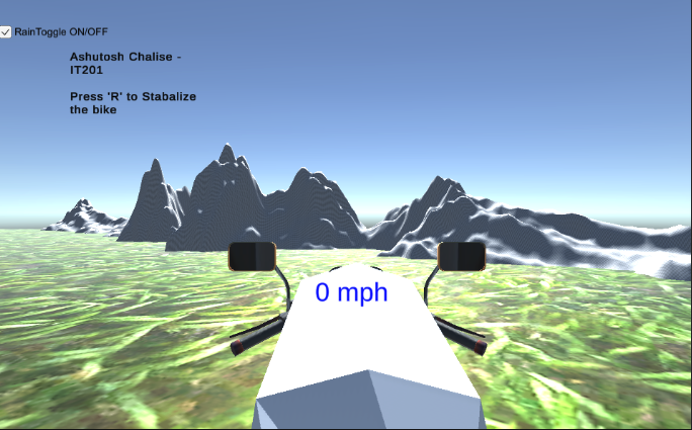
IT201-450 Ashutosh Chalise Dirt Bike Game All Features: Feature 1: Bike Movement Input: Arrow Keys: ↑ - Move forward ← - Turn left → - Turn Right SpaceBar - Brake Process: The bike moves forward and turns right/left using rigidbody physics, and the spacebar resets motion or stops the bike Output: Realistic dirt bike movement across terrain Feature 2: Camera View … If you enjoyed this game, see our list of games similar to IT201-450-Project4-AshutosChalise.
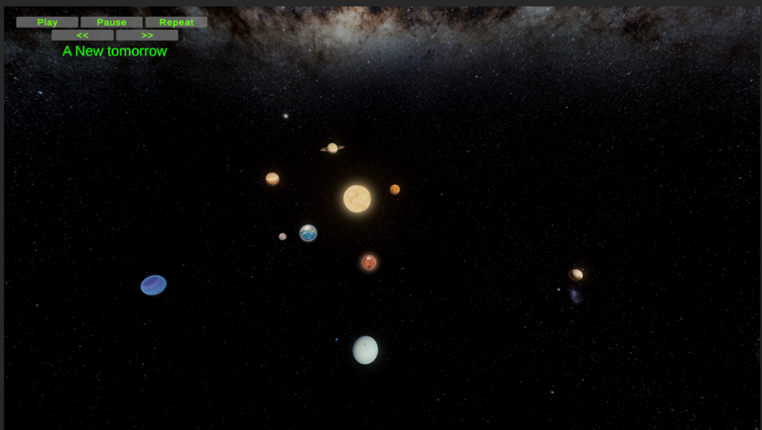
Solar System Explorer User Guide HINT: Press X to switch between fly mode and music player control mode. This controls the visibility of the mouse pointer to free it up to control the buttons. Welcome to Solar System Explorer, an interactive 3D simulation where you can fly through a compact solar system, explore planets, the Sun, the Moon, and an asteroid belt, and enjoy a built-in music player… If you enjoyed this game, see our list of games similar to Solar System Music Player.
View Game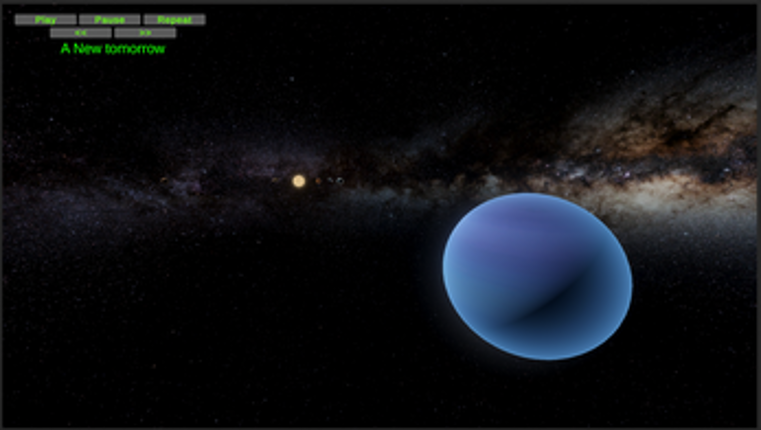
- View Game
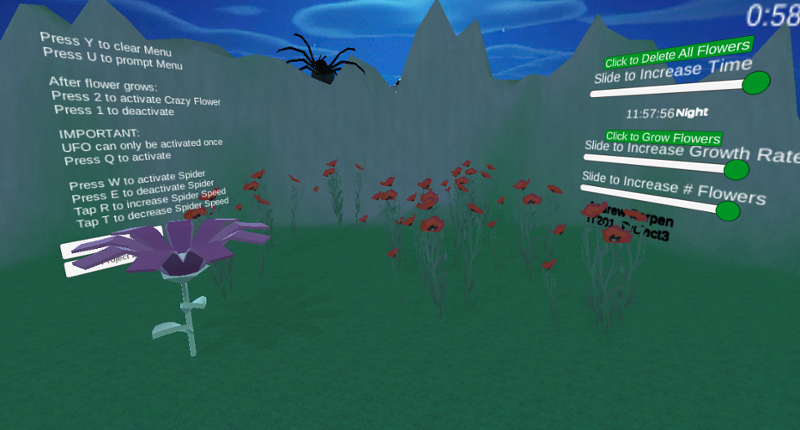
Users gets to experience the different stages of my application where in the first project you are able to spawn in certain flowers and furthermore from building on this project which lets users spawn in a range from 1 to 10 flowers and allow them to grow at a rate of their choice while they experience a day to evening to night cycle and control the speed of the time as well as destroy all flowers… If you enjoyed this game, see our list of games similar to IT201_Sprint04_Andrew_Carpen.
- View Game
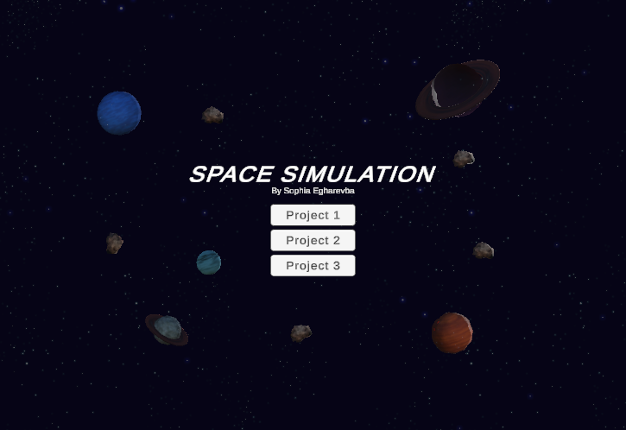
(Project 1)Features: Feature 1: Display Mouse Position Input: Mouse location Process: Capture the mouse's X and Y coordinates and display them on the screen. Output: Text showing the X and Y position of the mouse appears on the screen. Feature 2: Display Planet Mass When It's Clicked Input: Mouse click on a planet Process: Detect when a planet is clicked, and display the mass on the U… If you enjoyed this game, see our list of games similar to IT201_Sprint04_SophiaEgharevba.
- View Game
Feature 1: Display Mouse position Input: Mouse location Process: assign mouse X, Y, Z position to text object Output: Text is displayed in the lower left corner showing X, Y and Z of the mouse. Difference: This feature is different from class project because it shows the Z axis. Feature 2: Create & Destroy Objects Input: Mouse Left Click or Mouse Right Click Process: Raycast fro… If you enjoyed this game, see our list of games similar to IT201_Project3_David_BodeDisu.
10 View Game View Game
Feature 1: Display Mouse position Input: Mouse movement Process: keep the coordinate text on the mouse position and offset it for aesthetic and real-time update the coordinate as the mouse moves or doesn't move. Output: Text is displayed in the lower left corner showing X and Y of the mouse. Feature 2: Create Trees and Rocks by Left Mouse Click Input: Mouse Left Click Process… If you enjoyed this game, see our list of games similar to Pabal's Games | IT201-021 Project 4.
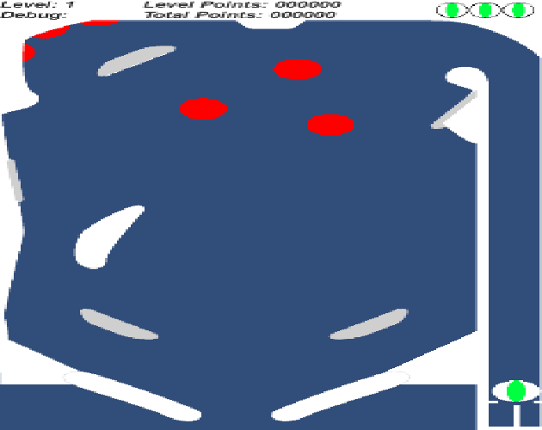
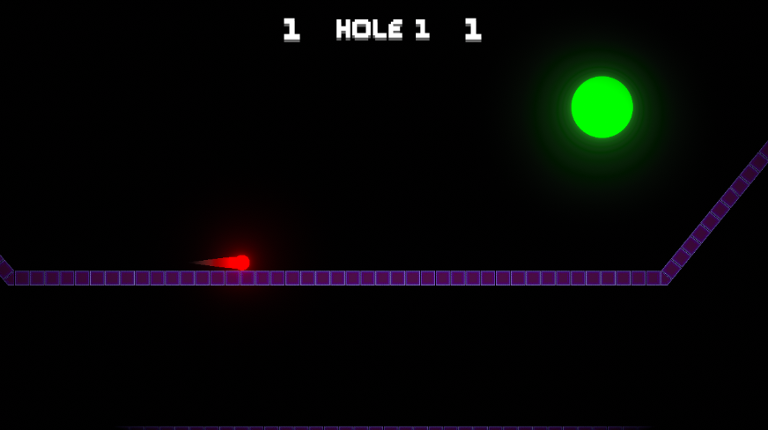
Controls and Goal Hold Z to raise the left paddle, hold / to raise the right paddle. Hold space to pull back the pin. Release space and it will spring forward, launching the ball if it is in position. Press space when the ball is not in the launching chute and the ball will get a little speed boost! You can give it another speed boost when its trail stops being red. Press D to toggle the debug … If you enjoyed this game, see our list of games similar to KIT109 Exam Game - Pinball.
View Game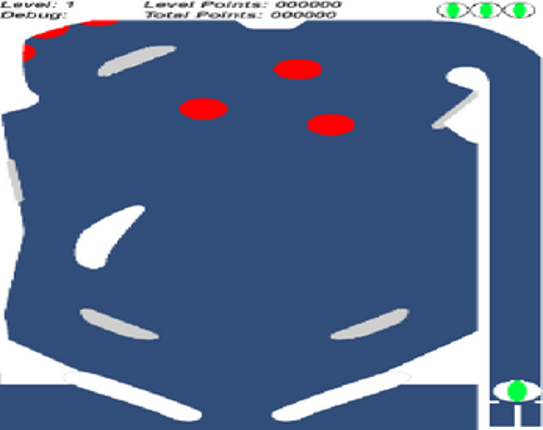
12 View Game 39%Game Brain ScoreMost mentioned positive aspects:graphics, humorMost mentioned negative aspects:gameplay, music39% User Score 107 reviews
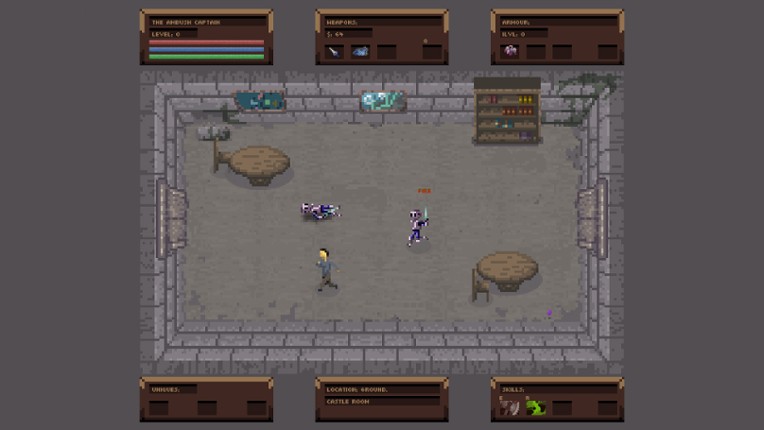
No Turning Back is an indie pixel art randomly generated action rogue-like developed by a new indie developer with tons of player classes, spells, weapons, armour and unlocks! If you enjoyed this game, see our list of games similar to No Turning Back: The Pixel Art Action-Adventure Roguelike.
View Game
- View Game
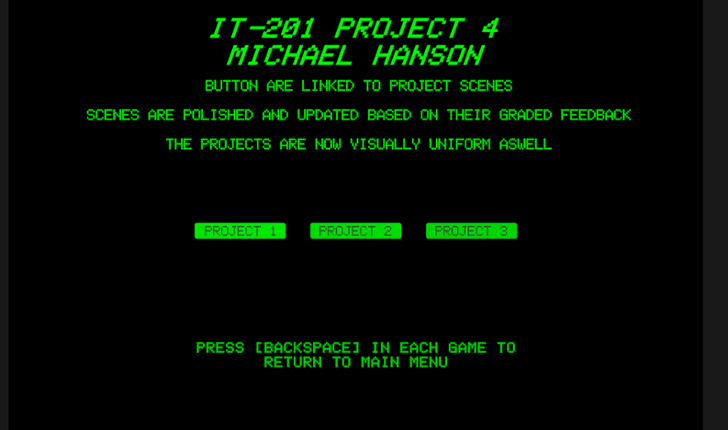
IT-201 PROJECT 4 MICHAEL HANSON POLISHED INTERACTIVE UNITY APPLICATIONS This project combines and polishes three previous Unity applications, addressing all instructor feedback with significant improvements and fixes. WHAT'S INCLUDED: ✓ Project 1: 3D Object Spawner (FIXED & ENHANCED) ✓ Project 2: Interactive Click-A-Cube (POLISHED) ✓ Project 3: Animation Demo (FIXED & ENHANCED) … If you enjoyed this game, see our list of games similar to IT 201 Project 4.
- View Game
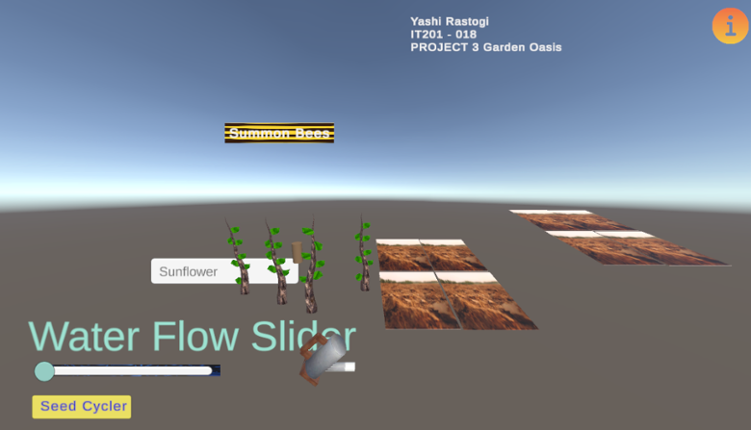
Feature 1: Garden Camera Explorer (Uses Layers/Tags) Input: Player uses W/A/S/D keys to move the camera around the garden space. The mouse controls the camera's viewpoint, allowing full 360° rotation. Spacebar moves the camera upward and Left Shift moves it downward for a bird’s-eye view. The camera object is assigned the "GardenCamera" tag, and obstacles like trees and flowerbeds are ass… If you enjoyed this game, see our list of games similar to IT201_018_YashiRastogi_project3.
- View Game
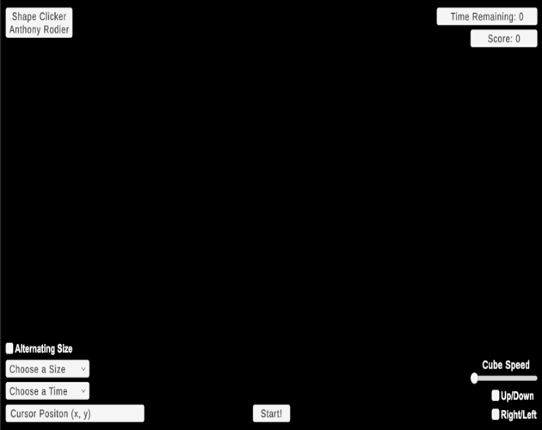
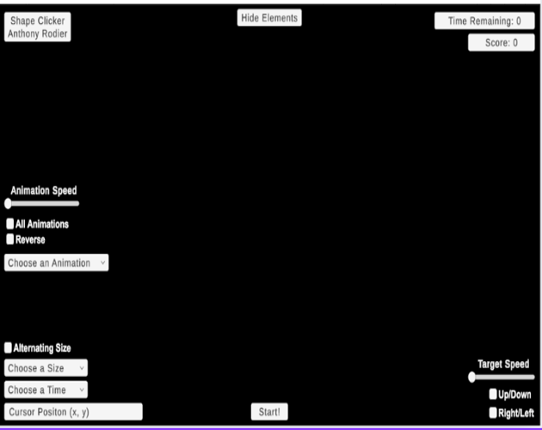
For this project, I created a game called Shape Clicker. The user initiates the gameplay by clicking the "Start" button at the bottom of the screen. The objective of Shape Clicker is to click as many cubes as possible before the allotted time runs out. The previous iteration of this game only offered the player a display for the cursor position, a dropdown to change the time limit, a dropdown to a… If you enjoyed this game, see our list of games similar to IT201_Sprint2_Anthony_Rodier.
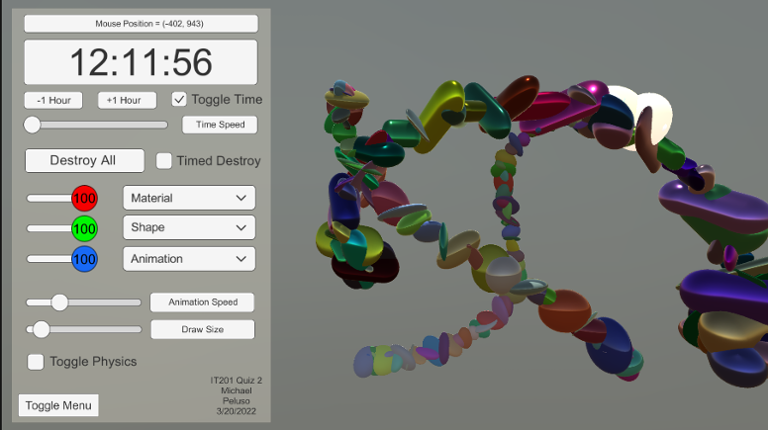
Description Draw on a 2D canvas with 3D shapes. Click or drag over the white canvas to begin spawning objects. These objects will spawn with random rotation, relative size, and color to give a more enjoyable experience. Configure several settings that allow you to change the appearance of you pen such as color, size, shape, and animation. Features Creating and Deleting Objects with the mouse:… If you enjoyed this game, see our list of games similar to IT Project 4.
View Game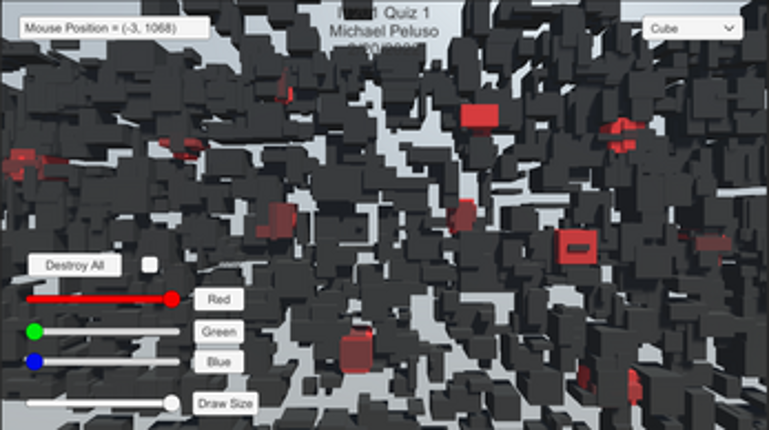
- 51%Game Brain Score51% User Score 2 reviews
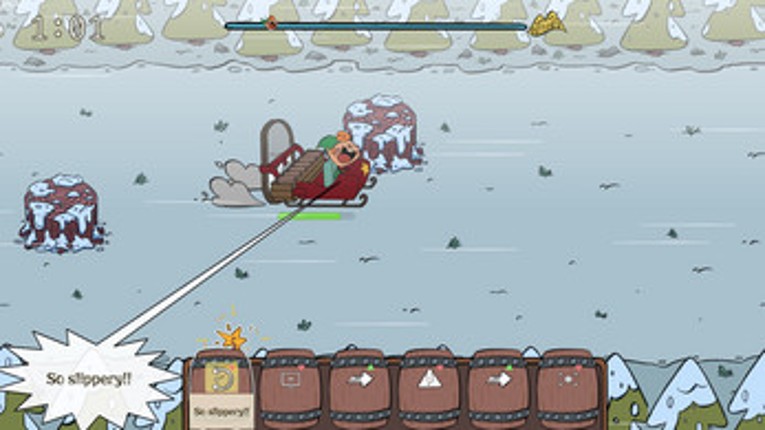
P.O.W.D.E.R. - Powder On Wild Days Explodes Randomly Play as a delivery elf who must maneuver around obstacles to prevent his package from bursting and deliver it to one of many towns. You can consume the exploded powder to get a buff, but things might get even worse... How long will you resist before giving in to the powder's appeal? Gameplay Whenever one of your powder keg explodes, it is turned… If you enjoyed this game, see our list of games similar to P.O.W.D.E.R..
View Game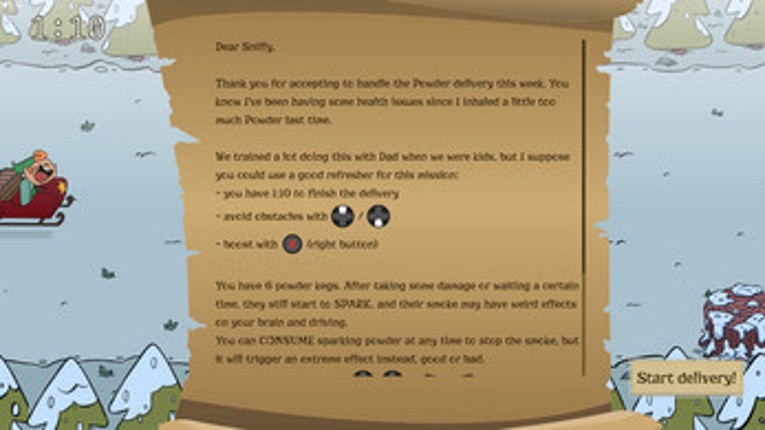
- 97%Game Brain ScoreMost mentioned positive aspects:music, graphicsMost mentioned negative aspects:grinding, optimization97% User Score 334 reviews
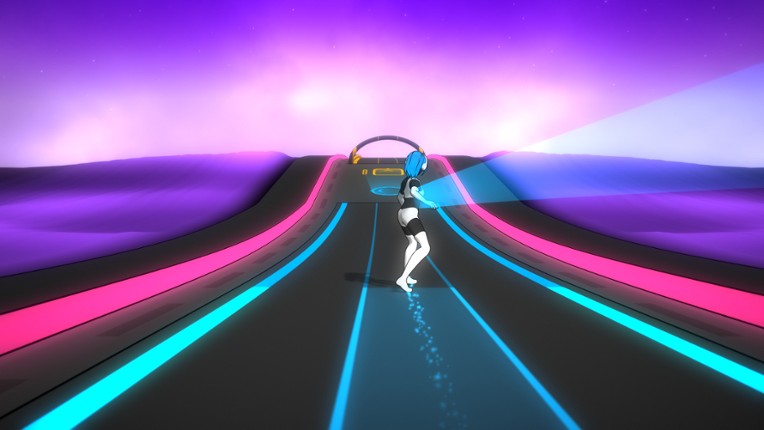
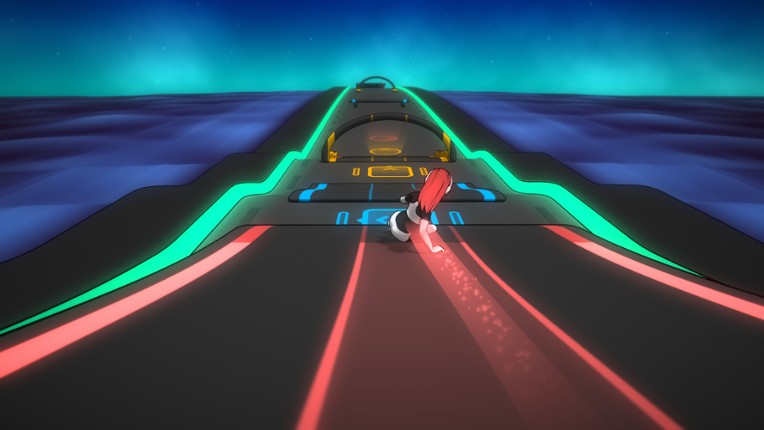
Run to the rhythm of your own music library! Melody is back, with vastly improved audio analysis algorithms! Each mp3 creates a unique obstacle course synchronized to the beat of the music. Melody's actions will match the energy and intensity of any music of your choice! If you enjoyed this game, see our list of games similar to Melody's Escape 2.
View Game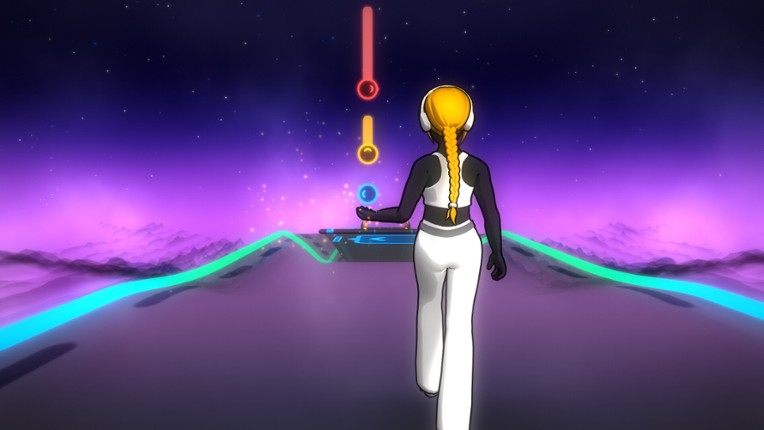
19 View Game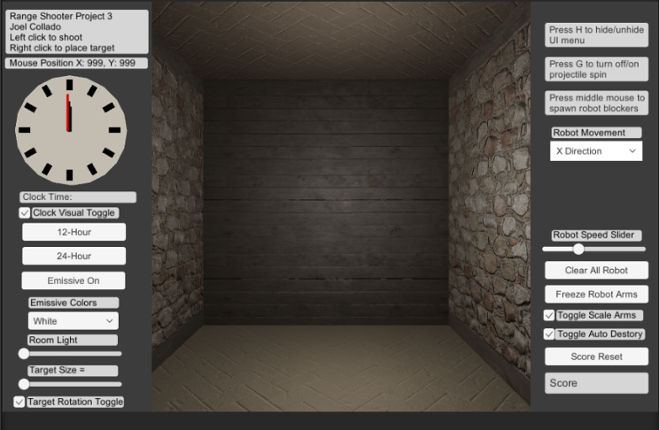 View Game
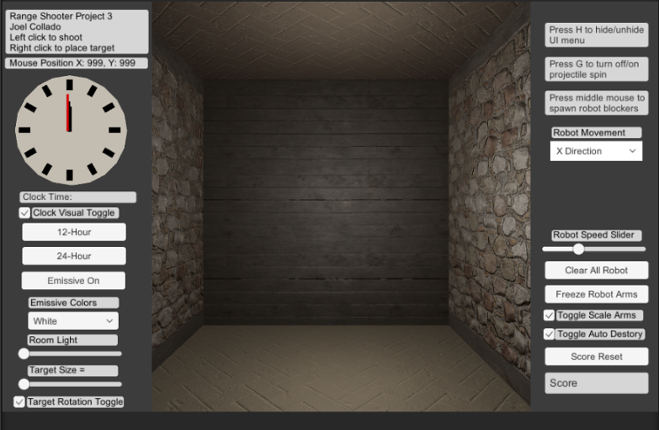
Brief Description: For my Unity Project 3 I continue my range based shooter where there is now the ability to hide the UI menu using H on the Keyboard. Also there is new mouse button input the middle mouse now spawns new animated robot prefabs that acts as guard for the targets. You can change their direction or stop their movement with the Dropdown menu. In addition, you can control their animati… If you enjoyed this game, see our list of games similar to Joel Collado - IT201-450 - Project-3.
20 View Game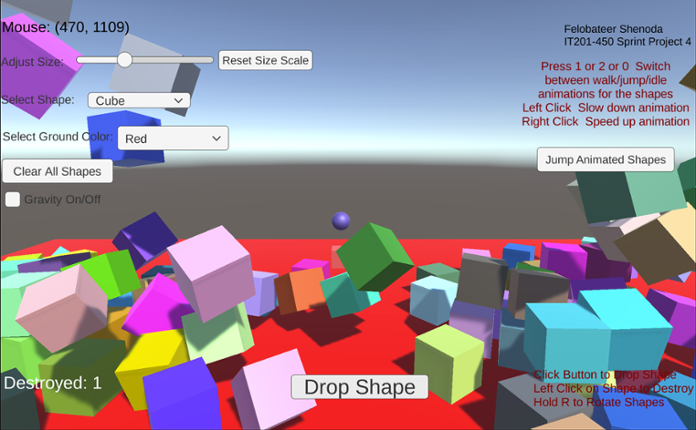 View Game
Project 1 Features: 1. Feature 1: Display Mouse Position Input: Mouse moving anywhere on the screen Process: The script reads mouse X and Y coordinates Output: Text updates live showing the mouse position on the screen 2. Feature 2: Spawn Shape on Button Click Input: User clicks the “Drop Shape” button Process: The script converts mouse screen position to wo… If you enjoyed this game, see our list of games similar to IT201_Project4_Felobateer_Shenoda.
- View Game
Itemized features: Feature 1: Soil Tilling & Seed Selection i) Description: Clicking on a soil patch changes texture to a tilled state. Pressing a button cycles through available seeds. ii) Input: Mouse Click, Button Press iii) Output: Tilled soil and seed item placed on soil. Feature 2: Watering System i) Description: Clicking on a plant increases its hydration level. The plant sp… If you enjoyed this game, see our list of games similar to IT201-018_YashiRastogi_project4.
- View Game
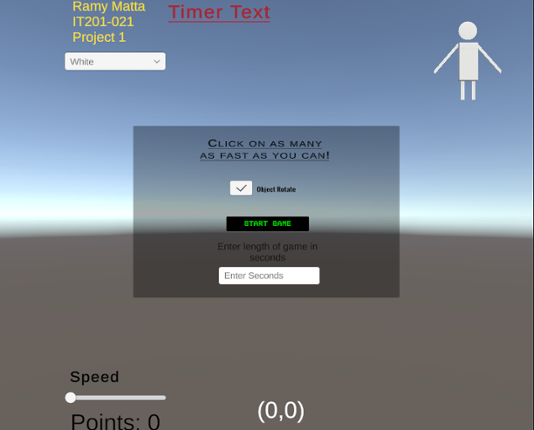
Objective: The player earns points by clicking on different objects that spawn randomly on the screen within a set time limit. Gameplay Mode: Fast-paced point-and-click game focused on quick reactions and precision. Features Core Gameplay Object Rotator Check off the checkbox, and objects will spawn in different rotations. Random Object Spawning: Objects (Cubes, Spheres, Capsules)… If you enjoyed this game, see our list of games similar to ramymatta-project3.
- 50%Game Brain Score50% User Score 1 reviews
Previous Features: Display Mouse Position: Input: Captures the mouse's X and Y position on the screen using Input.mousePosition. Process: Updates a UI Text element to reflect the current mouse position every frame. Output: The text updates in real-time, showing the user's mouse location on the lower-left corner of the screen. Create/Destroy 3D Objects: Input: Detects a left mouse cli… If you enjoyed this game, see our list of games similar to Rana Khan IT 201 Project 2.
View Game
24 View Game View Game
Minor UI sortingProject 1 Features: Feature 1: Spawn Primitive Objects with the click of the mouse Feature 2: Displays the mouse cursor’s position on the screen Feature 3: Dropdown UI that allows for color selection of the Spawned Object Feature 4: Allows for the user to choose what shape to spawn Project 2 Features: Feature 1: Select Background Input: DropDown Output: Use th… If you enjoyed this game, see our list of games similar to Delmar Tenempaguay IT 201-451 Project 4.
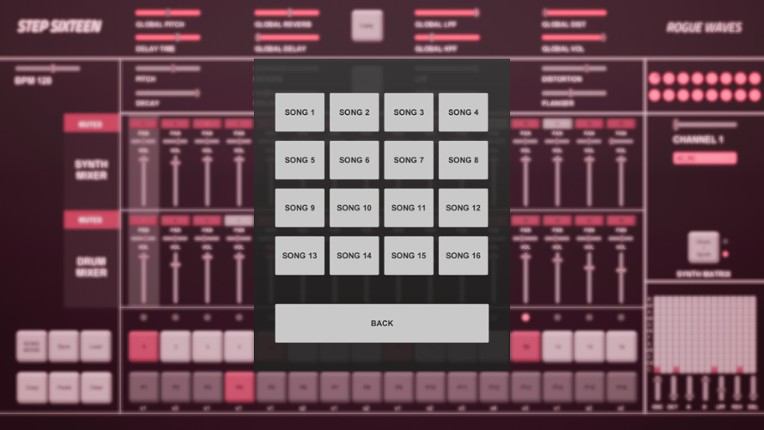
All you need to get started making electronic music - with Step Sixteen you can create your own beats, melodies or songs in no time. Use the drum channels to create wild rhythms or the synth matrix to create bass lines, arpeggios, chords or melodies. Chain patterns together and sequence them in Song Mode to create full songs. Keyboard Controls Press Spacebar to start or stop the sequencer. Pres… If you enjoyed this game, see our list of games similar to Step Sixteen.
View Game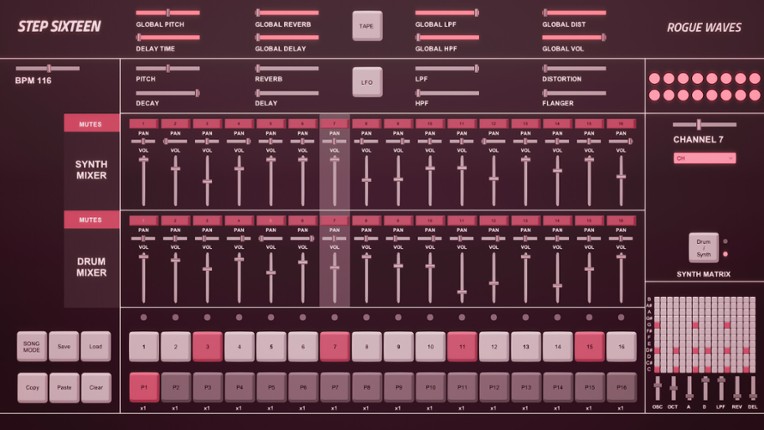
- 82%Game Brain ScoreMost mentioned positive aspects:optimizationMost mentioned negative aspects:stability, music82% User Score 302 reviews
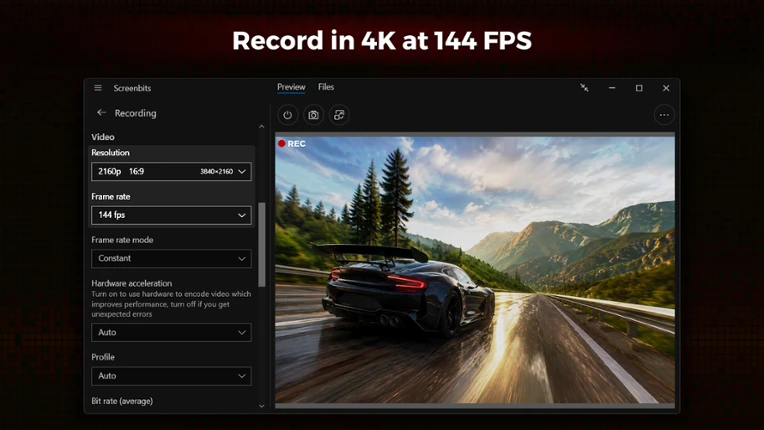
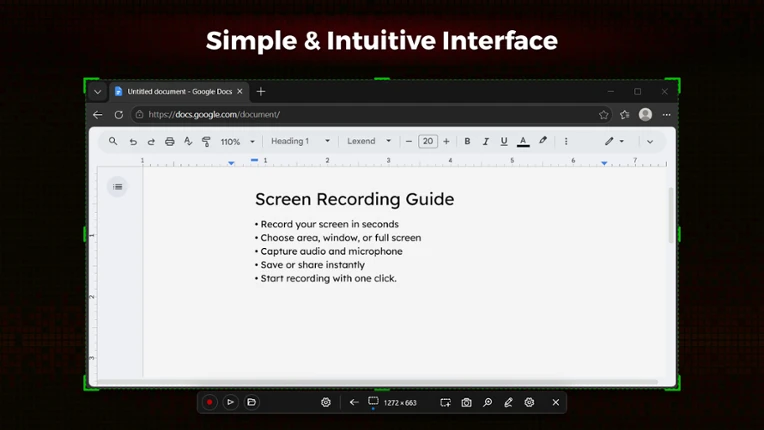
Screenbits — Powerful Screen Recording Fast, flexible, and easy-to-use screen recorder for gameplay, tutorials, product demos, and more. Record your screen, system audio, microphone, and camera in high-quality HD or 4K with smooth performance. High-Performance Video Recording • MP4 (H.264/HEVC/AAC) output • Up to 4K resolution and 144 FPS* • Adjustable resolution, frame rate, and qualit… If you enjoyed this game, see our list of games similar to Screenbits - Screen Recorder.
View Game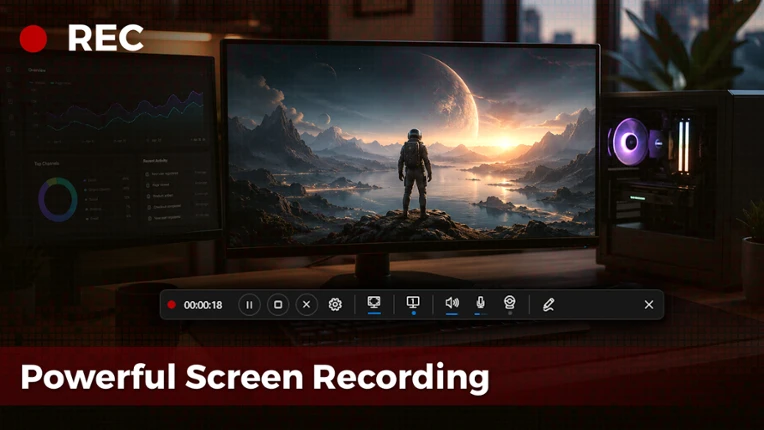
- View Game
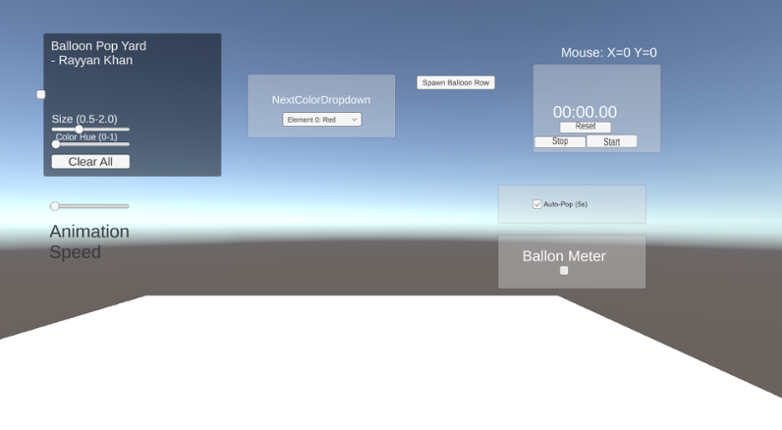
This is Rayyan Khan’s IT201 Project #4. No new features are included; this update focuses entirely on UI improvements, bug fixes, and internal refinements. Reorganized and adjusted the UI layout by repositioning buttons and controls to create a more stable, clean, and visually consistent interface in the foreground Improved overall UI spacing and alignment to make the layout feel more co… If you enjoyed this game, see our list of games similar to IT201-Project4-RayyanKhan.
28 View Game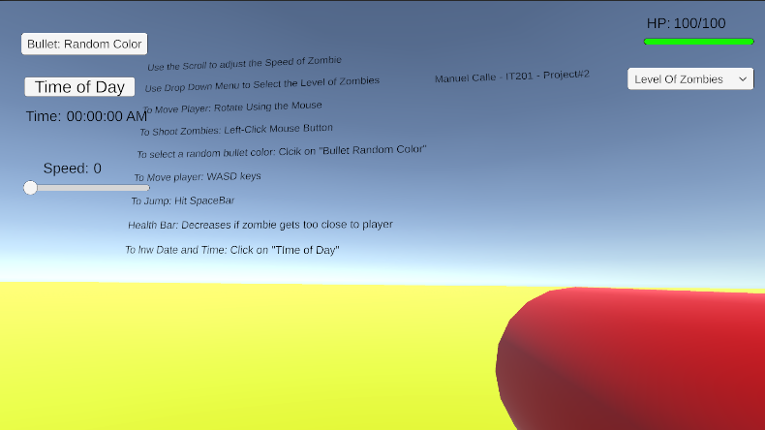 View Game
Project 1 Features: Feature 1: The Player Shoots from a Gun towards Zombies Input: Use the Left-Click Button to Shoot Bullets from Gun Process: When the Left-Click mouse button is shot, zombies will disappear. Using the conditional (if) statement to detect whether the button is pressed. If the bullet touches the zombie, both Game Objects are destroyed. Output: The bullet travels in a sin… If you enjoyed this game, see our list of games similar to Manuel Calle - Project 2 (Update).
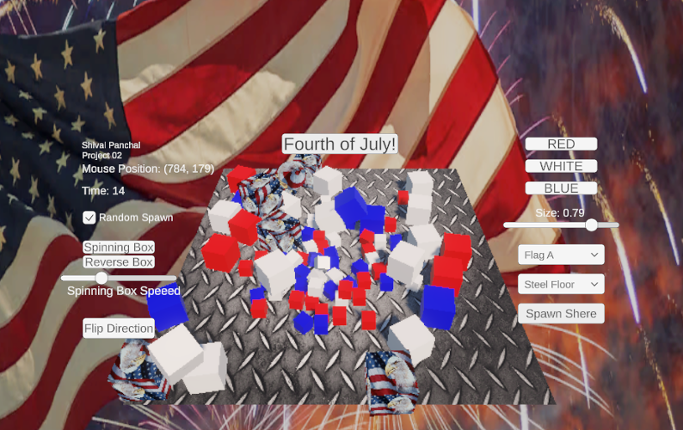
Description: This app is a basic Unity project that lets the user mess around with 3D boxes that spin. There are a few buttons and a slider that let you spawn different kinds of boxes, change how they spin, remove them, and even control how fast they rotate. The idea was just to get used to using UI elements and interacting with objects in Unity through C# scripts. Original Features: Featur… If you enjoyed this game, see our list of games similar to IT201_Sprint3_Shival_Panchal.
View Game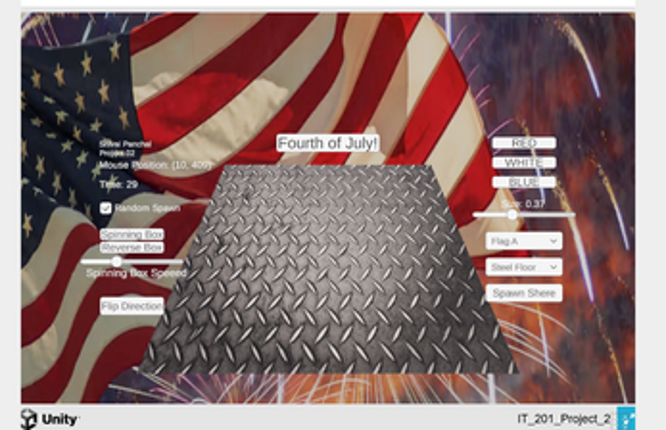
- View Game
New Shape Clicker introduces an advanced set of features oriented toward animation in enhancing the gaming experience. A target can now be given different animations from a drop-down selection menu for custom plays. An added animation speed slider will allow players to change how fast the animations are to be run, from a minimum of two to five times the base speed. More interestingly, there is the… If you enjoyed this game, see our list of games similar to IT201_Project3_Anthony_Rodier.
- View Game
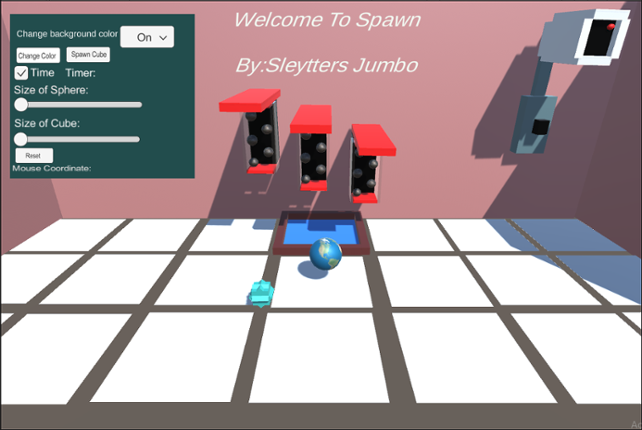
Spawn Green Ball This feature allows you to spawn green balls all over the floor or walls, anywhere you choose. To be able to spawn this gameObject you need to left-click on the mouse. You can do one click and spawn the object or you can hold left-click and spawn instantaneously. The input is left-clicking and the output is spawning a green ball. You can't spawn objects on the gray part of the flo… If you enjoyed this game, see our list of games similar to Welcome to Spawn 4.
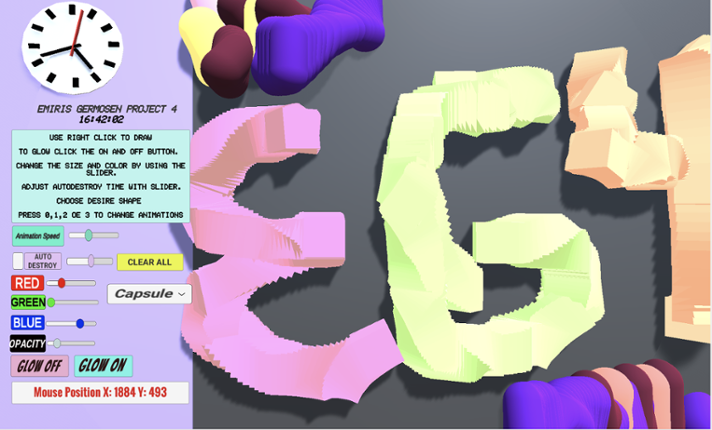
Game Description: This project allows the user to create a 3D object when right-clicking. When the user right clicks an object will get spawned. The user can change shapes between a Cube, Cylinder, Capsule, and an Alien (prefab). The user also can make the object transparency change, make the object bigger or smaller by changing its size, change colors via sliders and is also able to select how q… If you enjoyed this game, see our list of games similar to Project4_IT201_EmirisGermosen.
View Game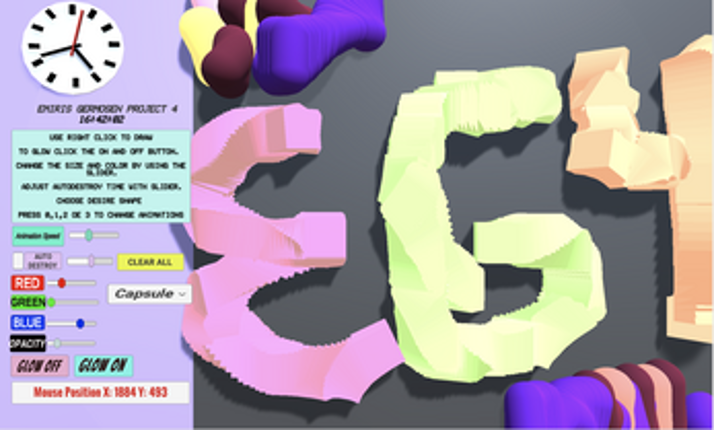
- 49%Game Brain Score49% User Score 3 reviews
About the Game This is a roguelike in an early stage of development (Alpha 0.0.1). The game does not have a final name yet, and both the player character and enemies will change significantly during development. Instead of the traditional XP and level-up system, progression is based on waves. Each wave increases the challenge, requiring the player to adapt, reposition, and make quick decision… If you enjoyed this game, see our list of games similar to Hellstorm.
View Game
- View Game
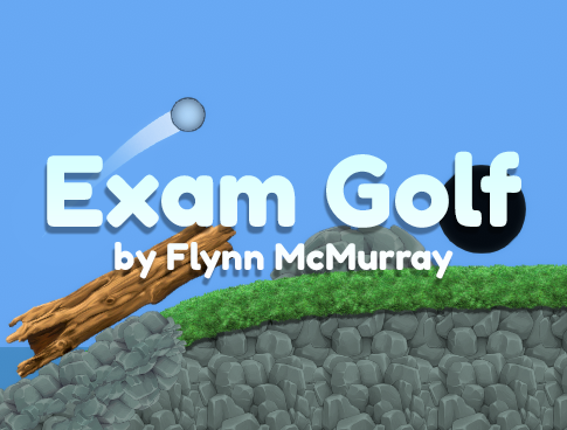
Controls: Click and hold to shoot. Turbo for (limited) speed boost with Space bar. Reach the goal to win. Use 1-9 keys to auto-switch between levels: Normal ControlsBlack HolesMaze and CinemachineBreakable DoorCheckpointsTripwire DoorSticky WallsHoming MissilesWindmillDriving Range Press R to return to main menu at any time, or press N to go to next level at any time. Asset List: ScriptsDescriptio… If you enjoyed this game, see our list of games similar to Exam Golf Game.
- View Game
Controls: Always run forward. Use the A or Left Arrow Key to move left and D or Right Arrow Key to move right in an infinitely generated straight line. Press the Spacebar to jump. Click the Left Mouse Button to fire. Press the Escape Key to pause while in-game. Devlog 9/23/2022Basic player and map createdPlayer automatically runs forward, can move left and right, and jumpPlayer can collide with th… If you enjoyed this game, see our list of games similar to Project Grinch.
- 70%Game Brain ScoreMost mentioned positive aspects:graphics, emotionalMost mentioned negative aspects:monetization, stability70% User Score 1,460 reviews
Sega Genesis and Sega Master System emulator! If you enjoyed this game, see our list of games similar to GENPlusDroid.
View Game

- View Game
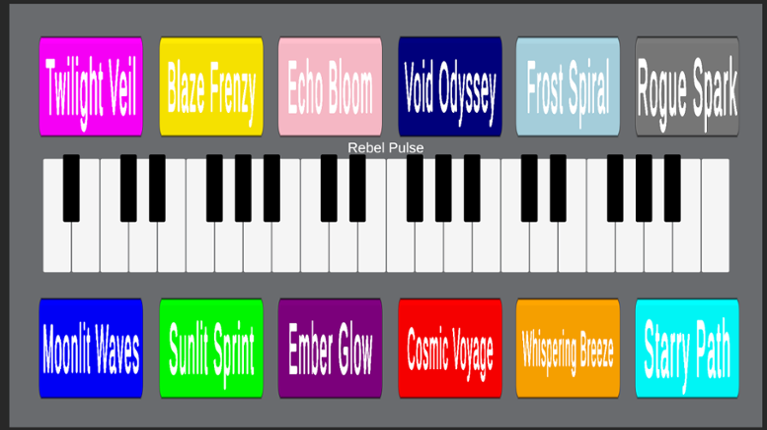
https://medium.com/@tmaurodot/creating-a-virtual-piano-with-ai-composed-music-in... Creating a Virtual Piano with AI-Composed Music in Unity: A Deep Dive into the Project Imagine pressing a button and hearing a piano play an original, AI-composed melody that evokes moonlight on waves or a sprint through sunlit fields. This is the essence of a Unity 2D virtual piano project that combines interact… If you enjoyed this game, see our list of games similar to Piano in Unity.
- 88%Game Brain ScoreMost mentioned positive aspects:story, optimizationMost mentioned negative aspects:stability88% User Score 112 reviews
HereSphere is a cutting edge VR video player that enhances the immersiveness and clarity of stereoscopic VR videos. The autofocus algorithm uses realtime depth estimation to adjust the projection for improved stereo image clarity and sense of scale. Ever notice double vision when looking side to side, when tilting your head, or when objects get too close to the camera? Autofocus can help with tha… If you enjoyed this game, see our list of games similar to HereSphere VR Video Player.
View Game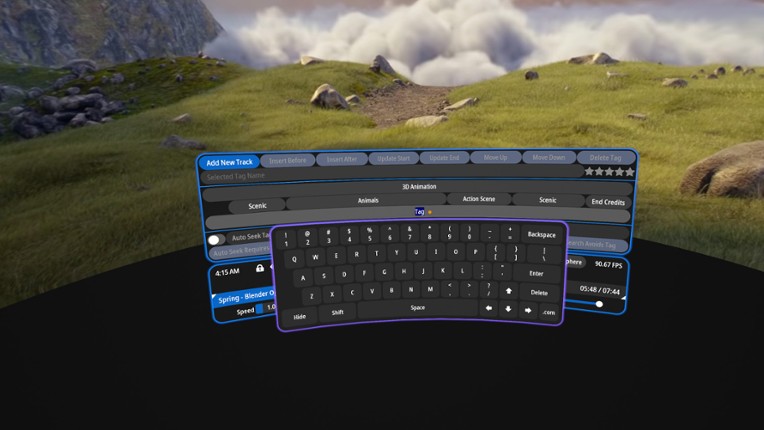
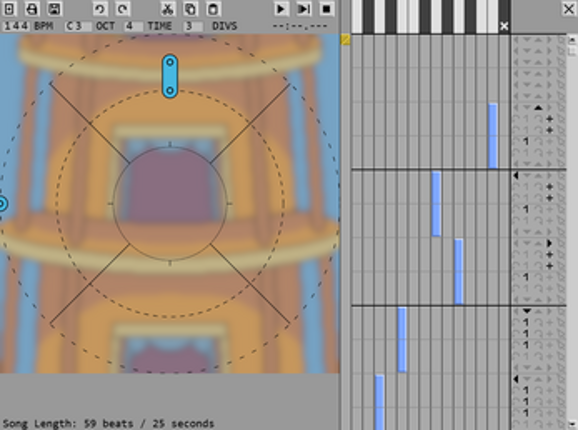
Last Update - 11 October 2024 Can now be played using keyboard controls.Added Skrunkly Cat Dee and Comfy Dee models.Added song "Dee's a Little Teapot"Improved display of high scores How To Play Before playing, you may want to confirm the audio, visuals, and mouse inputs are synchronized via the configuration screen. Configuration The configuration screen will show three cues timed with a be… If you enjoyed this game, see our list of games similar to Deesphinxronized.
View Game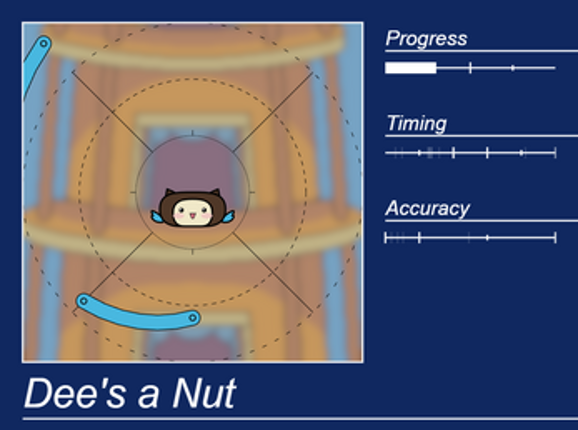
- View Game
Mouse to aim, press or hold left mouse to fire the ball. Try to complete every level by reaching the goal. Don't resize window at allEverything from the specifications besides level 3 has been completed - music from NAOKI, title is Ups and Downs, slayers theme from the guilty gear strive soundtrack: NAOKI 2024, Ups and Downs, YouTube, viewed 7 June 2024 - used chatGPT for help with coming up w… If you enjoyed this game, see our list of games similar to Exam Golf Game.
41 View GameView GameDesigned for retro-style RPGs, this Classic RPG Name Screen System provides a fully-featured, dynamic, and visually intuitive interface for player name input. Built to replicate the feel of ‘90s action-RPGs, it’s ready to integrate in any project, giving developers a robust system without reinventing the wheel. “Dynamic cursor, responsive input, and classic RPG feel — all in one modular system.”… If you enjoyed this game, see our list of games similar to Clasic Name Screen System for GDevelop.
42 View Game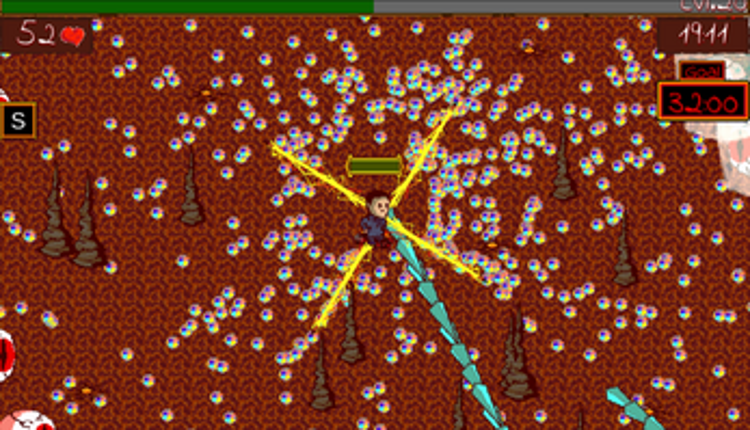

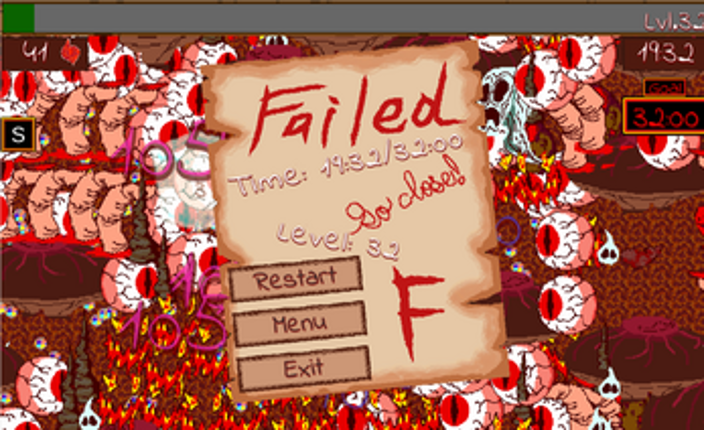
Description: This game is a bullet-hell survival game all about sacrifice. Use your health wisely to purchase upgrades while conserving your most important stats. Most importantly, reach the goal to escape the demon. Note: Using the exit button on WebGL closes the application, but since it is an html, it will simply look like it is frozen. Detailed Instructions: Note: There is an in-game tutorial … If you enjoyed this game, see our list of games similar to Don't make deals with the Devil..
View Game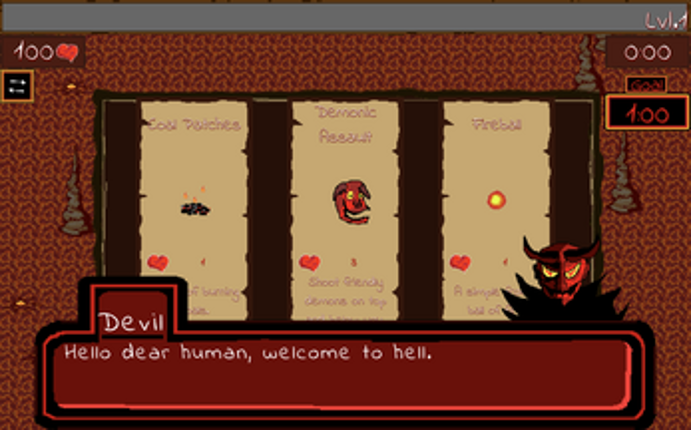
Created for GMTK Jam 2024. The idea was to make an Metroidvania. Sadly, as is usually the case with overscoping, most of the content that makes the game a game couldn't get in. A good chunk of the development time actually went into making the basic mechanics and the level editor, so I made sure to include them in the web version as well (even if without the ability to save your creation). Usage … If you enjoyed this game, see our list of games similar to Hollow Cheese.
View Game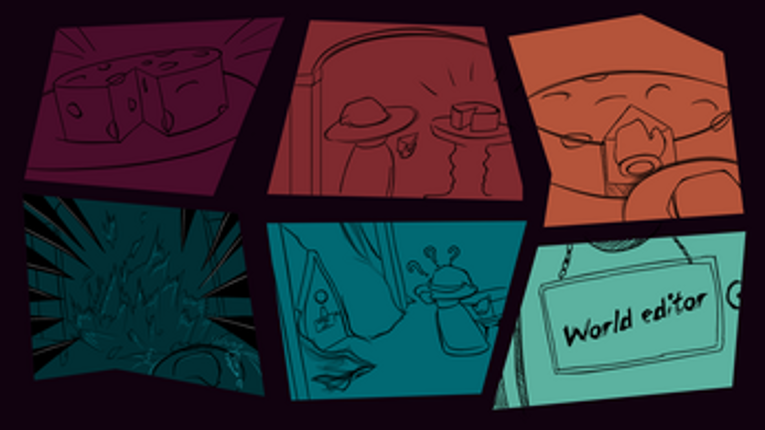

- View Game
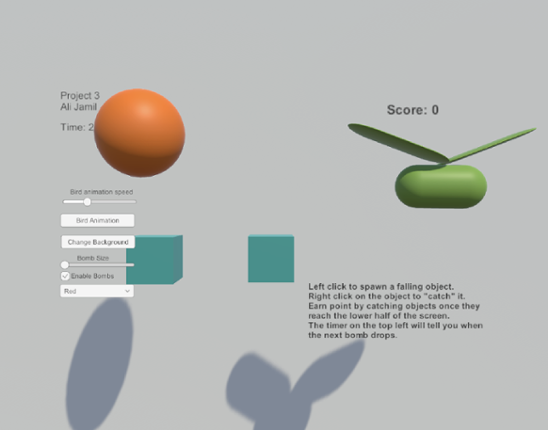
Feature 1: Displays Mouse Position Input: Mouse Location Output: There is text on the lower left side of the screen showing the X,Y position of the mouse. Process: Grab mouse coordinates, convert to string, set text object to string. Feature 2: Spawn falling objects Input: Mouse Left Click Output: A cube is spawned at the location of the left click which will then fall down the s… If you enjoyed this game, see our list of games similar to Ali Jamil-IT201-451-Project3.
- View Game
Exam Game Project Golf!KIT109 Exam game project; Student ID: 584774. Basic Controls: Click and hold to shoot.Turbo for (limited) speed boost with Space bar (Cooldown Added).Press Q to return to main menu/title screen at any time.Press R to retry/reset the level at any time.Use 1-9 keys to auto-switch between levels: Normal ControlsBlack HolesMaze and CinemachineBreakable DoorCheckpointsTripwire… If you enjoyed this game, see our list of games similar to Exam Game Project Golf!.
- View Game
Project 1 Features Feature 1: Target Spawning on Click Description: The user clicks anywhere on the game screen, and a 3D target object is spawned at the clicked location. Input: Mouse click Output: A 3D target object appears on the screen. Feature 2: Display Mouse Coordinates Description: Real-time X and Y mouse coordinates are continuously displayed in a designated area of the screen. Input: … If you enjoyed this game, see our list of games similar to IT201 Justin McCoy Project4.
Controls Hold left mouse to load a projectile into the slingshot, release mouse button to fire. Goal Destroy as many slimes and blocks as possible, while using the minimum amount of ammo. Sources All art by Liam Quin: Quin, L. (2023). No Title. Unpublished. Sounds from pixabay.com (accessed on 13/06/2023): Pixabay. (2023). Slime Jump (Sound ID 6913) [Audio file]. Retrieved from pixabay.com/sound-… If you enjoyed this game, see our list of games similar to KIT109 Exam Game.
View Game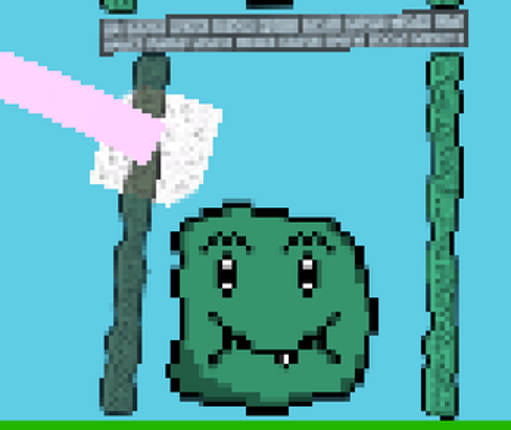
- View Game
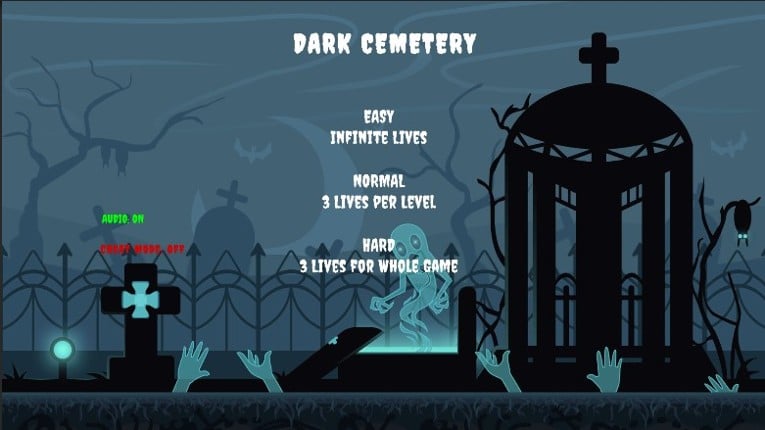
Gameplay Instructions Controls: Press A/D (or left/right arrow) to rotate platforms. Get the ball to the portal to win. Level Navigation: Use 1-9 + 0 keys to auto-switch between levels: IntroductionDeadly Obstacles Bounce Moving Obstacles Multiball Lasers Scrolling + Button Enemies Not implemented Not implemented *** A rare, ran… If you enjoyed this game, see our list of games similar to KIT109 EXAM GAME: Dark Cemetery.
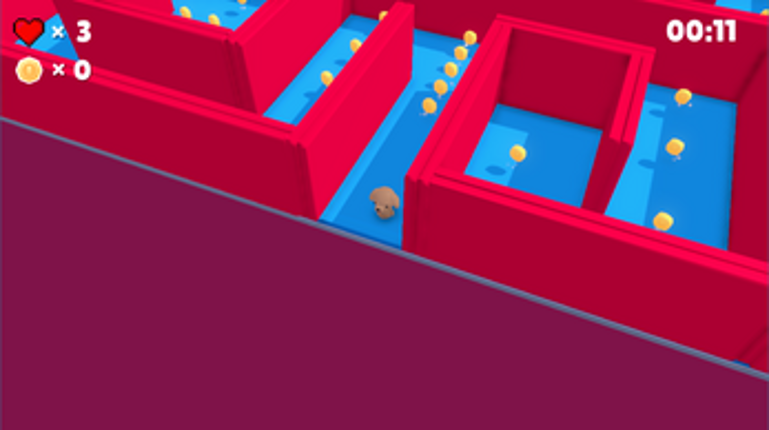
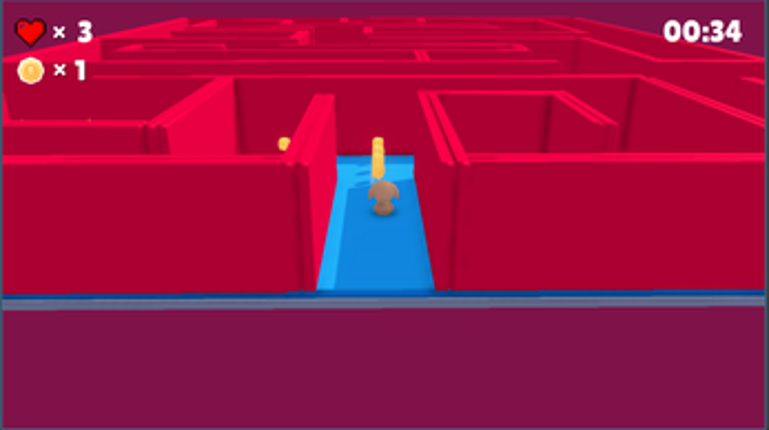
MAZE RUNNER DOG A 3D platformer game built with Godot 4.4 where you control a dog navigating through a challenging maze. Collect coins, avoid obstacles, and reach the goal flag to win! Game Overview MAZE RUNNER DOG is a 3D platformer game where players navigate a maze filled with obstacles, enemies, and co… If you enjoyed this game, see our list of games similar to Maze Runner Dog.
View Game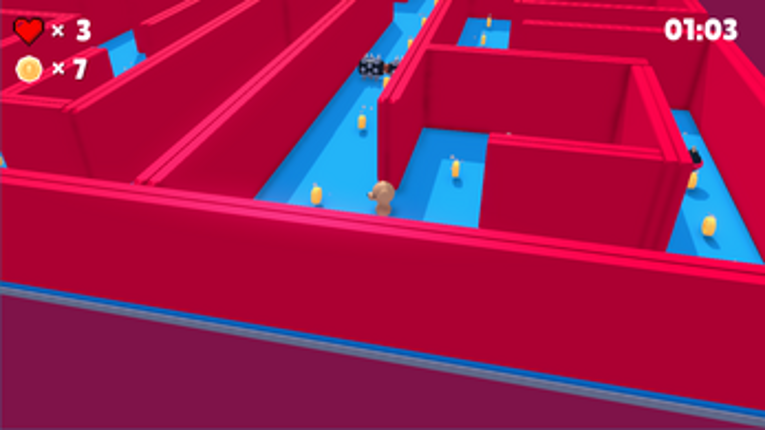
- 81%Game Brain ScoreMost mentioned positive aspects:graphics, storyMost mentioned negative aspects:monetization, stability81% User Score 569 reviews
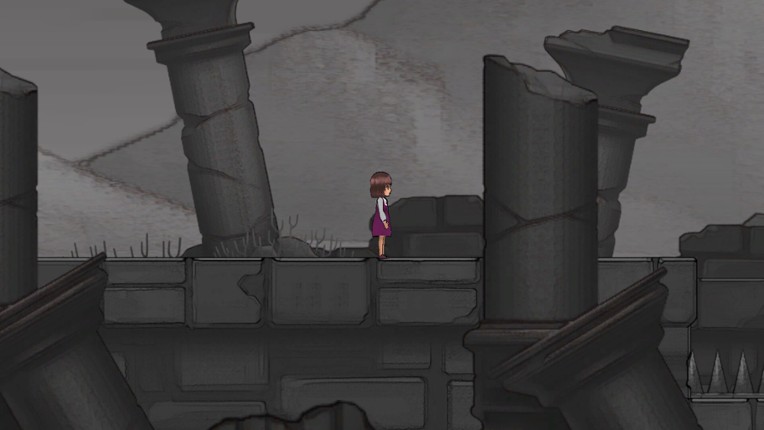
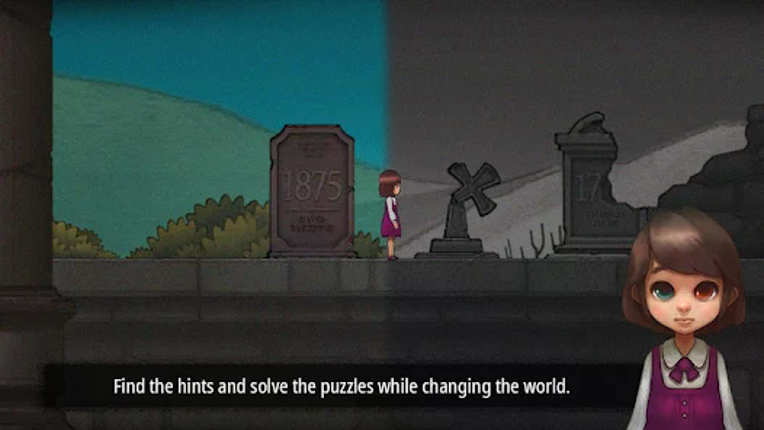
Two different worlds from different colored eyes. If you enjoyed this game, see our list of games similar to Odd Eye.
View Game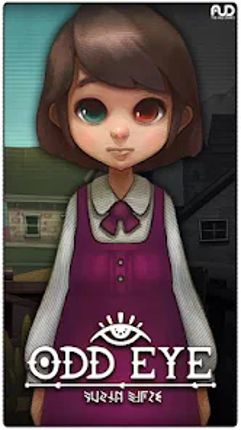


 View Game