Documentation
GameBrain API Tutorial: Building a Game Search App
🎮 What You'll Build
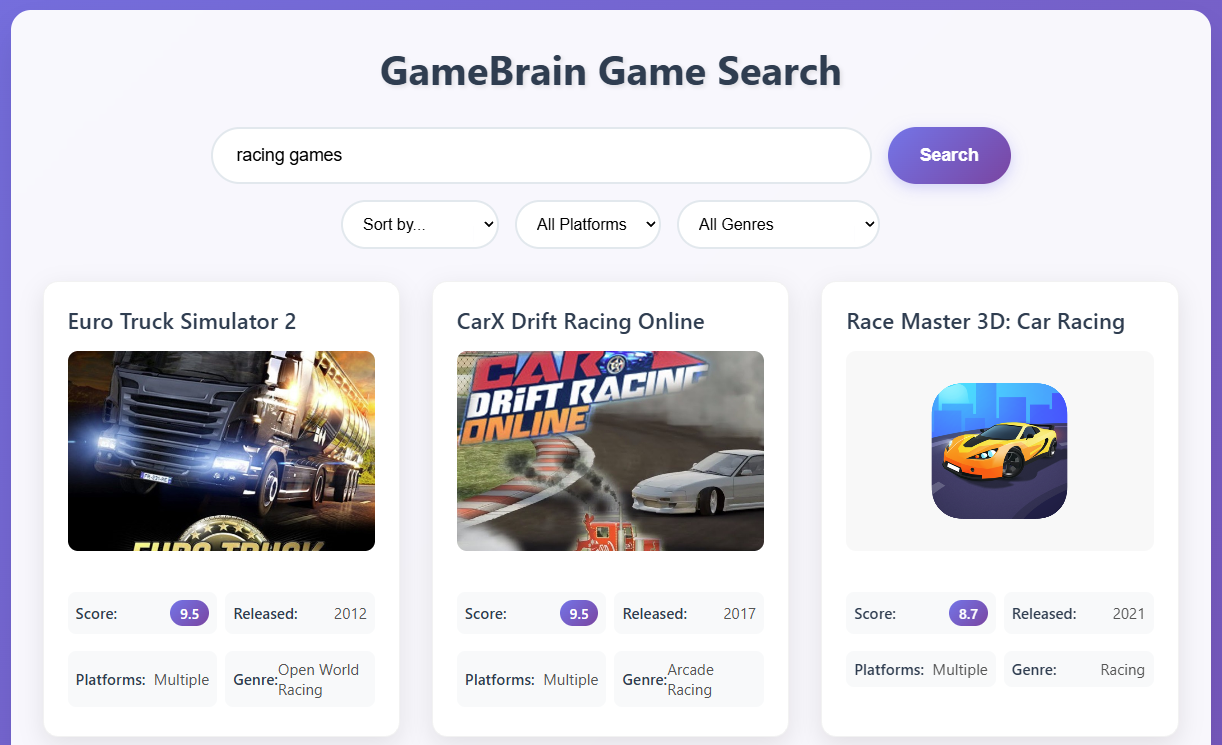
Welcome to the complete beginner's guide to building a game search application using the GameBrain API! In this tutorial, we'll create a fully functional web app that allows users to search, filter, and explore video games.
📋 Table of Contents
- What We'll Build
- Prerequisites
- Understanding the GameBrain API Response
- Step 1: Get Your GameBrain API Key
- Step 2: Set Up the HTML Structure
- Step 3: Add Beautiful Styling
- Step 4: Add JavaScript Functionality
- Step 5: Implement the Search Function
- Step 6: Build Search URL with Filters
- Step 7: Display Search Results
- Step 8: Implement Game Details Modal
- Step 9: Add Filter Functionality
- Step 10: Test Your App
- Step 11: Complete Source Code
- Next Steps and Enhancements
- Troubleshooting
What We'll Build
Our finished app will include:
- Game Search: Search through 800,000+ games using natural language queries
- Smart Filtering: Filter by platform, genre, and sort by rating or release date
- Game Details Modal: Click any game to see detailed information
- Responsive Design: Works perfectly on desktop and mobile devices
Prerequisites
- Basic knowledge of HTML, CSS, and JavaScript
- A free GameBrain API key (we'll show you how to get one)
- A text editor or IDE
Understanding the GameBrain API Response
Before we start coding, it's helpful to understand the structure of the GameBrain API response. Here's what a typical search response looks like:
{
"total_results": 58817,
"limit": 2,
"offset": 0,
"results": [
{
"id": 15174,
"year": 2011,
"name": "Portal 2",
"genre": "Platformer",
"image": "https://img.gamebrain.co/games/422/portal_2_valve_2011_4.jpg",
"link": "https://gamebrain.co/game/portal-2-2011",
"rating": {
"mean": 0.9603845494257037,
"count": 299612
},
"adult_only": false,
"screenshots": ["https://img.gamebrain.co/..."],
"micro_trailer": "https://video.akamai.steamstatic.com/...",
"gameplay": "https://www.youtube-nocookie.com/embed/...",
"short_description": "Portal 2 is a sequel to the award-winning Portal..."
}
]
}🔑 Key Points:
- The API returns
results(notgames) as the main array - Each game has properties like
name,year,genre,image,rating - The
rating.meanis a value between 0-1 (we'll convert to 0-10 scale) - Rich media includes
screenshots,micro_trailer, andgameplayvideos
1.Get Your GameBrain API Key
Before we start coding, you'll need a free API key:
- Visit gamebrain.co/api
- Sign up for a free account
- Copy your API key - you'll need it in Step 4
2.Set Up the HTML Structure
Let's start with the basic HTML structure. Create a new file called index.html:
<!DOCTYPE html>
<html>
<head>
<meta charset="UTF-8">
<title>GameBrain API Tutorial - Game Search App</title>
<!-- We'll add CSS here in Step 3 -->
</head>
<body>
<div class="container">
<h1>GameBrain Game Search</h1>
<!-- Search Container -->
<div class="search-container">
<div class="search-row">
<input type="text" id="searchInput" placeholder="Search for games...">
<button id="searchButton">Search</button>
</div>
<!-- Filter Controls -->
<div class="filters-row">
<select id="sortBy">
<option value="">Sort by...</option>
<option value="rating">Highest Rated</option>
<option value="release_date">Newest First</option>
<option value="popularity">Most Popular</option>
</select>
<select id="platform">
<option value="">All Platforms</option>
<option value="pc">PC</option>
<option value="playstation">PlayStation</option>
<option value="xbox">Xbox</option>
<option value="nintendo">Nintendo</option>
<option value="mobile">Mobile</option>
</select>
<select id="genre">
<option value="">All Genres</option>
<option value="action">Action</option>
<option value="adventure">Adventure</option>
<option value="rpg">RPG</option>
<option value="strategy">Strategy</option>
<option value="fps">First Person Shooter</option>
<option value="sports">Sports</option>
</select>
</div>
</div>
<!-- Results will appear here -->
<div id="results"></div>
</div>
<!-- Modal for game details -->
<div id="gameModal" class="modal">
<div class="modal-content">
<span class="close">×</span>
<div id="modalContent">
<!-- Game details will be loaded here -->
</div>
</div>
</div>
<!-- We'll add JavaScript here in Step 4 -->
</body>
</html>3.Add Beautiful Styling
Now let's add CSS to make our app look amazing. Add this inside the <head> section:
<style>
* {
margin: 0;
padding: 0;
box-sizing: border-box;
}
body {
font-family: 'Segoe UI', Tahoma, Geneva, Verdana, sans-serif;
background: linear-gradient(135deg, #667eea 0%, #764ba2 100%);
min-height: 100vh;
padding: 2rem;
color: #333;
}
.container {
max-width: 1200px;
margin: 0 auto;
background: rgba(255, 255, 255, 0.95);
border-radius: 20px;
padding: 2rem;
box-shadow: 0 20px 40px rgba(0, 0, 0, 0.1);
backdrop-filter: blur(10px);
}
h1 {
text-align: center;
color: #2c3e50;
font-size: 2.5rem;
margin-bottom: 2rem;
text-shadow: 2px 2px 4px rgba(0, 0, 0, 0.1);
}
.search-container {
display: flex;
flex-direction: column;
gap: 1rem;
margin-bottom: 2rem;
max-width: 800px;
margin-left: auto;
margin-right: auto;
}
.search-row {
display: flex;
gap: 1rem;
}
.filters-row {
display: flex;
gap: 1rem;
flex-wrap: wrap;
justify-content: center;
}
#searchInput {
flex: 1;
padding: 1rem 1.5rem;
font-size: 1.1rem;
border: 2px solid #e1e8ed;
border-radius: 50px;
outline: none;
transition: all 0.3s ease;
background: white;
}
#searchButton {
padding: 1rem 2rem;
font-size: 1.1rem;
font-weight: 600;
background: linear-gradient(135deg, #667eea 0%, #764ba2 100%);
color: white;
border: none;
border-radius: 50px;
cursor: pointer;
transition: all 0.3s ease;
}
#searchButton:hover {
transform: translateY(-2px);
box-shadow: 0 6px 20px rgba(102, 126, 234, 0.5);
}
/* Game Cards */
#results {
display: grid;
grid-template-columns: repeat(auto-fit, minmax(350px, 1fr));
gap: 2rem;
margin-top: 2rem;
}
.game {
background: white;
border-radius: 15px;
padding: 1.5rem;
box-shadow: 0 8px 25px rgba(0, 0, 0, 0.1);
transition: all 0.3s ease;
cursor: pointer;
overflow: hidden;
}
.game:hover {
transform: translateY(-5px);
box-shadow: 0 15px 35px rgba(0, 0, 0, 0.15);
}
.game img {
width: 100%;
height: 200px;
object-fit: cover;
border-radius: 10px;
margin-bottom: 1rem;
}
/* Modal Styles */
.modal {
display: none;
position: fixed;
z-index: 1000;
left: 0;
top: 0;
width: 100%;
height: 100%;
background-color: rgba(0, 0, 0, 0.5);
backdrop-filter: blur(5px);
}
.modal-content {
background-color: white;
margin: 5% auto;
padding: 2rem;
border-radius: 20px;
width: 90%;
max-width: 800px;
max-height: 80vh;
overflow-y: auto;
position: relative;
box-shadow: 0 20px 60px rgba(0, 0, 0, 0.3);
}
.close {
color: #aaa;
float: right;
font-size: 28px;
font-weight: bold;
cursor: pointer;
position: absolute;
right: 20px;
top: 15px;
}
.close:hover {
color: #667eea;
}
</style>4.Add JavaScript Functionality
Now for the exciting part - let's add the JavaScript that will connect to the GameBrain API. Add this before the closing </body> tag:
<script>
// 🔑 Replace with your actual GameBrain API key
const API_KEY = 'YOUR_API_KEY';
// API Base URL
const API_BASE_URL = 'https://api.gamebrain.co/v1';
// DOM elements
const searchInput = document.getElementById('searchInput');
const searchButton = document.getElementById('searchButton');
const resultsDiv = document.getElementById('results');
const modal = document.getElementById('gameModal');
const modalContent = document.getElementById('modalContent');
const closeBtn = document.getElementsByClassName('close')[0];
// Event listeners
searchButton.addEventListener('click', searchGames);
searchInput.addEventListener('keypress', function (e) {
if (e.key === 'Enter') {
searchGames();
}
});
// Modal close events
closeBtn.addEventListener('click', closeModal);
window.addEventListener('click', function(event) {
if (event.target === modal) {
closeModal();
}
});
</script>5.Implement the Search Function
Let's create the main search function that will call the GameBrain API:
function searchGames() {
const query = searchInput.value.trim();
// Check if API key is set
if (API_KEY === 'YOUR_API_KEY') {
resultsDiv.innerHTML = '<div class="error">Please set your GameBrain API key!</div>';
return;
}
if (!query) {
resultsDiv.innerHTML = '<div class="error">Please enter a search term.</div>';
return;
}
// Build API URL with parameters
const url = buildSearchURL(query);
// Show loading state
resultsDiv.innerHTML = '<div class="loading">🎮 Searching for games...</div>';
// Make API request
fetch(url, {
headers: {
'Authorization': `Bearer ${API_KEY}`,
'Content-Type': 'application/json'
}
})
.then(response => {
if (!response.ok) {
throw new Error(`HTTP error! status: ${response.status}`);
}
return response.json();
})
.then(data => {
displayGames(data);
})
.catch(error => {
console.error('Error fetching games:', error);
resultsDiv.innerHTML = '<div class="error">Error fetching games. Please check your API key and try again.</div>';
});
}6.Build Search URL with Filters
This helper function constructs the API URL with search parameters and filters:
function buildSearchURL(query) {
const params = new URLSearchParams();
// Main search query
params.append('query', query);
// Add filters if selected
const sortBy = document.getElementById('sortBy').value;
const platform = document.getElementById('platform').value;
const genre = document.getElementById('genre').value;
if (sortBy) {
params.append('sort', sortBy);
}
if (platform) {
params.append('platform', platform);
}
if (genre) {
params.append('genre', genre);
}
// Limit results
params.append('limit', '20');
return `${API_BASE_URL}/games?${params.toString()}`;
}7.Display Search Results
This function takes the API response and creates game cards:
function displayGames(data) {
resultsDiv.innerHTML = '';
// Check if we have results (GameBrain API uses 'results', not 'games')
if (!data.results || data.results.length === 0) {
resultsDiv.innerHTML = '<div class="no-results">No games found. Try a different search term!</div>';
return;
}
// Display each game
data.results.forEach(game => {
const gameDiv = createGameCard(game);
resultsDiv.appendChild(gameDiv);
});
}
function createGameCard(game) {
const gameDiv = document.createElement('div');
gameDiv.className = 'game';
gameDiv.onclick = () => showGameDetails(game.id);
// Game image
const imageUrl = game.image || 'https://via.placeholder.com/350x200?text=No+Image';
// Game score (rating.mean is 0-1, convert to 0-10 scale)
const score = game.rating && game.rating.mean ? (game.rating.mean * 10).toFixed(1) : 'N/A';
gameDiv.innerHTML = `
<h3>${game.name}</h3>
<img src="${imageUrl}" alt="${game.name}" loading="lazy">
<p><strong>Score:</strong> ${score}/10</p>
<p><strong>Released:</strong> ${game.year || 'TBA'}</p>
<p><strong>Genre:</strong> ${game.genre || 'Various'}</p>
<p><strong>Reviews:</strong> ${game.rating && game.rating.count ? game.rating.count.toLocaleString() : 'N/A'}</p>
`;
return gameDiv;
}8.Implement Game Details Modal
When users click on a game card, we'll show detailed information in a modal:
function showGameDetails(gameId) {
if (!gameId) return;
modalContent.innerHTML = '<div class="loading">Loading game details...</div>';
modal.style.display = 'block';
// Fetch detailed game information
fetch(`${API_BASE_URL}/games/${gameId}`, {
headers: {
'Authorization': `Bearer ${API_KEY}`,
'Content-Type': 'application/json'
}
})
.then(response => {
if (!response.ok) {
throw new Error(`HTTP error! status: ${response.status}`);
}
return response.json();
})
.then(game => {
displayGameDetails(game);
})
.catch(error => {
console.error('Error fetching game details:', error);
modalContent.innerHTML = '<div class="error">Error loading game details.</div>';
});
}
function displayGameDetails(game) {
const imageUrl = game.image || 'https://via.placeholder.com/400x300?text=No+Image';
const score = game.rating && game.rating.mean ? (game.rating.mean * 10).toFixed(1) : 'N/A';
const reviewCount = game.rating && game.rating.count ? game.rating.count.toLocaleString() : 'N/A';
modalContent.innerHTML = `
<h2>${game.name}</h2>
<img src="${imageUrl}" alt="${game.name}">
<div class="game-details">
<div class="detail-item">
<strong>Game Brain Score</strong>
<span class="game-score">${score}/10</span>
</div>
<div class="detail-item">
<strong>Release Date</strong>
${game.release_date || game.year || 'TBA'}
</div>
<div class="detail-item">
<strong>Developer</strong>
${game.developer || 'Unknown'}
</div>
<div class="detail-item">
<strong>Genre</strong>
${game.genre || (game.genres && game.genres.map(g => g.name).join(', ')) || 'Various'}
</div>
<div class="detail-item">
<strong>Platforms</strong>
${game.platforms ? game.platforms.slice(0, 3).map(p => p.name).join(', ') : 'Multiple'}
</div>
<div class="detail-item">
<strong>Review Count</strong>
${reviewCount}
</div>
</div>
${game.short_description || game.description ? `
<div class="detail-item" style="margin-top: 1rem;">
<strong>Description</strong>
<p>${(game.short_description || game.description || '').replace(/"/g, '').substring(0, 500)}...</p>
</div>
` : ''}
${game.screenshots && game.screenshots.length > 0 ? `
<div class="detail-item" style="margin-top: 1rem;">
<strong>Screenshots</strong>
<div style="display: flex; gap: 1rem; flex-wrap: wrap; margin-top: 0.5rem;">
${game.screenshots.slice(0, 4).map(screenshot =>
`<img src="${screenshot}" alt="Screenshot" style="width: 150px; height: 100px; object-fit: cover; border-radius: 8px;">`
).join('')}
</div>
</div>
` : ''}
${game.gameplay ? `
<div class="detail-item" style="margin-top: 1rem;">
<strong>Gameplay Video</strong>
<iframe src="${game.gameplay}" width="100%" height="300" frameborder="0" allowfullscreen style="border-radius: 10px; margin-top: 0.5rem;"></iframe>
</div>
` : ''}
`;
}
function closeModal() {
modal.style.display = 'none';
}9.Add Filter Functionality
Let's make the filters work by adding event listeners:
// Add these event listeners after your existing ones
document.getElementById('sortBy').addEventListener('change', searchGames);
document.getElementById('platform').addEventListener('change', searchGames);
document.getElementById('genre').addEventListener('change', searchGames);10.Test Your App
- Replace the API Key: In the JavaScript code, replace
'YOUR_API_KEY'with your actual GameBrain API key - Open in Browser: Open your
index.htmlfile in a web browser - Test Search: Try searching for "action games from 2024" or "popular RPG games"
- Test Filters: Use the dropdown filters to refine your results
- Test Details: Click on any game card to see the detailed information modal
Understanding the GameBrain API
Key Endpoints Used
- Search Games:
GET /v1/games- Main endpoint for searching games
- Supports natural language queries
- Returns
resultsarray with game objects - Accepts filter and sort parameters
- Game Details:
GET /v1/games/{id}- Returns detailed information about a specific game
- Includes screenshots, videos, ratings, and more
API Response Structure
Search Response:
results[]: Array of game objectstotal_results: Total number of matching gameslimitandoffset: Pagination parameters
Game Object Properties:
id: Unique game identifiername: Game titleyear: Release yeargenre: Primary genre (string)image: Main game image URLrating.mean: Rating between 0-1 (convert to 0-10 scale)rating.count: Number of reviewsscreenshots[]: Array of screenshot URLsshort_description: Game descriptiongameplay: YouTube gameplay video URLlink: Link to GameBrain page
API Features
- Natural Language Search: Search with phrases like "action games from 2024"
- Comprehensive Data: 800,000+ games with ratings, screenshots, and videos
- Game Brain Score: Unique scoring system combining user and critic reviews
- Rich Filtering: Platform, genre, release date, and more
- High Performance: Fast response times and 99.9% uptime
Next Steps and Enhancements
Now that you have a working game search app, here are some ideas to enhance it:
Easy Enhancements
- Add more filter options (release year, ESRB rating)
- Implement pagination for search results
- Add search suggestions as users type
- Save favorite games to local storage
Advanced Features
- Add user authentication and personal game lists
- Integrate with game store APIs for pricing
- Add game comparison features
- Implement advanced search with multiple criteria
Performance Improvements
- Add image lazy loading
- Implement search result caching
- Add debounced search for better UX
- Optimize for mobile devices
Troubleshooting
Common Issues
⚠️ "Please set your GameBrain API key" Error
- Make sure you've replaced
YOUR_API_KEY with your actual API key
- Ensure your API key is valid and active
YOUR_API_KEY with your actual API key⚠️ "Error fetching games" Message
- Check your internet connection
- Verify your API key is correct
- Check the browser console for detailed error messages
⚠️ No Search Results
- Try broader search terms
- Remove filters to see if they're too restrictive
- Check if your API quota has been exceeded
API Limits
The GameBrain API has the following limits:
- Free Tier: Limited requests per day
- Rate Limiting: Maximum concurrent requests
- Attribution: Free tier requires a link to gamebrain.co
11.Complete Source Code
Here's the complete, ready-to-use code for your GameBrain game search app. Simply copy this into a new HTML file, replace YOUR_API_KEY with your actual API key, and open it in your browser:
🎉 Congratulations!
You've successfully built a fully functional game search application using the GameBrain API. Your app includes:
- ✅ Game search with natural language queries
- ✅ Smart filtering and sorting options
- ✅ Detailed game information modals
- ✅ Responsive design that works on all devices
- ✅ Beautiful, modern UI with smooth animations
What You've Learned
You now have hands-on experience with:
- Making API requests with fetch()
- Handling API responses and errors
- Building dynamic user interfaces
- Working with modal dialogs
- Implementing search and filter functionality
The GameBrain API offers much more than what we've covered in this tutorial. Explore the full API documentation at gamebrain.co/api to discover additional endpoints and features you can integrate into your projects.